🔐 Profile Password
For extra protection, you can set a password on a profile. This will restrict access to key actions — launching, editing, exporting and importing cookies/local storage, deleting, and other profile functions.
A password can be set by the profile owner or a user with the Admin role. Admins can also manage passwords on other team members' profiles.
🔑 How to set a password?
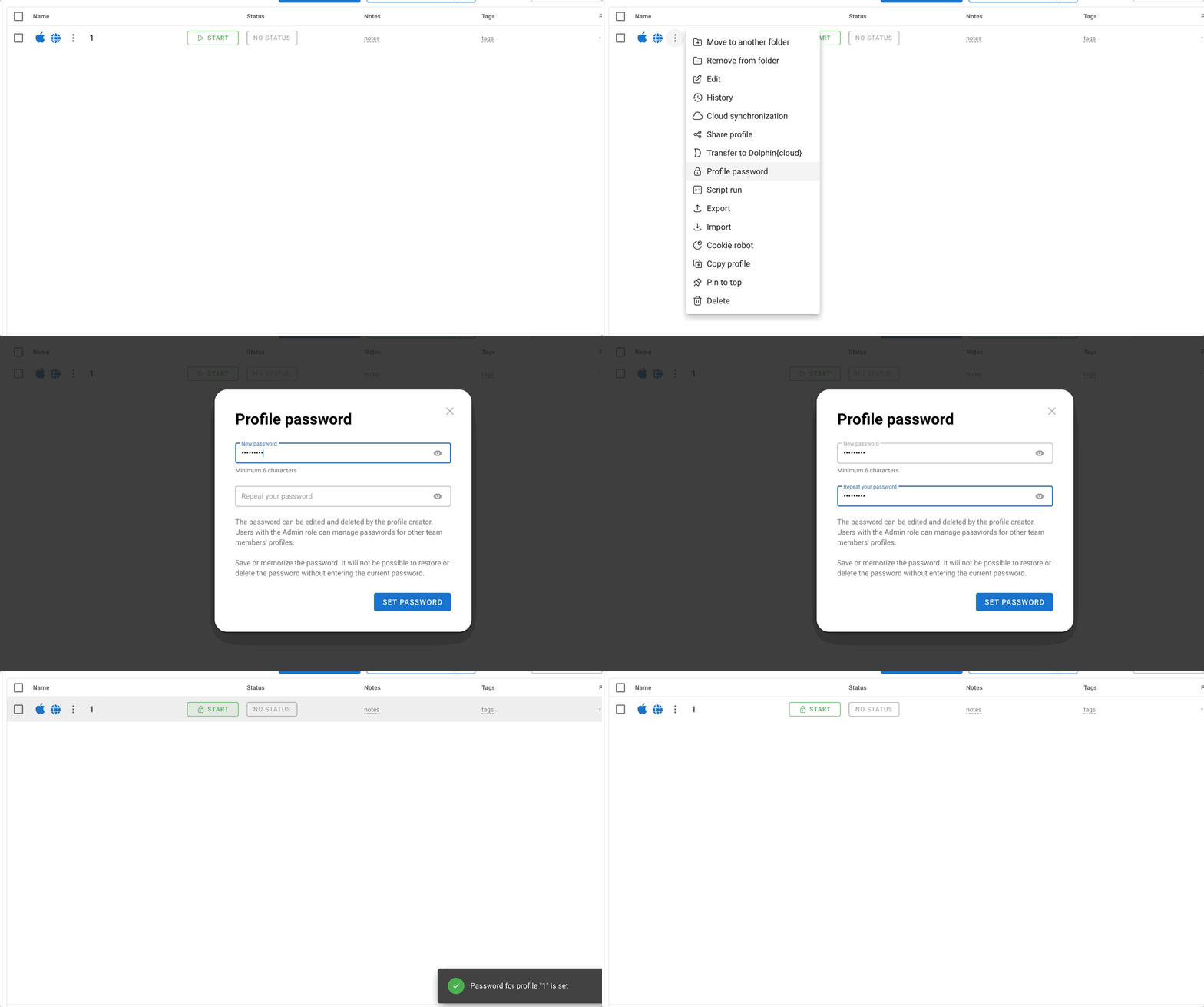
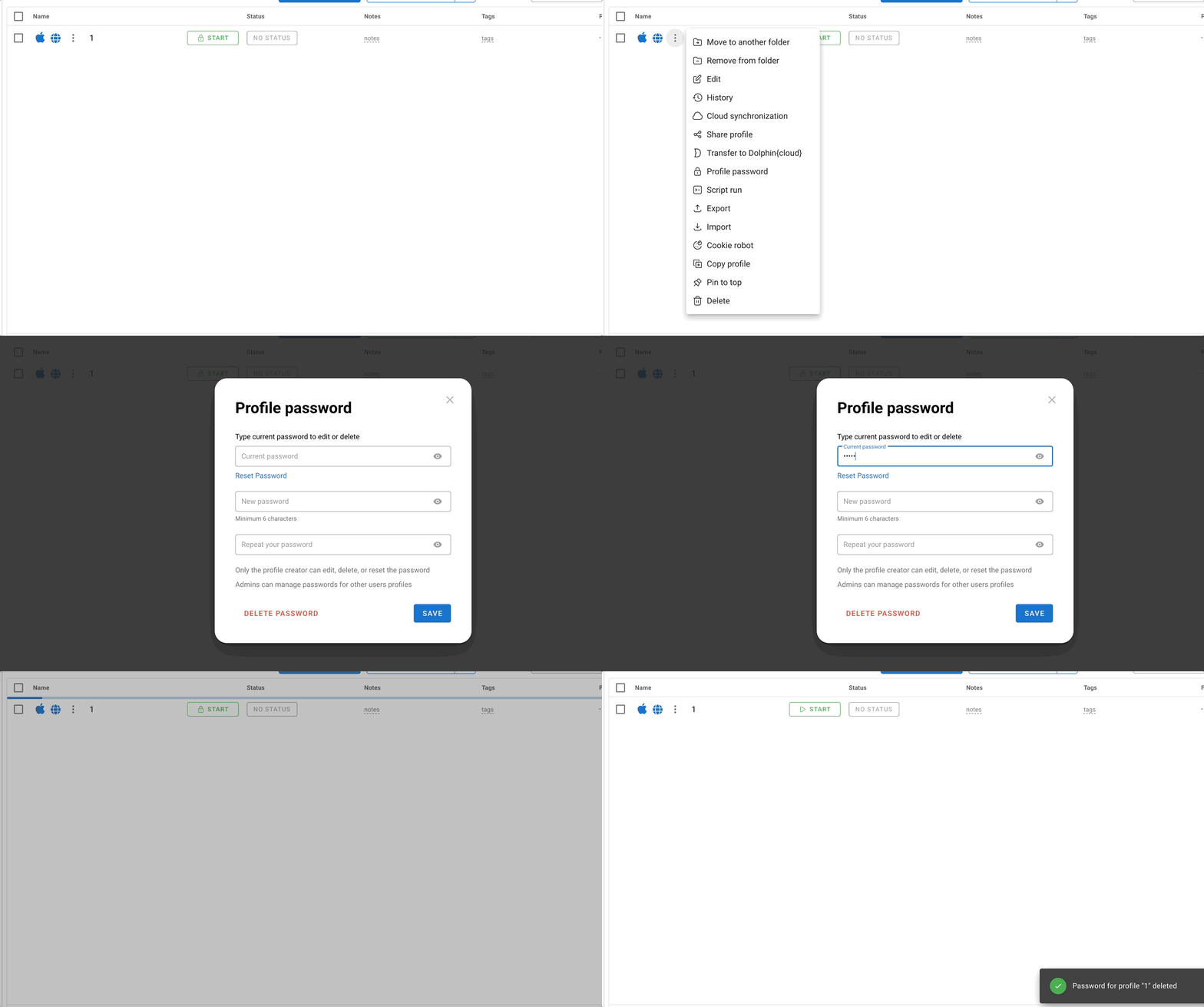
Click the three-dot menu next to the desired profile and select "Profile password." In the window that opens, enter a password and confirm it (minimum 6 characters), then click "Set password" and it's done ✅
⛔️ Incorrect attempts
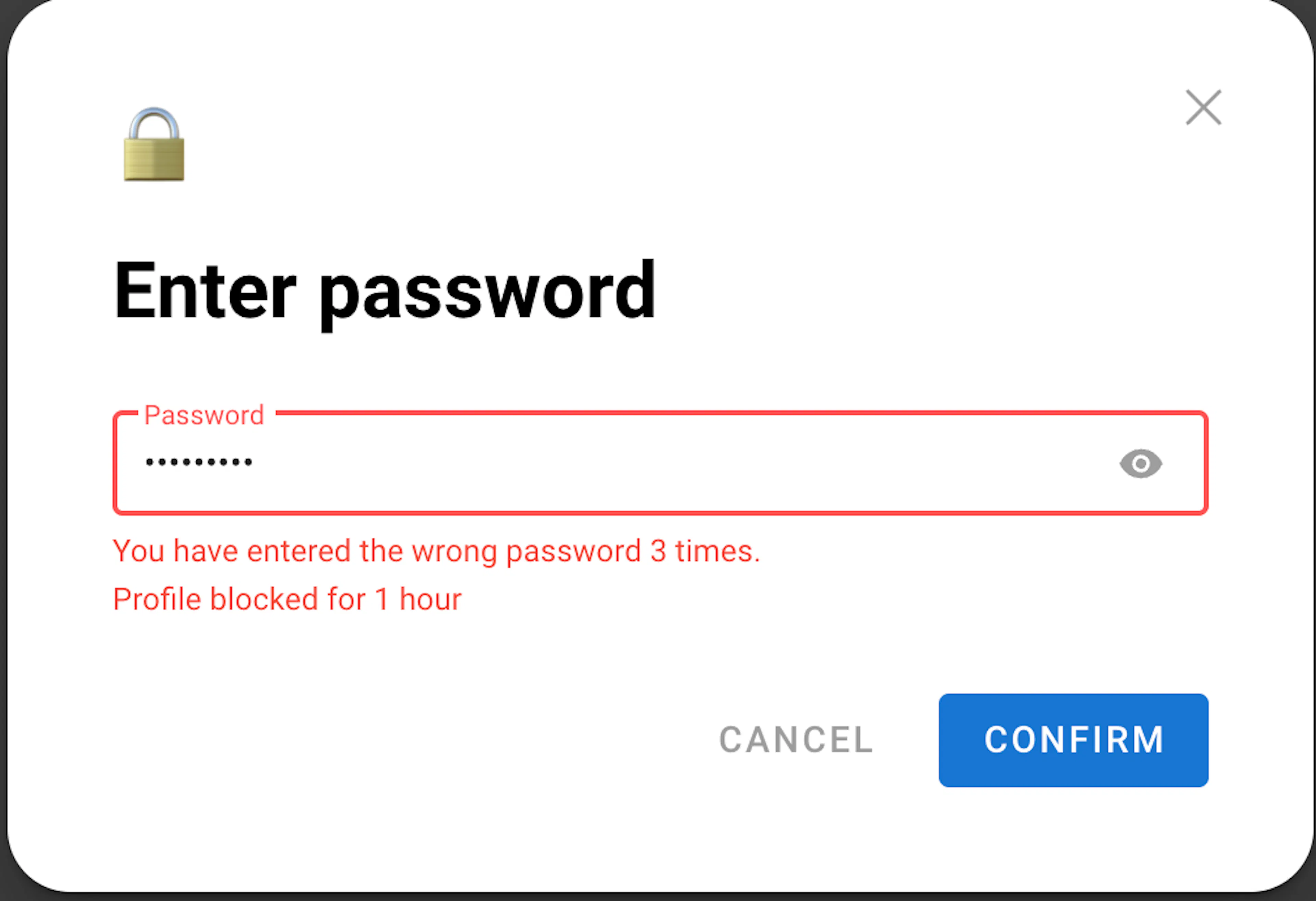
If the password is entered incorrectly 3 times in a row, the profile will be blocked for 1 hour. Keep this in mind and don't lose your password 😉
♻️ Changing and removing a password
To change or remove a password, click the same three-dot menu - "Profile password." Enter the current password at the top, then specify a new password and its confirmation.
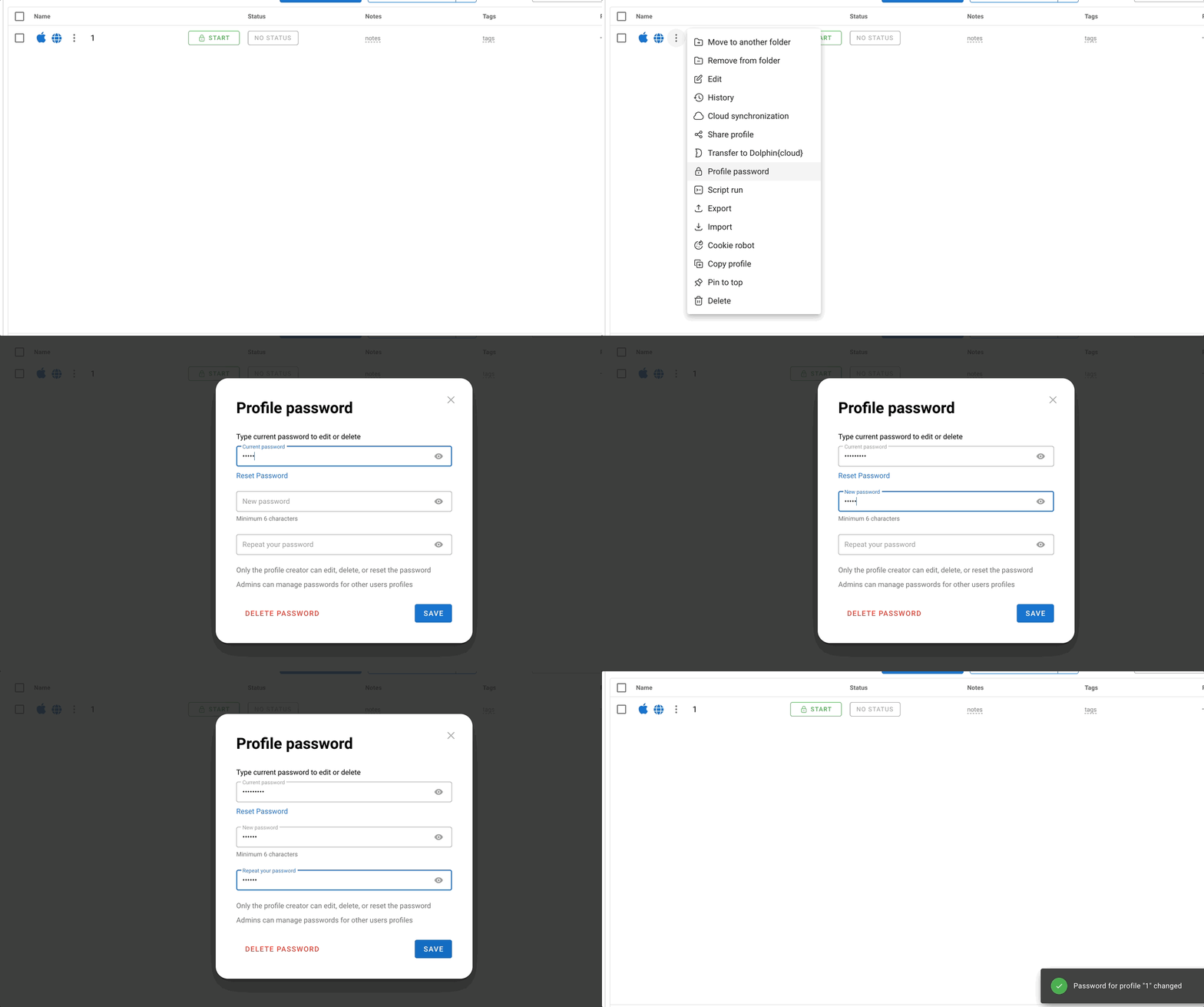
You can also delete the password entirely from here.
🫣 Forgot your password?
Oh, things happen :(
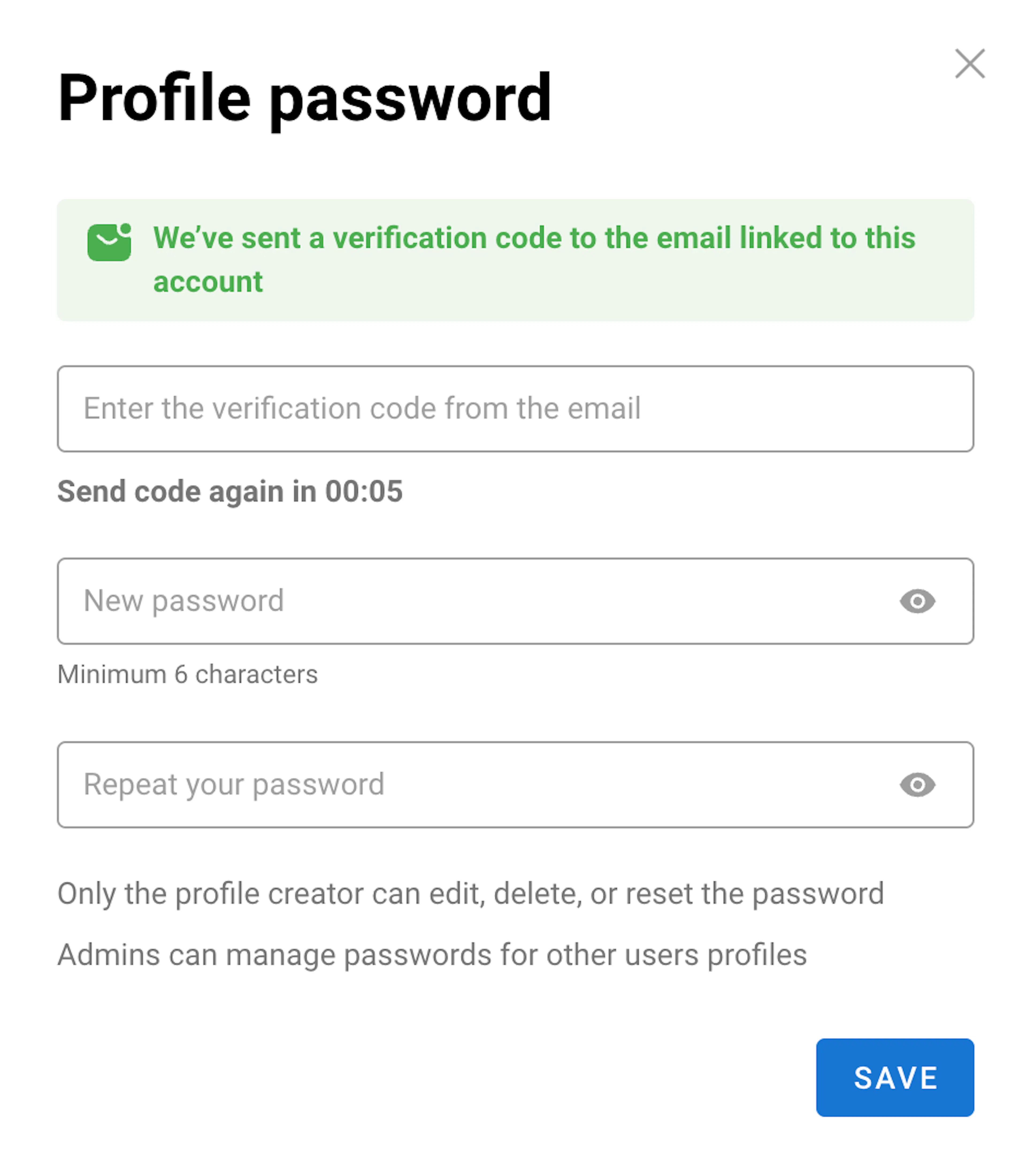
No worries — just click "Reset password." A confirmation code will be sent to your email. Enter the code in the corresponding field and set a new password 🙌🏻