
Profile folders
Folders of profiles are necessary for convenience of their sorting and division into groups necessary for users. How to use them? Let's see.🤔
To start working with folders you can expand the panel of their display, to do this click the button in the form of a folder at the top-left (the same button can be used to minimize the panel) 📁
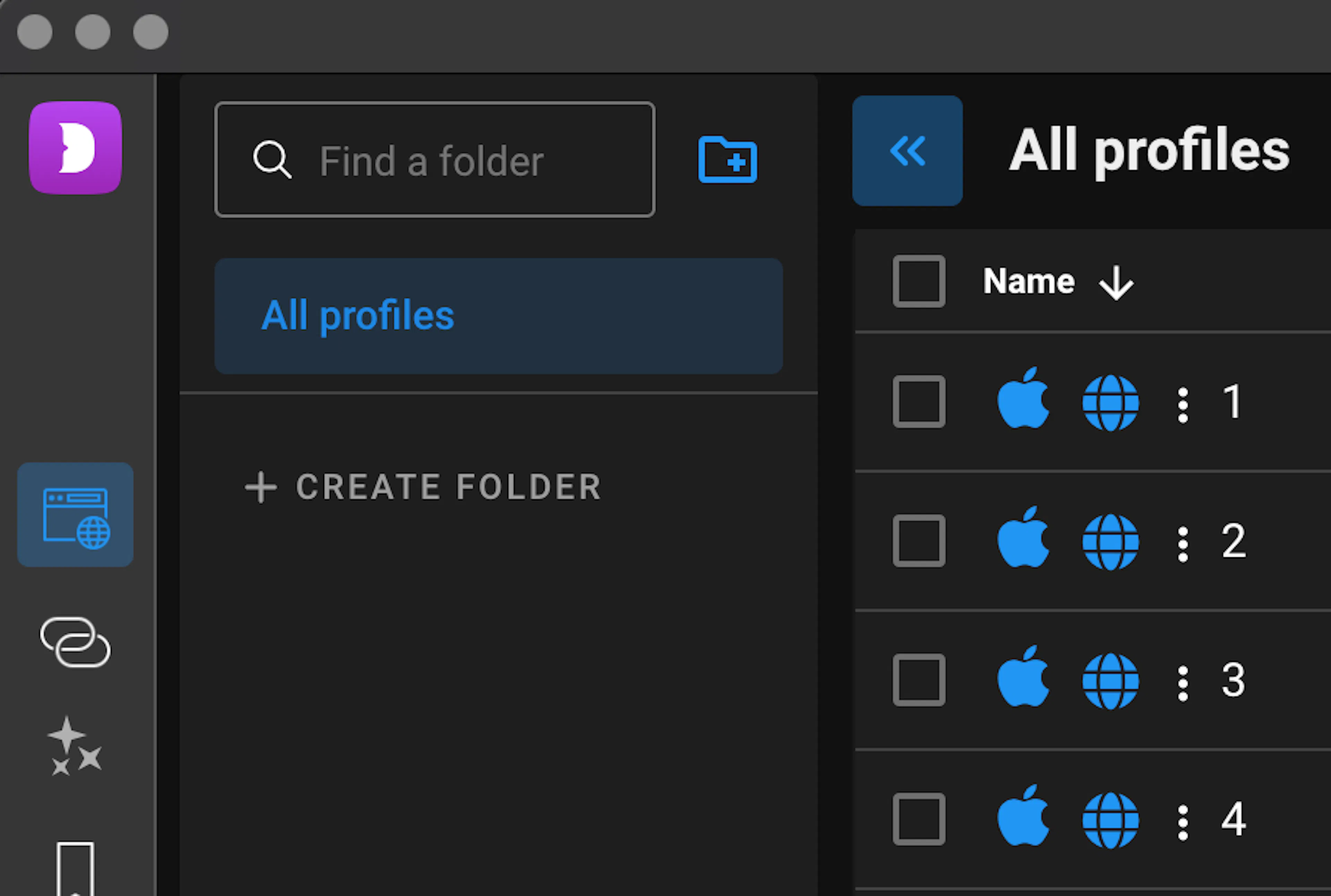
Then you will see the folder panel which contains:
-
Folder search bar
-
Button "Create folder" 📁 (to the right of the search)
-
Button "All Profiles" (to display the whole list regardless of the folder)
-
Button "Create folder" (it is temporary until folders are created, disappears after the first folder is created).
📂 Create Folder
Let's get to the main thing — click "Create Folder" in any of the two places.
Here you can set the name of the folder (with any characters or emoji) and then click "Create Folder"
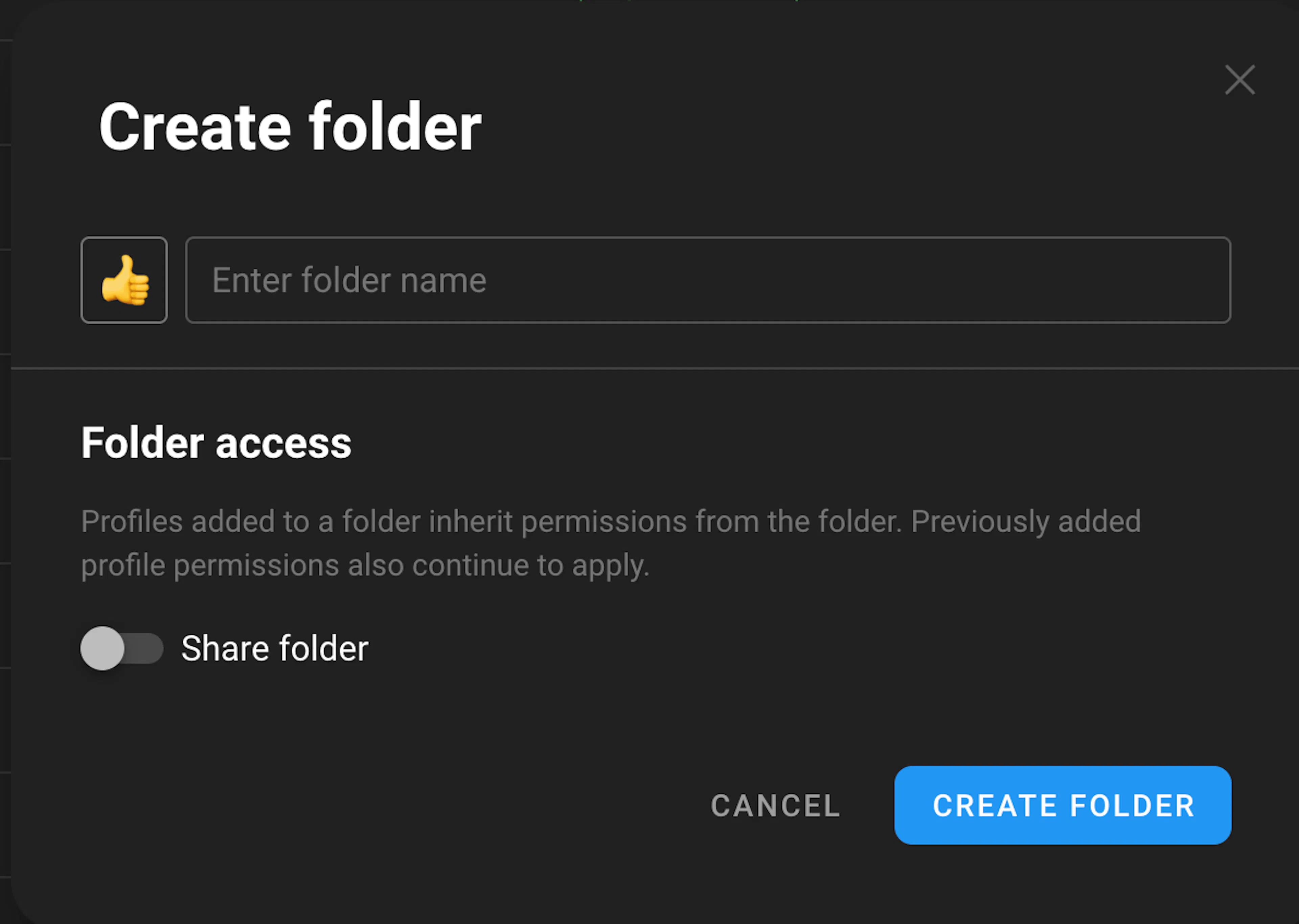
Also to the left of the name you can choose an emoji for the folder to make it easier to label the folders you want 😉
Now our folder is displayed in the list and you can work with it. 🚀
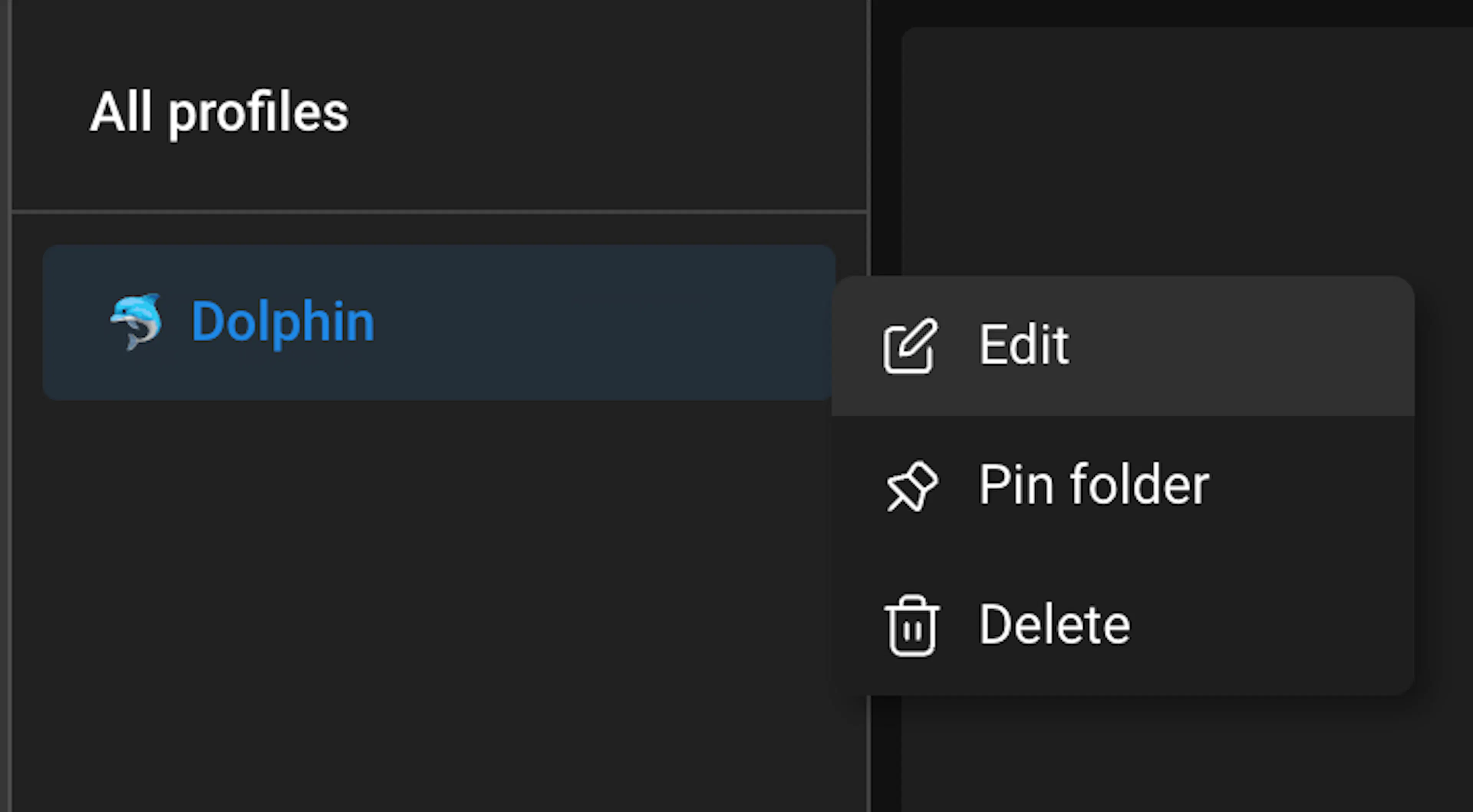
If you click on the "three dots" near its name, you can:
-
"Edit": change the name or delete it
-
"Pin Folder": pins it to the top of the list
-
"Delete folder"
🫨 IMPORTANT
When deleting a folder, you are given the choice to delete the folder with the profiles in it, or just the folder itself without deleting profiles, take this into account when deleting!
🗂 Add profiles to a folder
Option #1 (Multiple profiles)
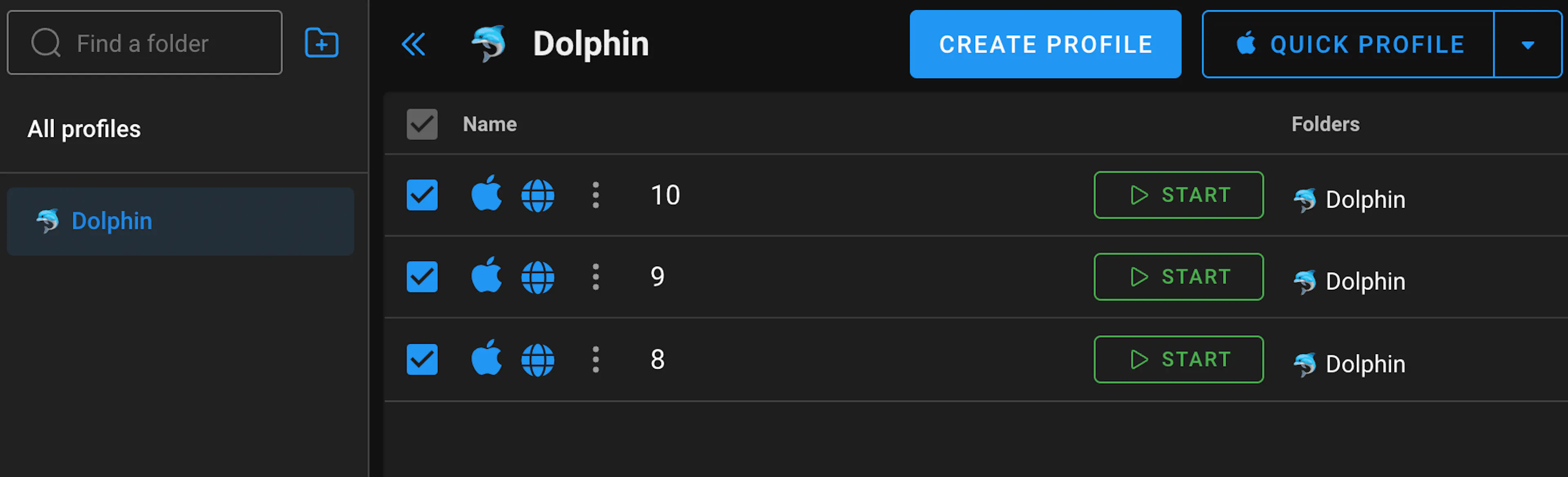
Just select a few profiles (check the box) and click "Add to Folder" on the panel that appears at the bottom, select the folders we want in the window that opens, and finish with the "Move" button. Done!
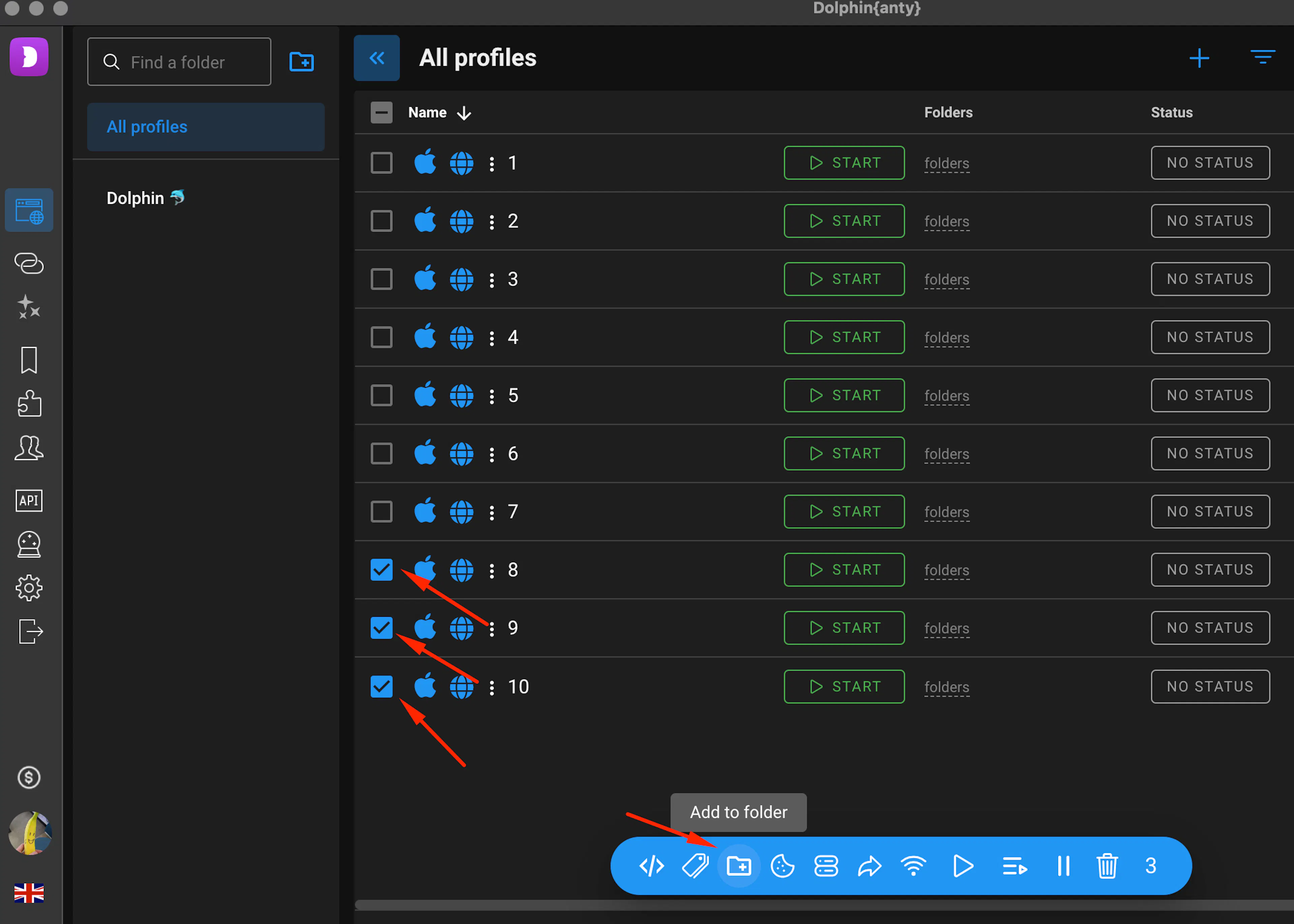
Our profiles are now linked to a folder and if we click on it in the list of folders we will see only those profiles that are in it.
Also in the stock of each profile is written in what folders it is in, and at the top you can see what folder is currently open.
Option #2 (per profile)
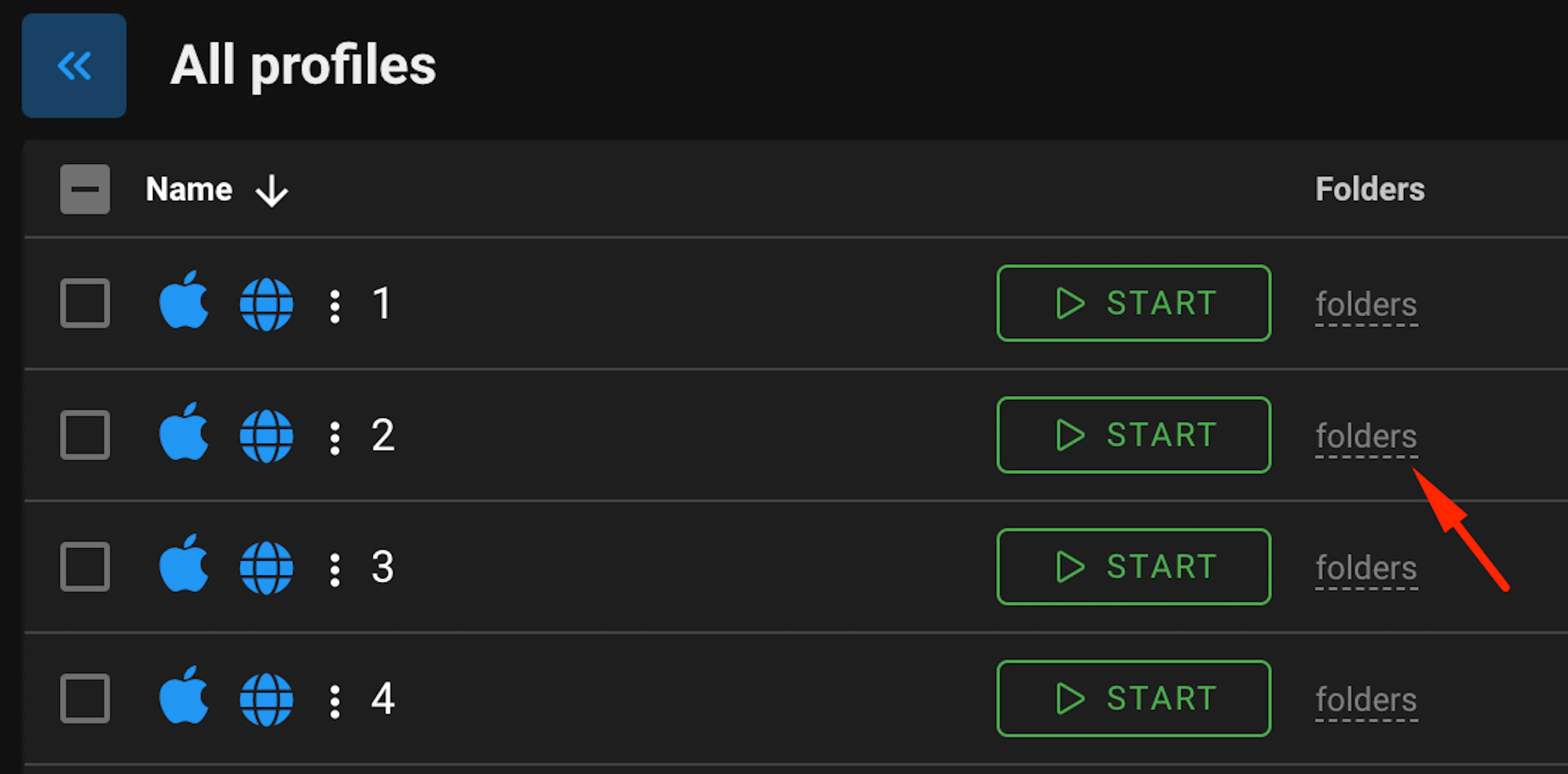
Click "Folders" in the line of the profile we need and in the window that appears, we also select the folder we need and click "Move". Done! ✅
🗑 Remove a profile from the folder
How to remove a profile from a folder ?
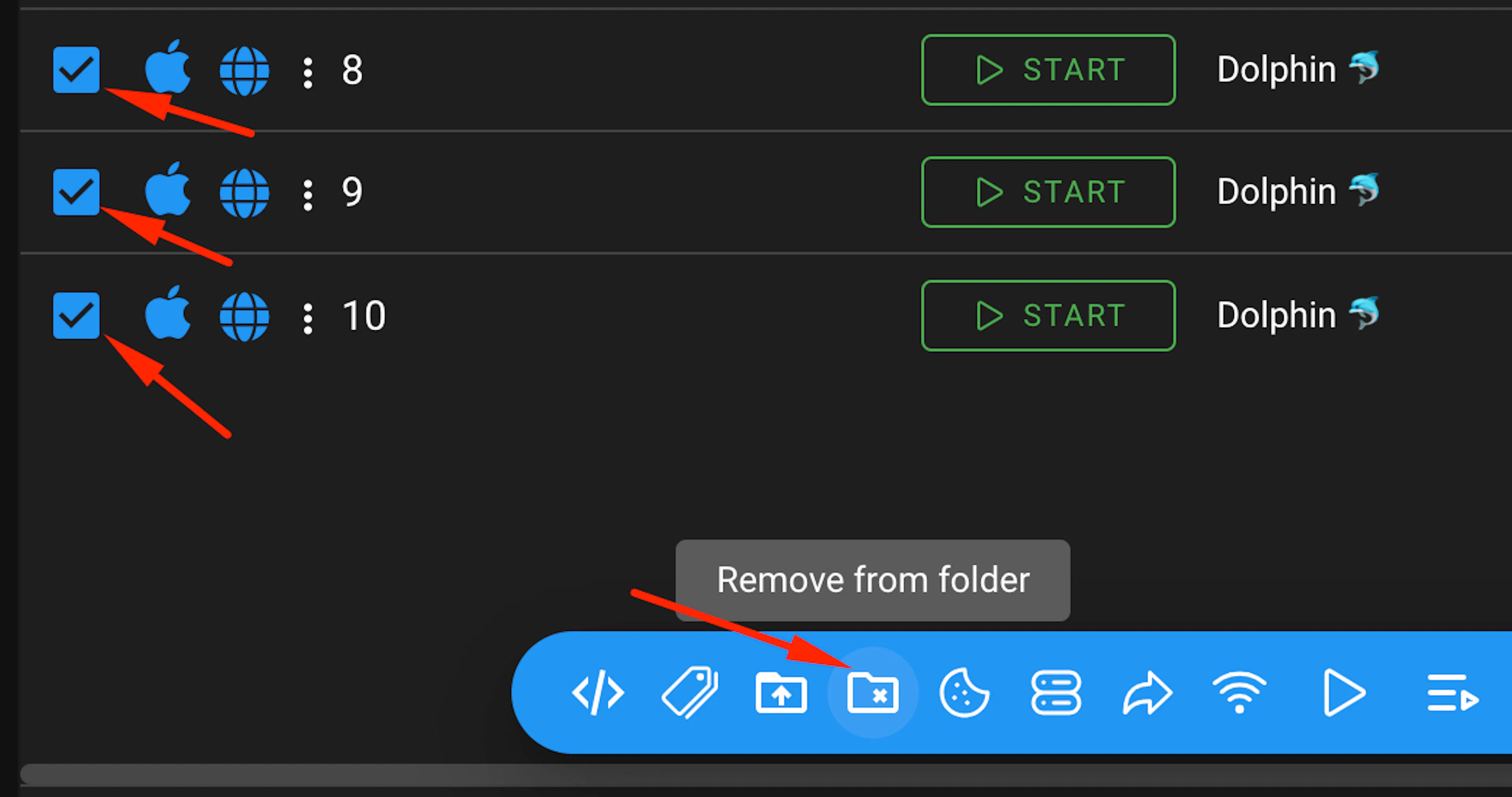
Select the profiles (by checkbox) and click "Remove from folder" in the bottom panel, then confirm the action in the window that appears.
Can I swap folders? 🤔
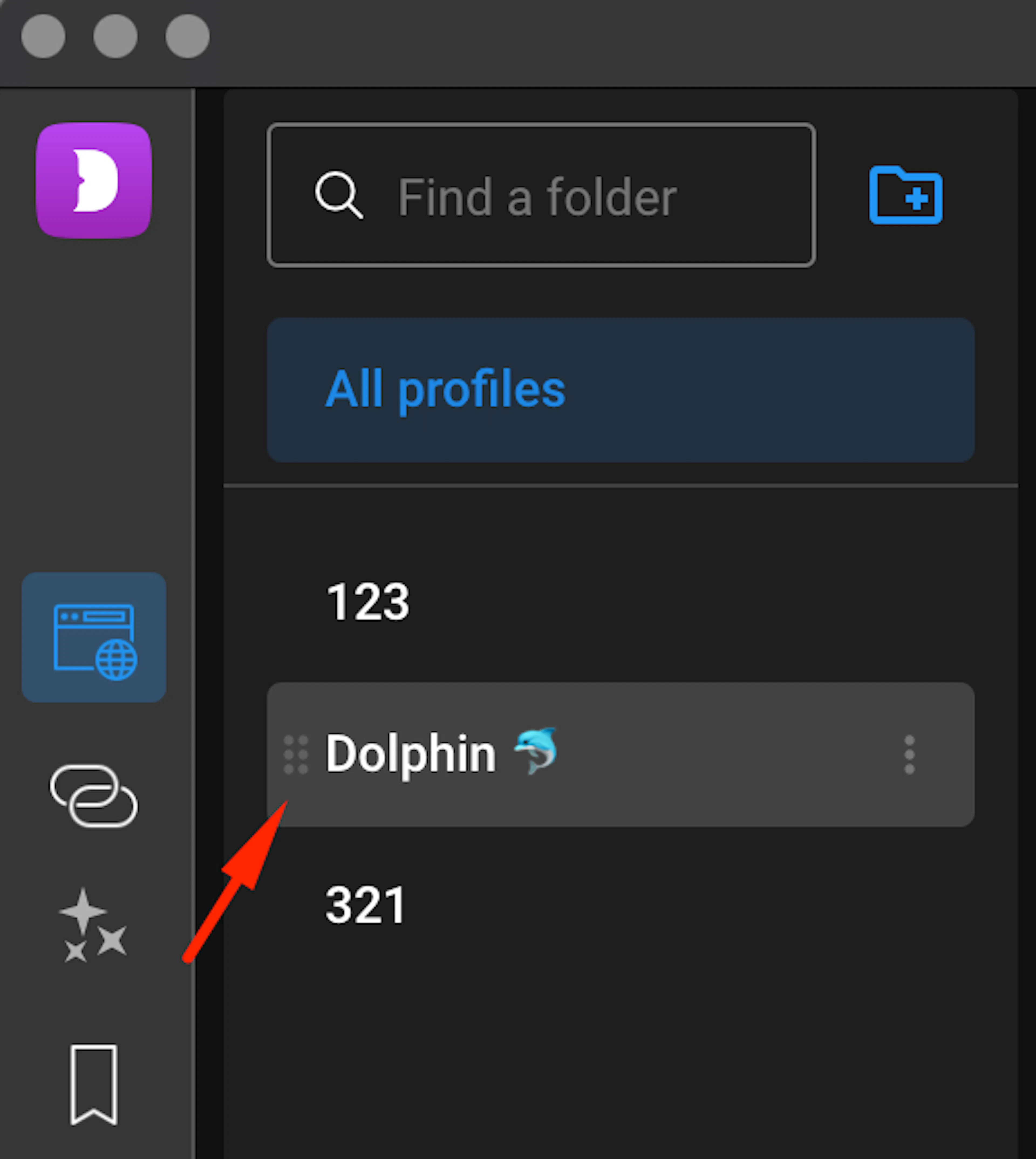
Yes, you can. And it is done very simply:
Click the place where "six dots" are shown and drag the folder up or down, then it will change its place. ✅
🤝 Folder Sharing
Folders can be shared with other team members so they can view and work with the profiles inside.
Sharing can be set up in two ways:
- When creating a folder — the creation window already includes a "Share folder" toggle.
Turn it on, select the users you need, and configure access permissions before the folder is even created. This is handy when you already know who will need access 😉
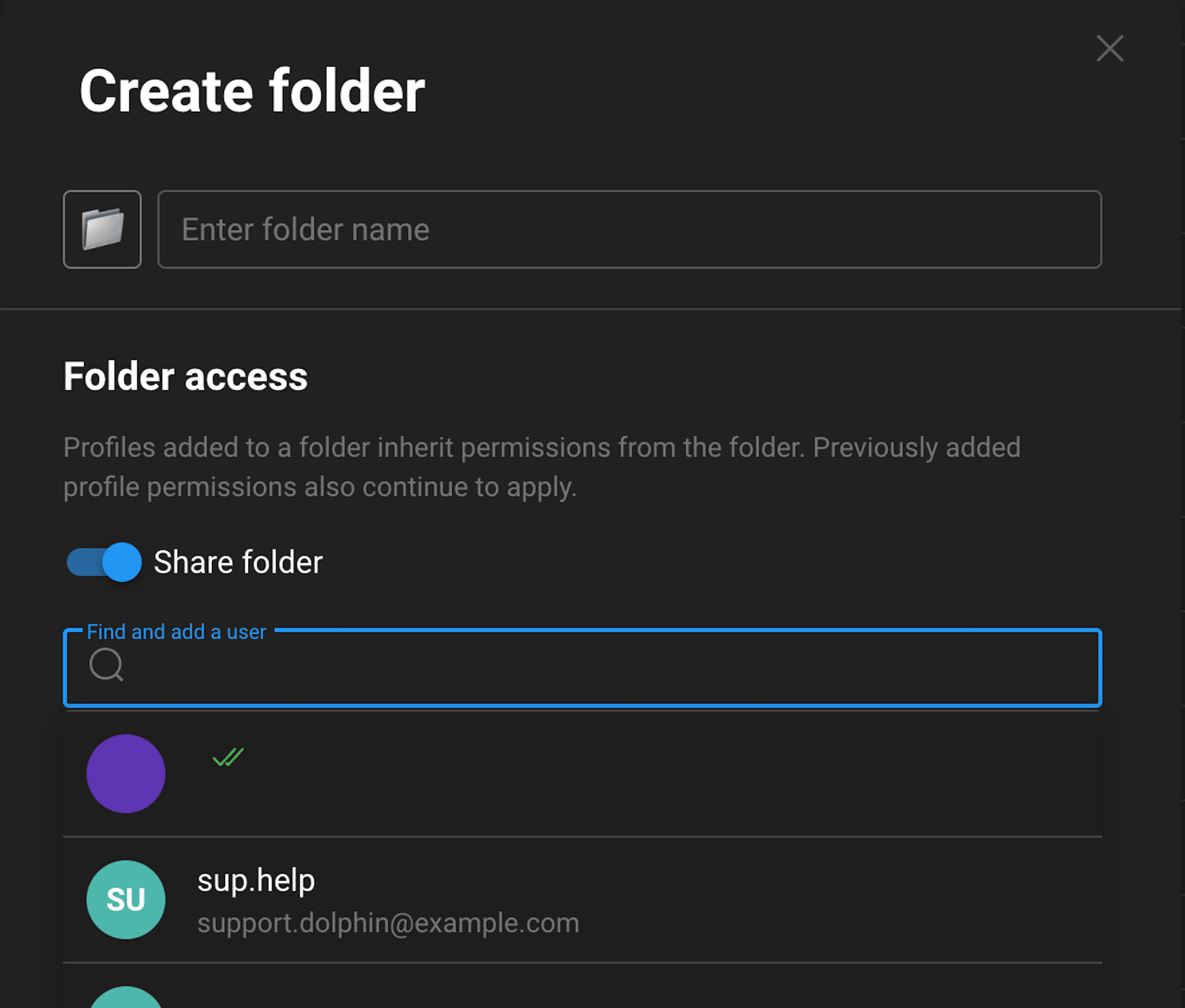
- For an existing folder — hover over the desired folder, click the three-dot menu on the right, and select "Edit." In the window that opens, toggle on "Share folder" 🔓
In both cases, once sharing is enabled, a dropdown list of users will appear where you can find the team member you need.
You can also search by email by simply typing the address into the search bar.
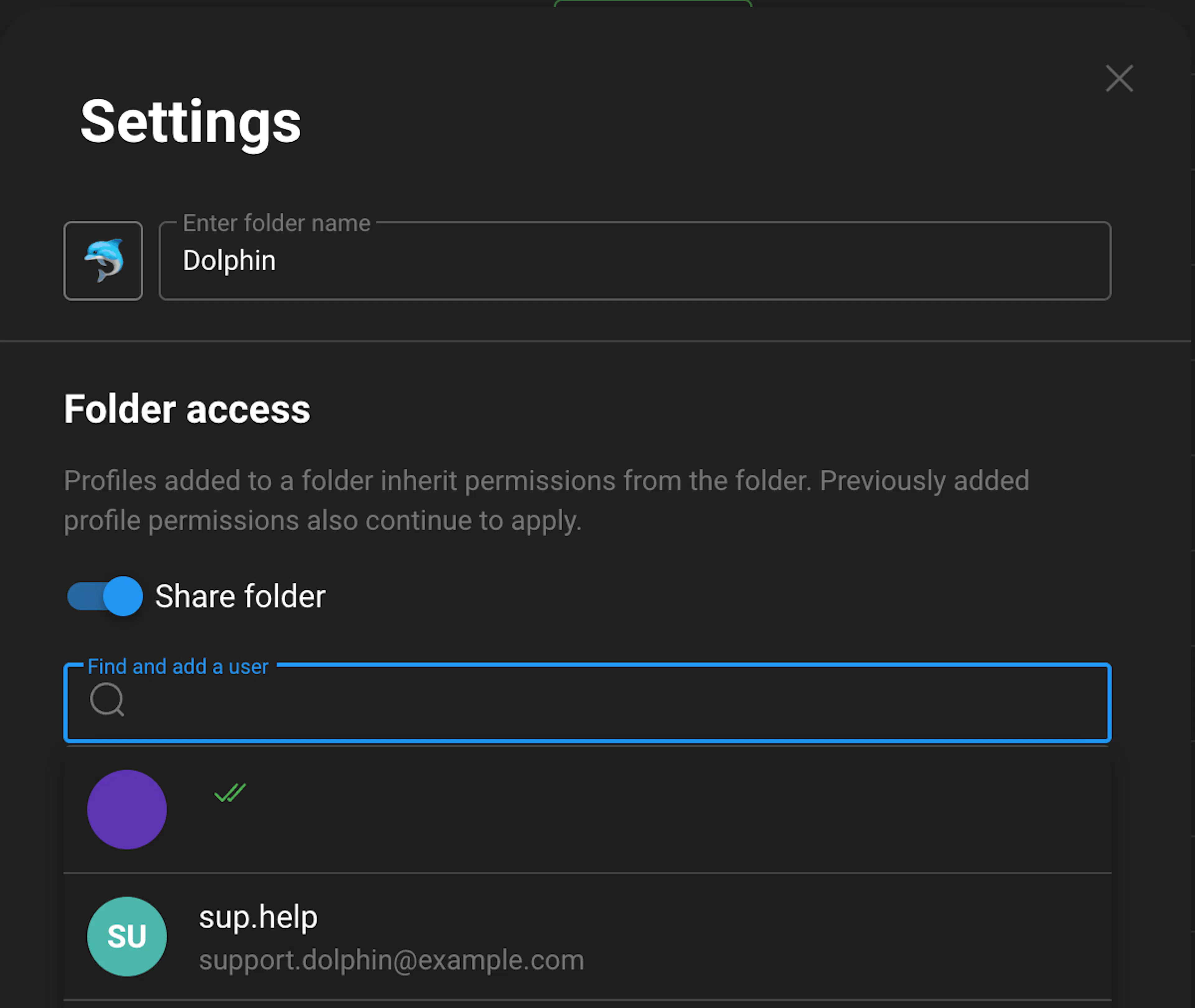
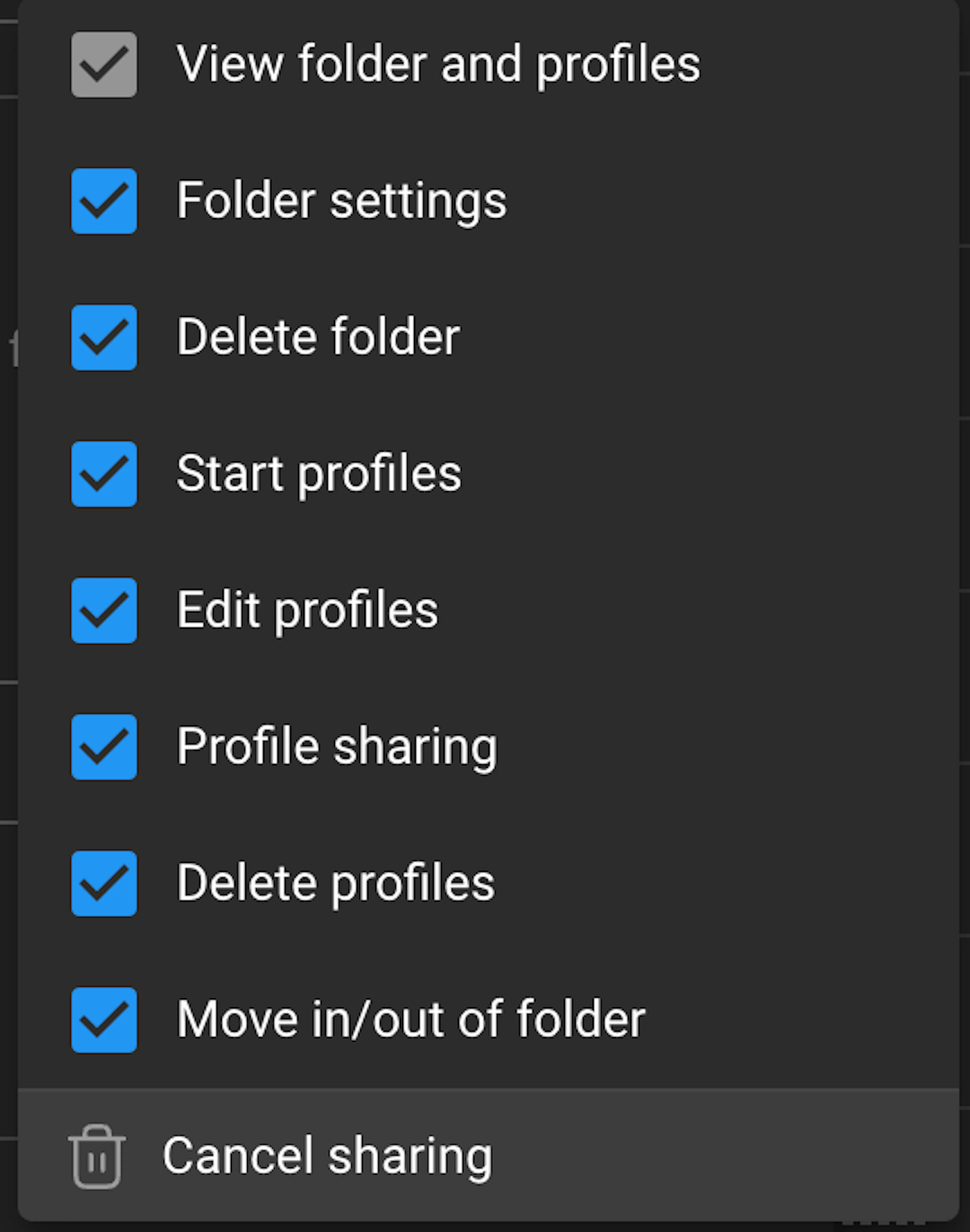
When sharing a folder, you can fine-tune access permissions for each user. Here are the available permissions:
-
View folder and profiles — the user can see the folder and the profiles in it
-
Folder settings — can change folder parameters
-
Delete folder — can delete the folder
-
Start profiles — can launch profiles from the folder
-
Edit profiles — can modify profile settings
-
Profiles sharing — can share profiles with others
-
Delete profiles — can delete profiles from the account
-
Move in/out of folder — can add and remove profiles from the folder
This allows you, for example, to give an employee access to only view and launch profiles without the ability to edit or delete anything 👌
To revoke a user's access, click "Cancel sharing" at the bottom of the permissions list.
ℹ️ Additional
-
One profile cannot be in several folders at once.
-
It is always worth paying attention when deleting a folder - whether it should be deleted together with the profiles that are in it or not.