Creating statuses, tags, notes in Dolphin {anty}
The Dolphin {Anty} browser provides custom statuses, tags, and notes for browser profiles.
What is it for ?
Statuses help you instantly see what stage a particular browser profile is at. For example, you create a profile with a Facebook account and assign it the status NEW. After certain actions, the account goes into POLICY, so you update the status accordingly. Once it passes POLICY and you've created and launched a campaign, you set it to ACTIVE. This way, you always know exactly what's going on with each profile.
The names of statuses can be absolutely any, they do not affect anything and serve only for convenience when working with our browser.
📊 Creating a status
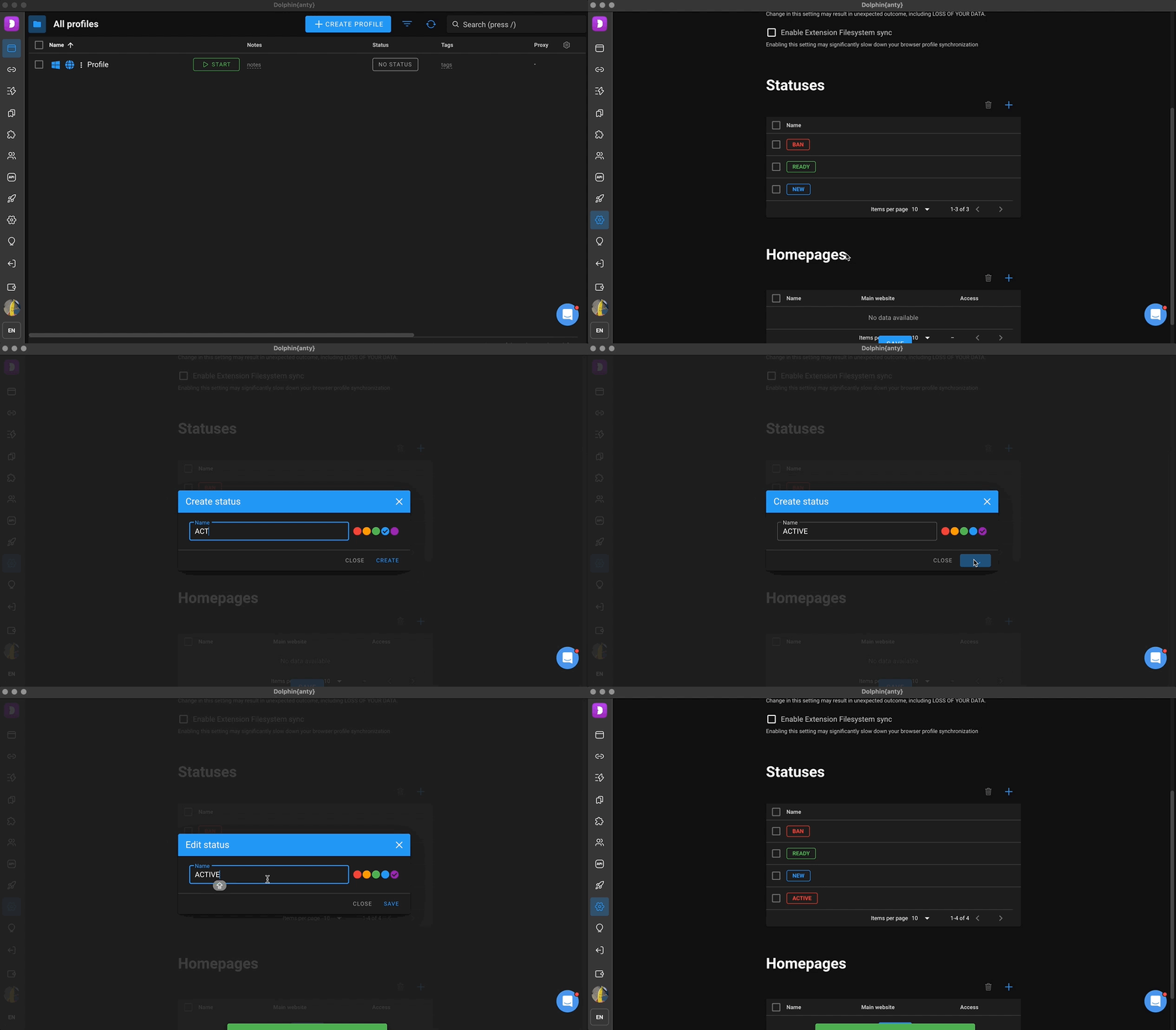
- To add your custom statuses to Dolphin{anty}, you need to go to "Settings" by clicking the appropriate icon in the left menu:
- Scroll down to the "Statuses" block:
- Then, by clicking on the ➕ button, and a status creation dialog will appear.
- In this window, enter the status name and pick a color for it.
- Once you click "Create," the status will show up in the Statuses block under "Settings."
- You can also edit or delete existing statuses from this window (available only to users with the Admin role).
✅ Assigning a status to a profile
You can assign a status to a profile in two ways:
- In the profile creation/editing window
- Directly in the list of browser profiles.
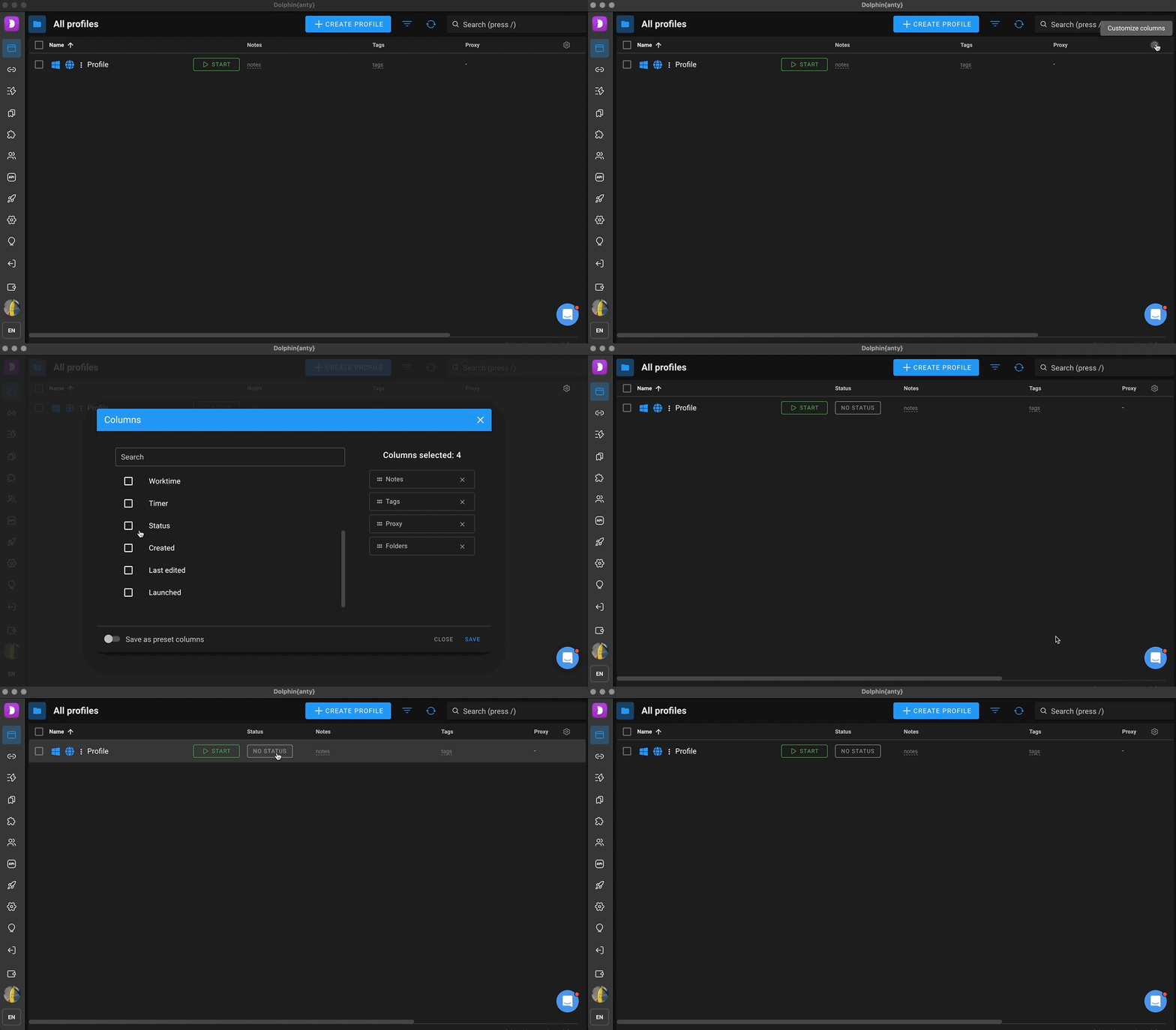
Let's start with the second method — we'll come back to the first one a bit later. To assign a status to a profile, you'll need to enable the "Statuses" column.
Here's how to do it:
- Click "Column settings" in the top right corner.
- Type the column name in the search field or pick it from the list, then click "Save" — the column will appear in the "Browser profiles" section.
Now let's see how to assign a status to a profile ⬇️
- Go to the "Browser profiles" section.
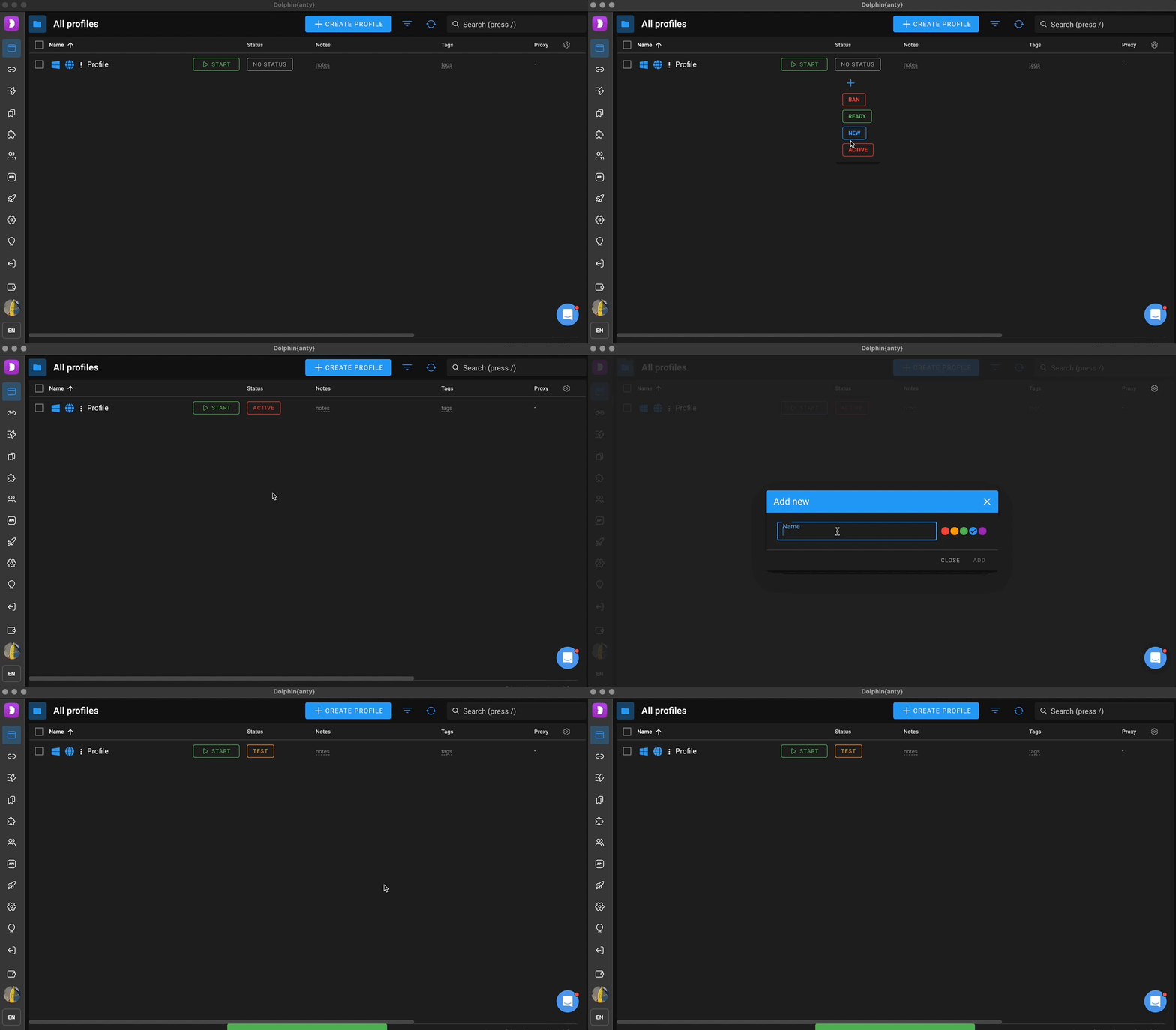
- Next to your browser profile name, click the "No status" button in the "Status" column, then select the desired status from the dropdown list.
By the way ! ☝️
Here, in the drop-down list you can add a status by clicking ➕ button.
Once selected, the status will be displayed in the Statuses column next to the profile.
📊 Adding Notes and Tags
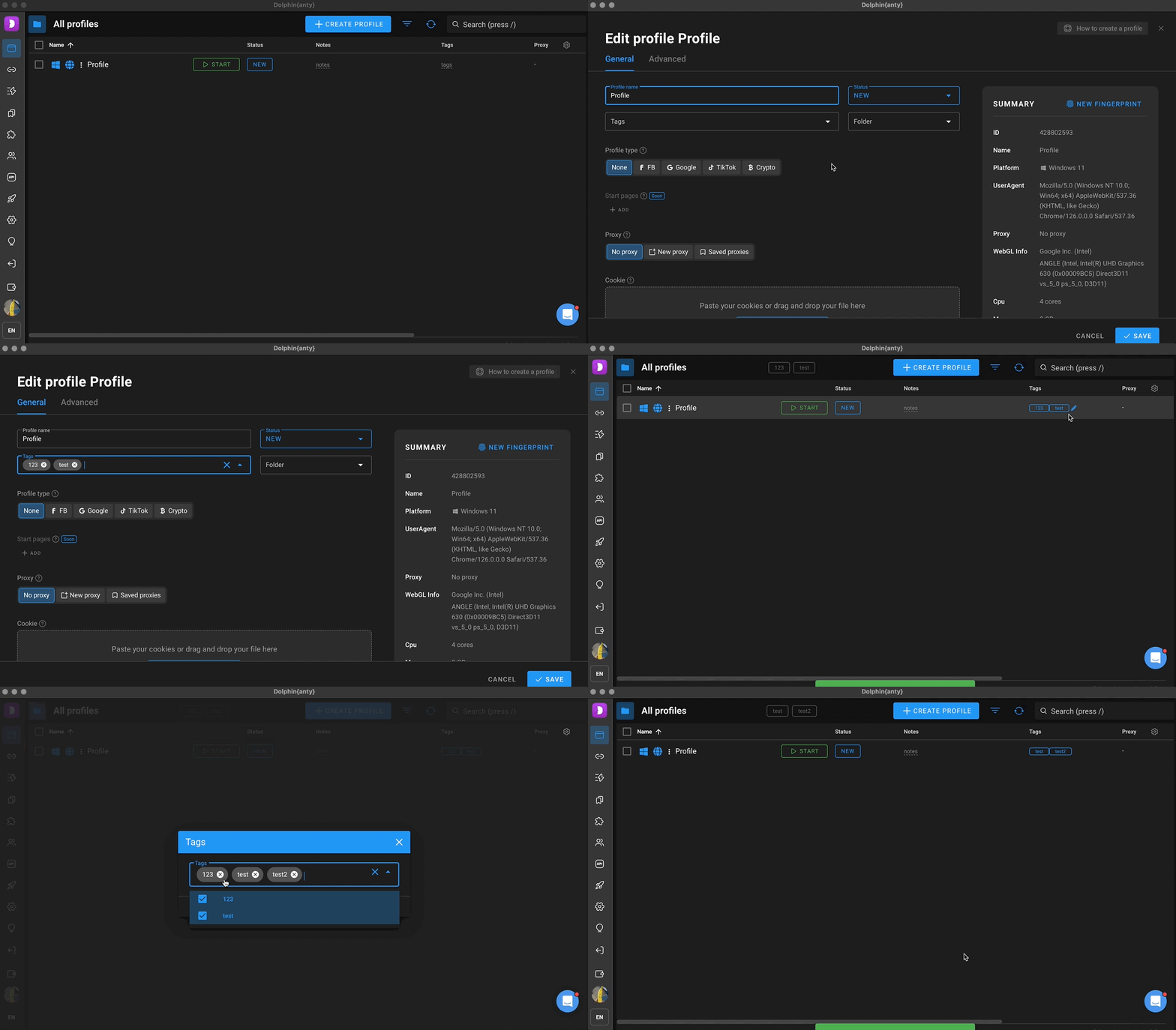
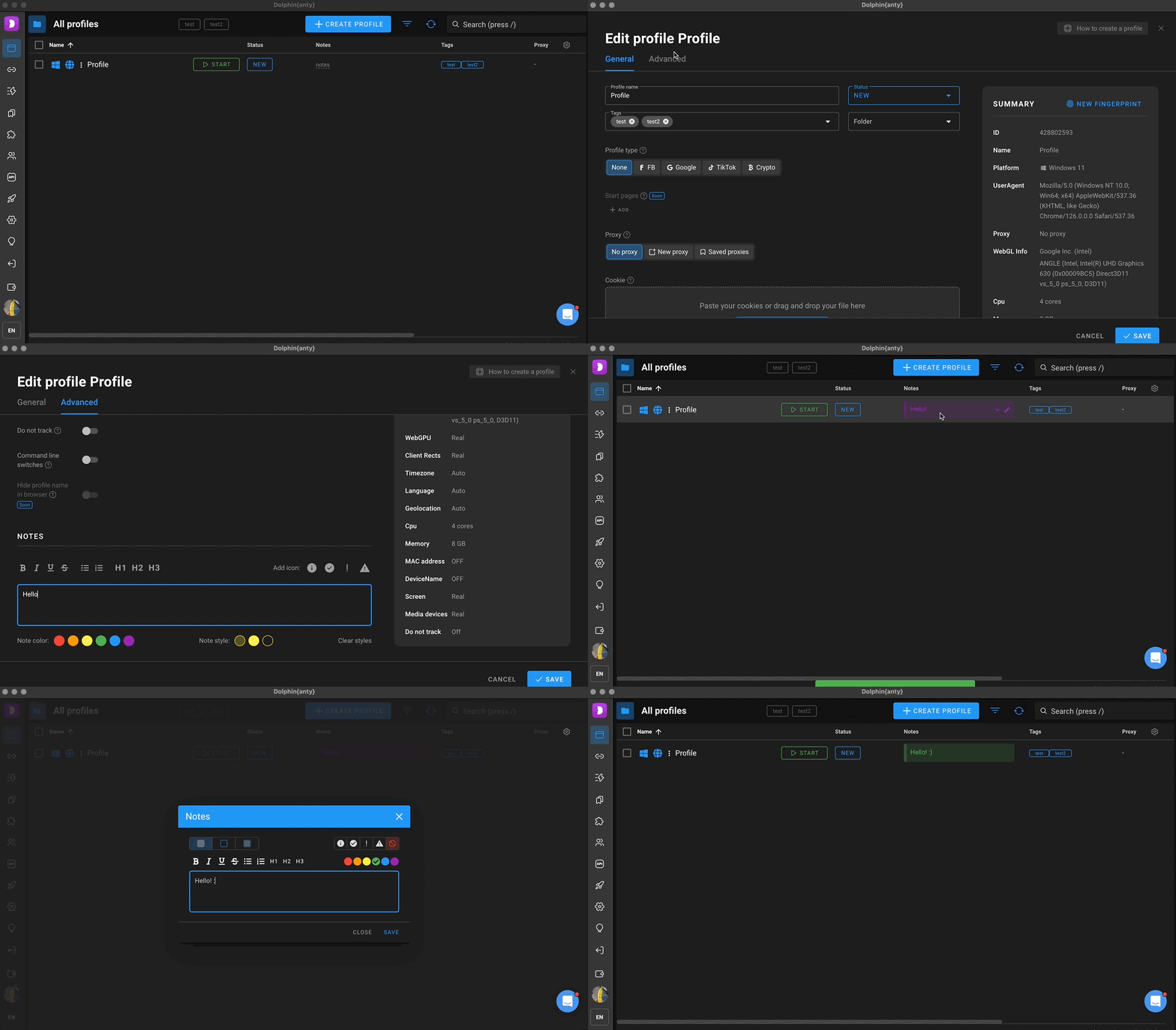
For easy sorting and just to record important information about the profile, for example - mail from the account inside the profile in the notes, and the tag "FB" to understand what the profile was created for.
Tags and Notes can be added/changed in two ways, similar to statuses - directly in the list of profiles, or when creating an edit:
- When creating/editing an account, in the "Advanced" tab
- On the "Browser profiles" list page