
Deleting and restoring profiles in Dolphin {anty}
🗑 Deleting profiles
Dolphin{anty} provides deleting browser profiles and storing them in the Recycle Bin 🗑 Deleting profiles within 48 hours of deletion. During this time you can restore deleted profiles yourself.
Trash bin available only on Base, Team, Enterprise plans ✅
On Free and Starter plans there is no Trash Bin ❌
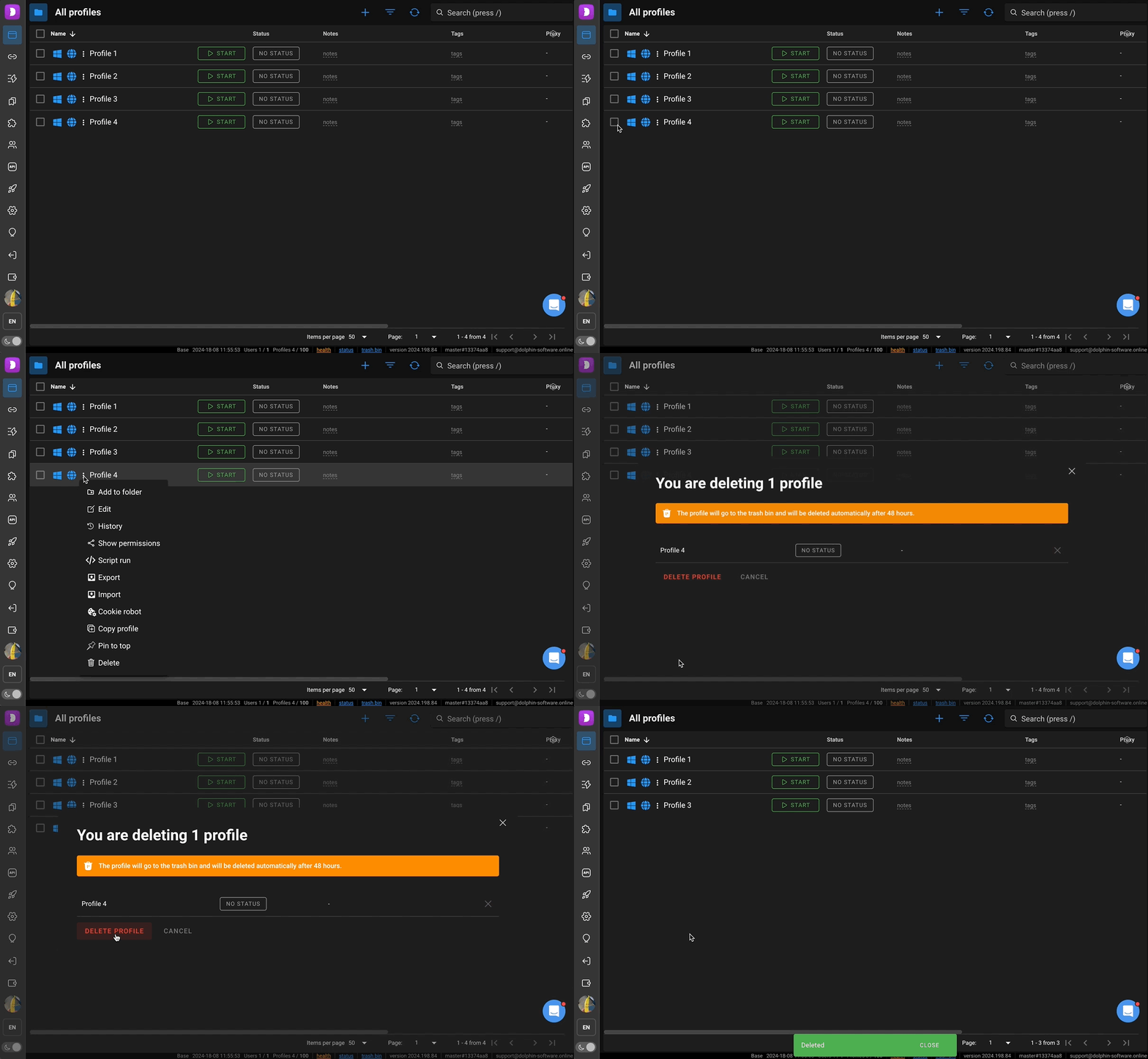
Deleting a single profile
To delete a single profile, click the three-dot icon next to the profile name, and then select "Delete":
Deleting Multiple Profiles
Bulk deletion of profiles is not available on the Free plan. On this plan, profiles can only be deleted one by one: via the three dots next to the profile name ➡️ "Delete", as described above.
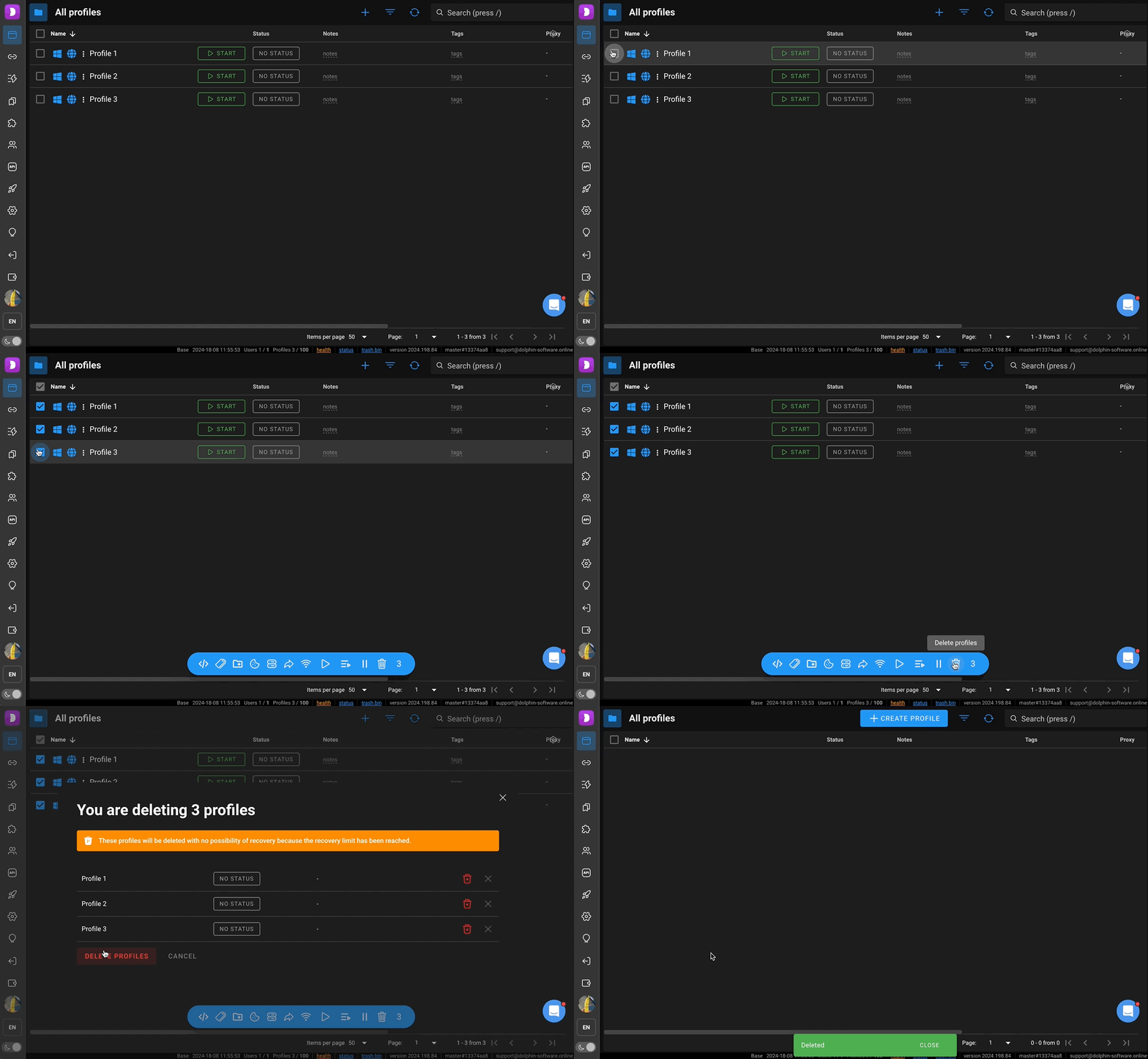
If you need to delete multiple profiles at once, check the ones you want and click the trash bin icon in the blue bar that appears at the bottom.
A dialog window will open, click "Delete" to confirm or "Cancel" to back out. Once deleted, the profiles will disappear from the main list.
❤️ Restore
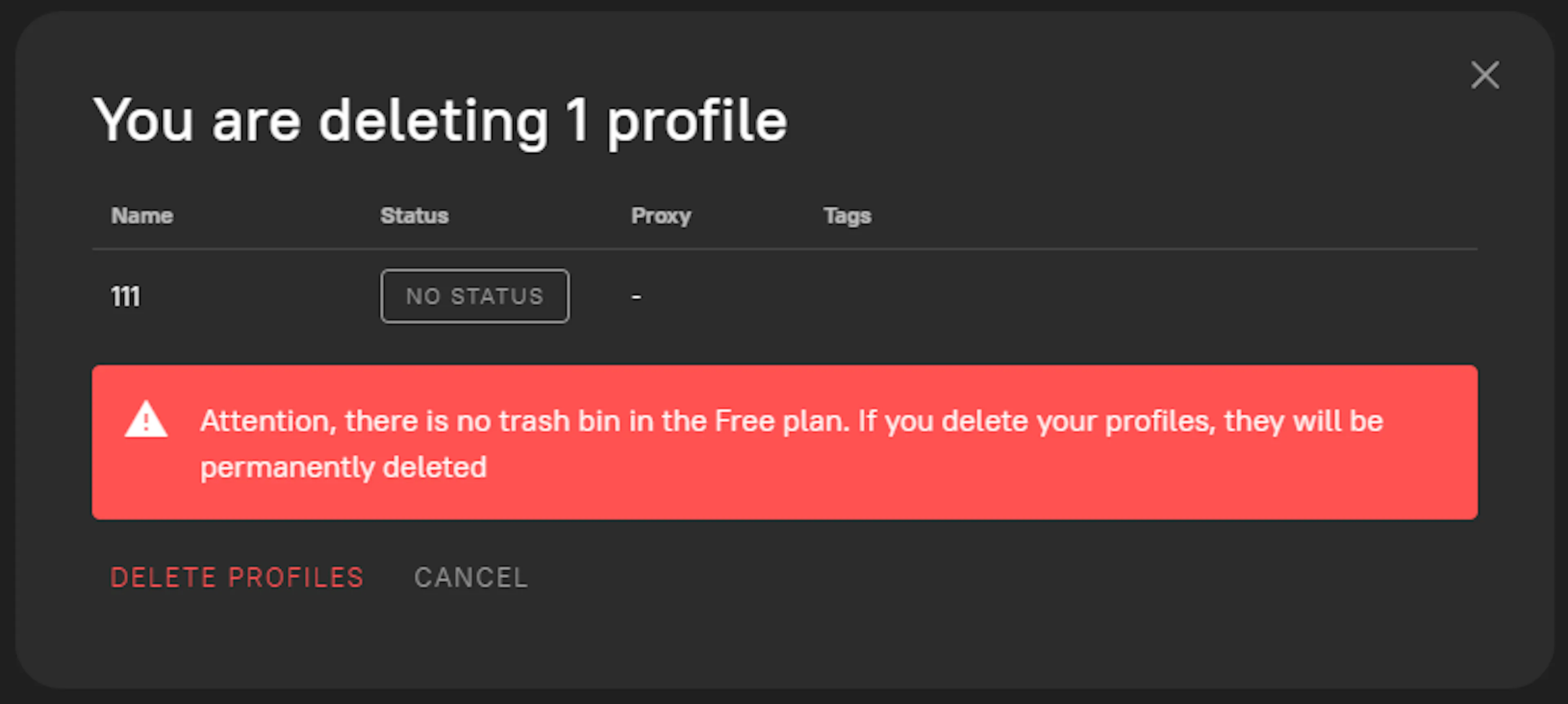
On the Free plan, deleted profiles cannot be restored, not even through technical support. Users receive a corresponding notification upon deletion.
Recovery is only available on the Base, Team, and Enterprise plans.
Step 1: Go to the trash bin
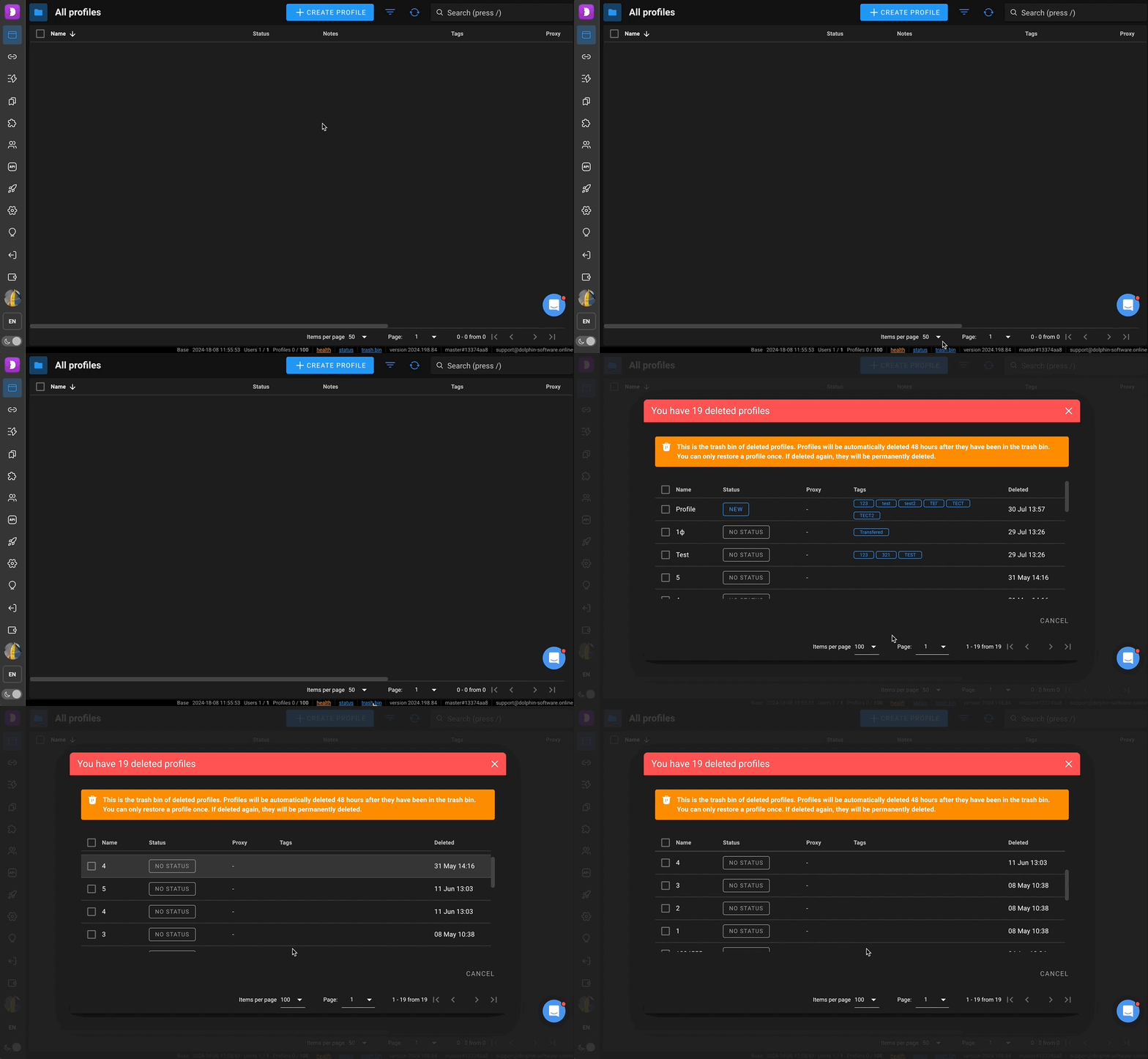
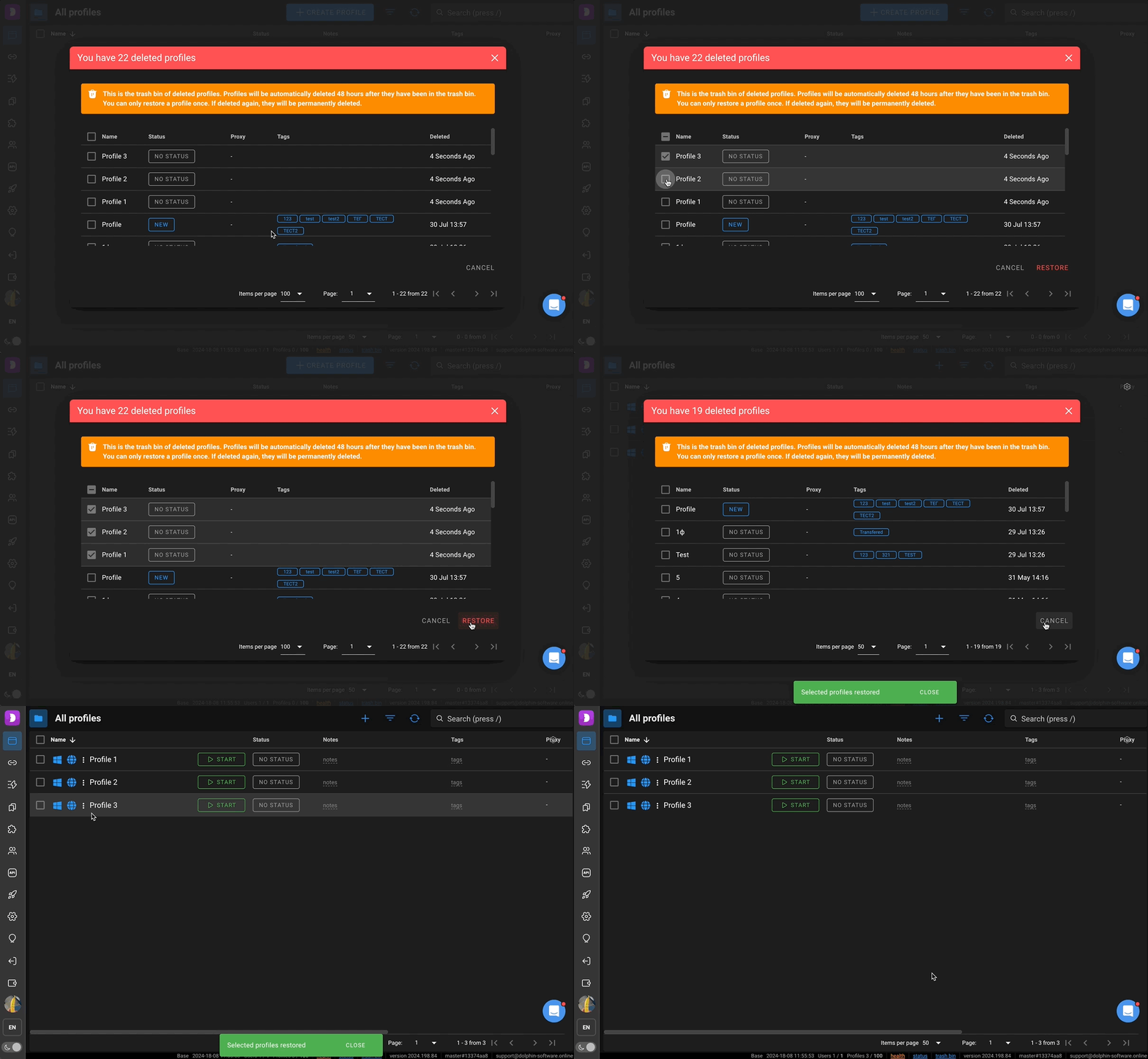
After deletion, profiles are moved to the trash and stored there for 48 hours. To open it, click the "Trash bin" button in the bottom right corner, after that a window will appear with a list of all deleted profiles.
Step 2: Select profiles to restore
Check the desired profiles and click the "Restore" button.
Step 3. Check profiles in the main list
Verify the profiles in the browser profiles list. After restoration, the profiles will reappear in the general browser profiles list.
❗️ IMPORTANT:
-
Profiles that are not restored within 48 hours are permanently deleted!
-
Profiles that have already been restored once and then deleted again cannot be recovered. Profiles can only be restored ONE time.