
☁️ Profile Cloud Sync
Cloud synchronization allows you to store profile data in Dolphin{anty}'s cloud storage. This makes it possible to use the profile across multiple devices and collaborate with your team.
🔛 Where to manage sync?
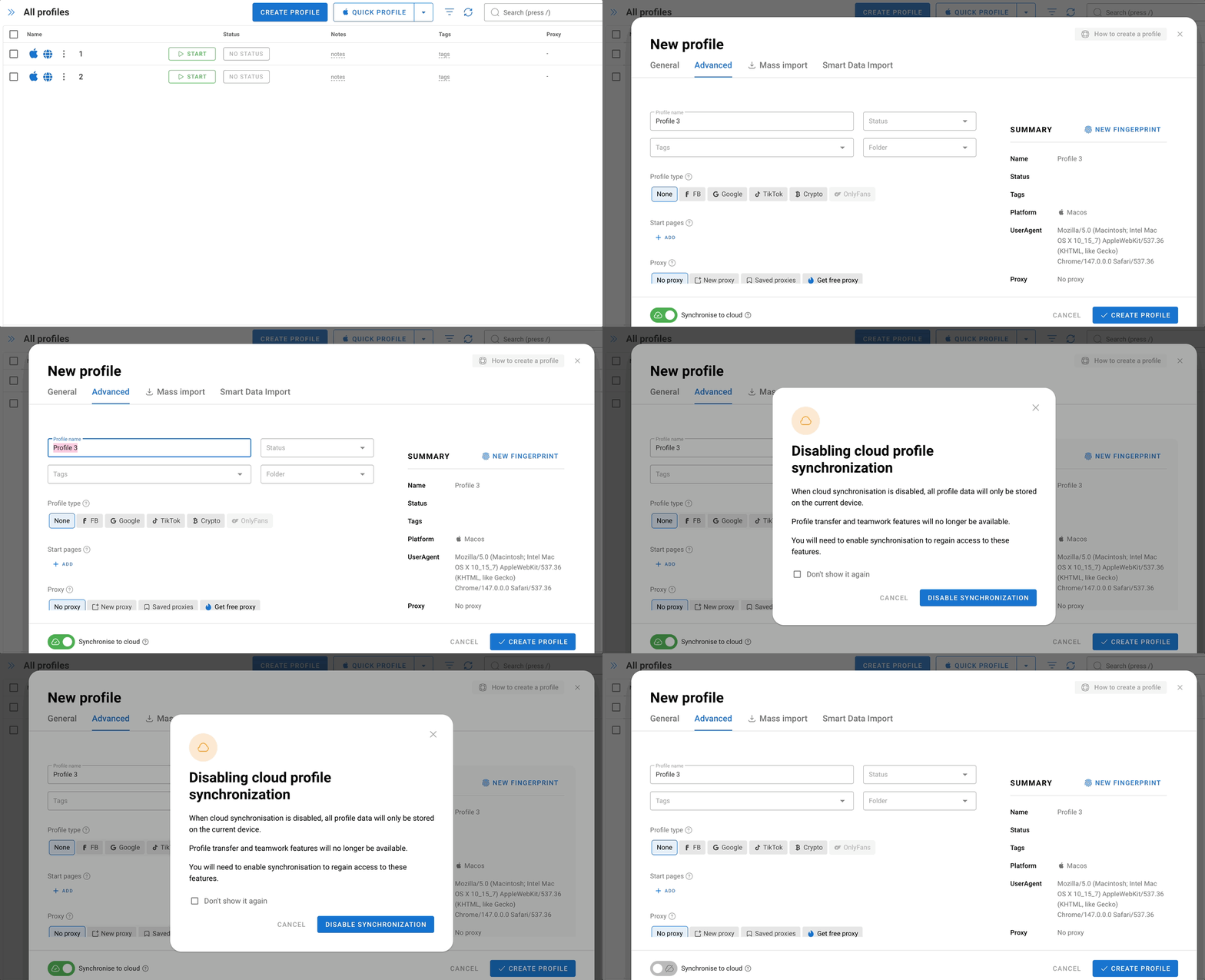
When creating a profile:
At the bottom of the creation window there is a "Synchronise to cloud" toggle. If you already know the profile will only be used locally, you can turn it off right away before clicking "Create profile."
For an existing profile:
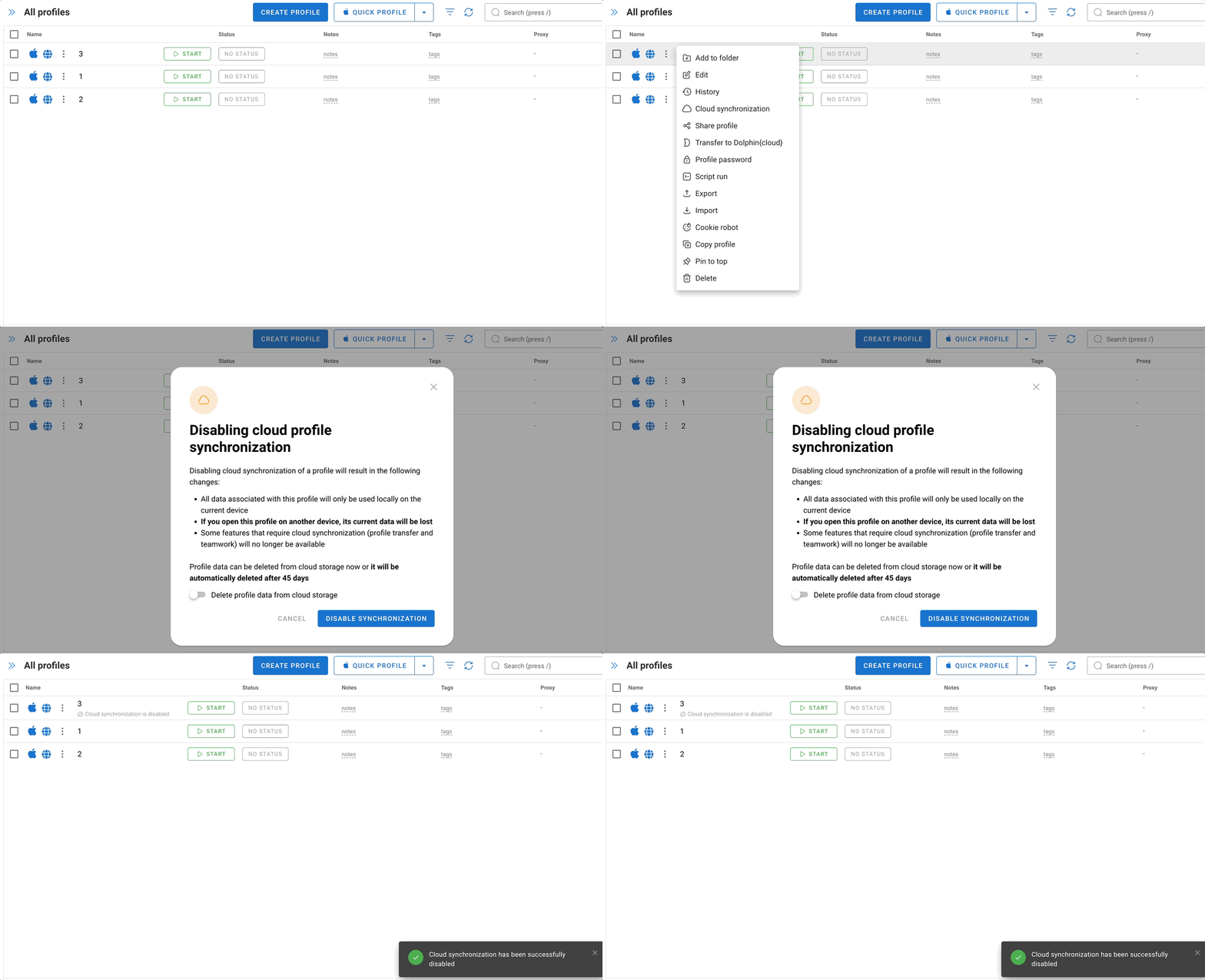
Сlick the three-dot menu next to the profile and select "Cloud synchronization."
Keep in mind a few conditions:
- The profile must have been launched at least once on this PC — this is needed to download the data locally. Otherwise, the system will show an error, since disabling sync without a local copy would lead to data loss.
- The profile must be closed when disabling sync, you cannot manage synchronization while the profile is running.
- If the profile is shared with another user, you need to stop sharing the profile first, and only then you'll be able to disable cloud sync.
❗️ What happens when you disable it?
🔸 All profile data will be stored only locally on the current device
🔸 If this profile is opened on another device, its current data will be lost
🔸 Some features that require cloud sync (profile transfer and teamwork) will become unavailable
🔸 To restore access to these features, you will need to re-enable synchronization
Profile data can be deleted from cloud storage immediately upon disabling, or it will be automatically deleted after 45 days.
💡 Please note: If your profile is shared with other users, you cannot disable cloud sync, you must first unshare it.
🔄 How to re-enable sync?
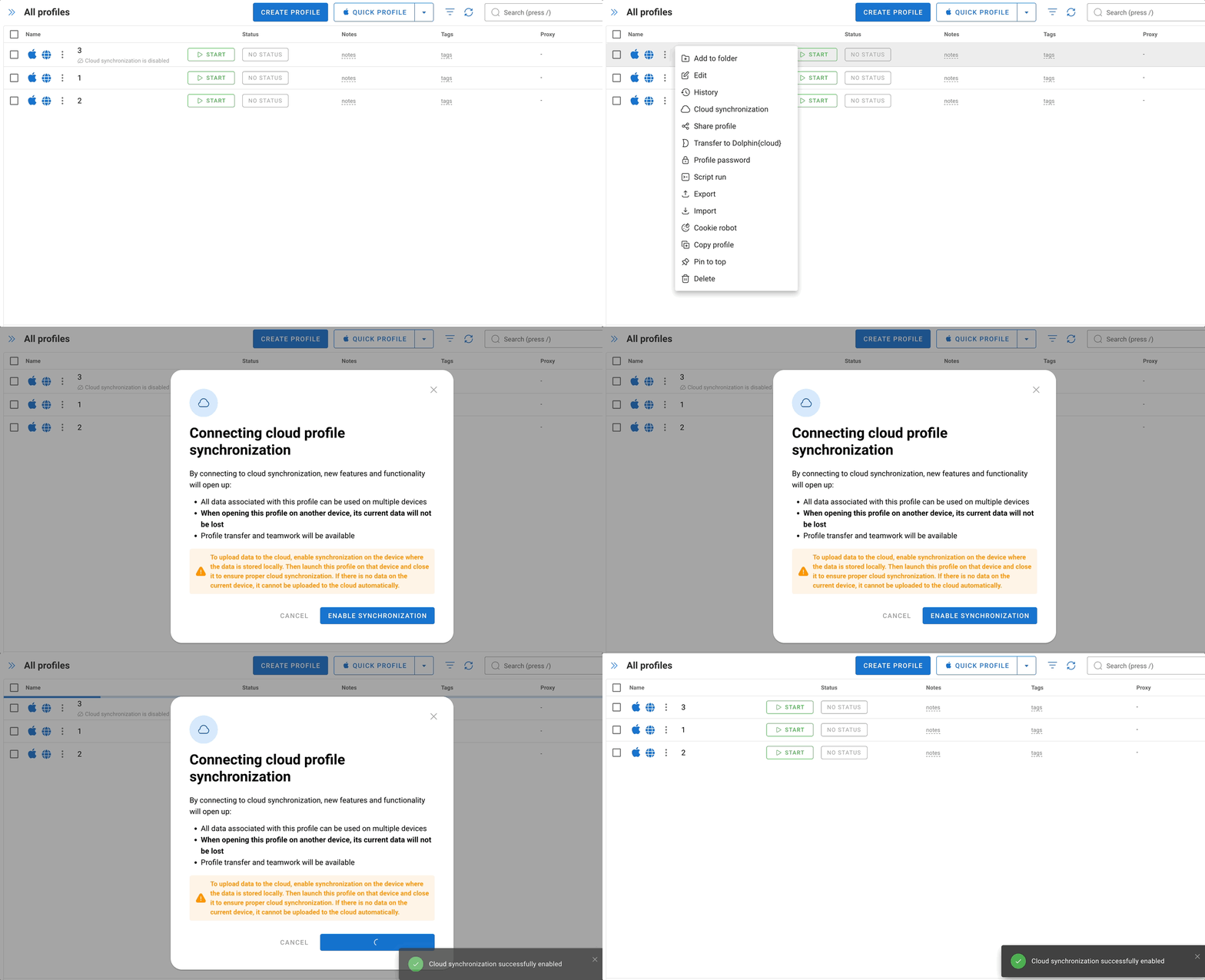
Cloud sync can only be re-enabled from the same PC where it was disabled — that's where the current local version of the profile data is stored. It cannot be re-enabled from a different device.
🆕 How do you sync profiles to the cloud after switching to a paid plan?
If you've just switched to a paid plan, you first need to sync your profiles to the cloud — otherwise their data won't be saved. Do it step by step:
1. Check your plan. Make sure the paid plan is activated in the app.
2. Log in from the right PC. Sign in to your account specifically from the computer ❗where you worked in the profiles and where the up-to-date data is stored.
3. Turn on sync. Click the "three dots" to the left of the profile name, go to the "Cloud sync" section, and check that it's enabled. If it isn't, click "Enable cloud sync".
4. Launch and close the profiles. Open the profiles, keep them open for a while, and then close them.
5. Wait for the sync. When closing the profiles, make sure the sync went through: the Stop button switched back to Start with a green checkmark ✅.
⚠️ Don't rush to open the profiles on a second device. Until the sync to the cloud has finished on the first PC, don't launch these profiles on another computer. Only after cloud sync is enabled and the profiles have successfully synced on the first device can you open them on the second PC and continue working from the same point.
💾 Why is it important to close profiles?
Profile data syncs to the cloud at the moment it's closed. While a profile is running, all changes (new cookies, tabs, cache) are stored locally and don't make it to the cloud.
That's why we don't recommend keeping profiles open for days on end. If a profile runs non-stop, the sync may simply not happen, and when you try to open it on another device (or even on this one) you won't see the latest data.
🔸 Close profiles from time to time so the data has a chance to save to the cloud.
🔸 If you work with a profile for a long time, close and reopen it periodically — this locks in your progress.
🔸 Always wait for the Stop button to switch to Start with a green checkmark ✅ — that's the confirmation that the sync went through.