
Application interface Dolphin {anty}
🌐 Browser Profiles
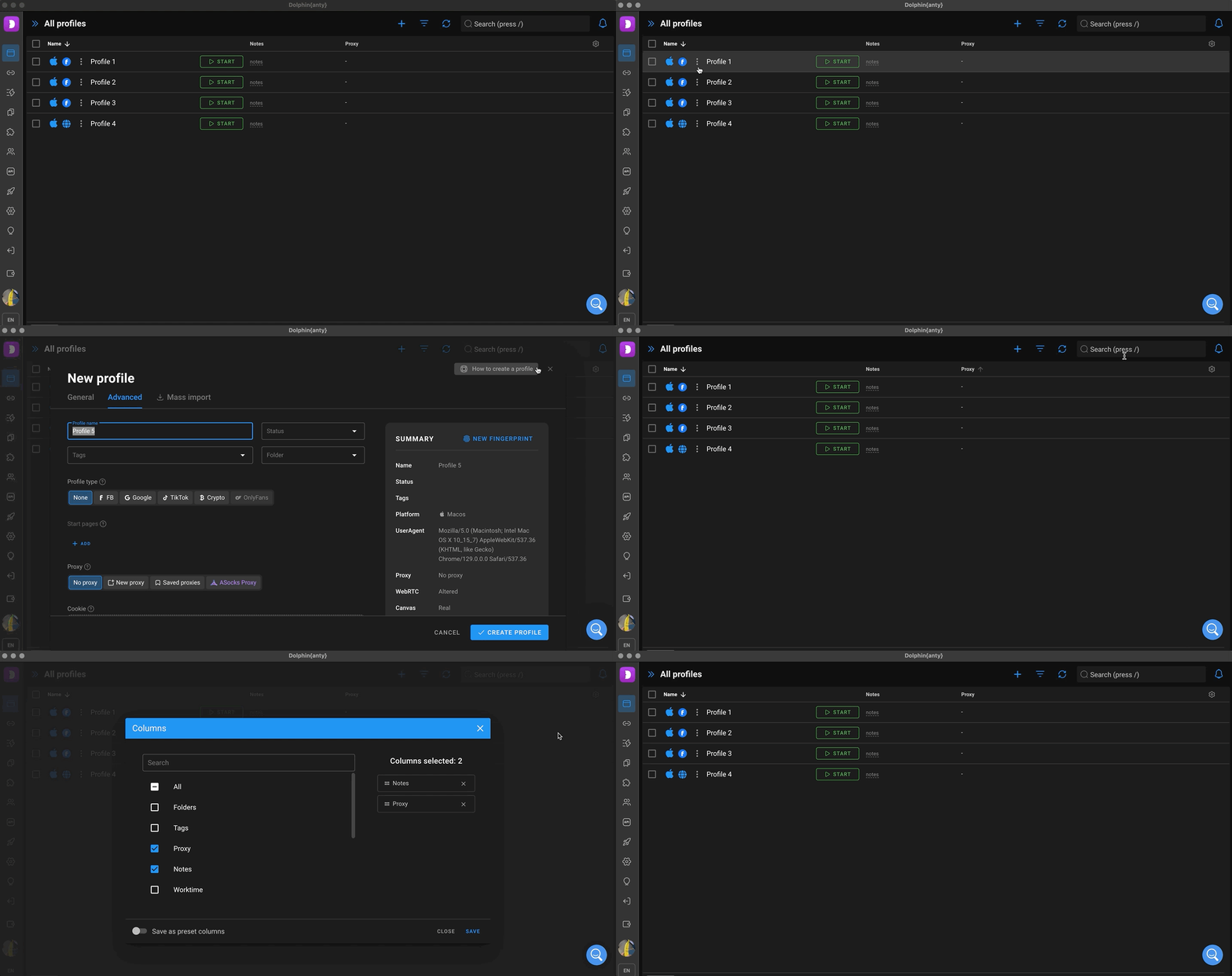
This section can be accessed at ⬇️
- Create, edit and launch profiles;
- Perform bulk actions on profiles;
- Search for specific profiles using the search bar or filters;
- Customise the columns for displaying the list of profiles.
🔗 Proxy
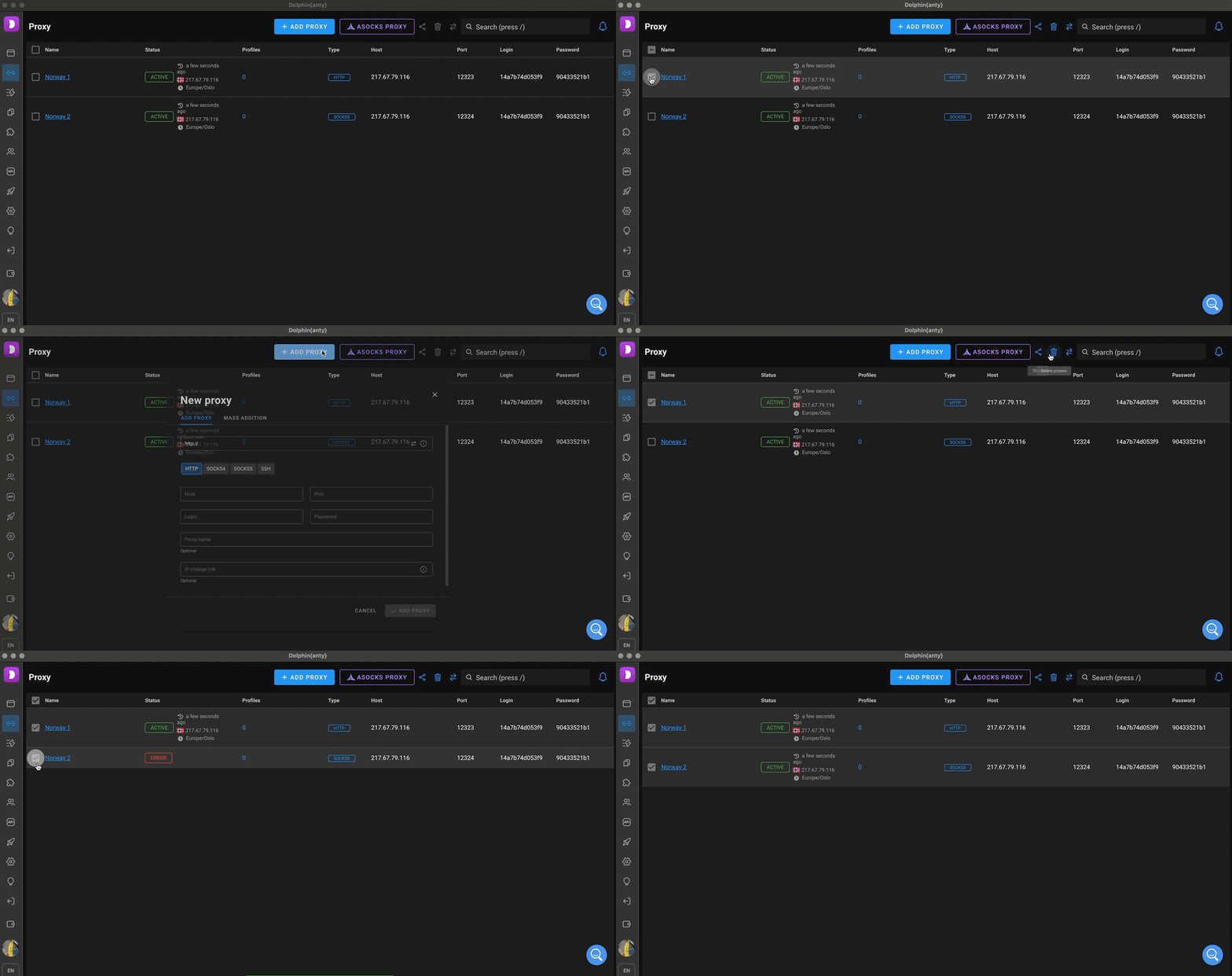
This section can be accessed at ⬇️
- Add, delete and edit proxies;
- Share proxies with team members;
- Bulk or spot check the connection to a proxy;
- Find a proxy by the search bar.
📝 Scenarios
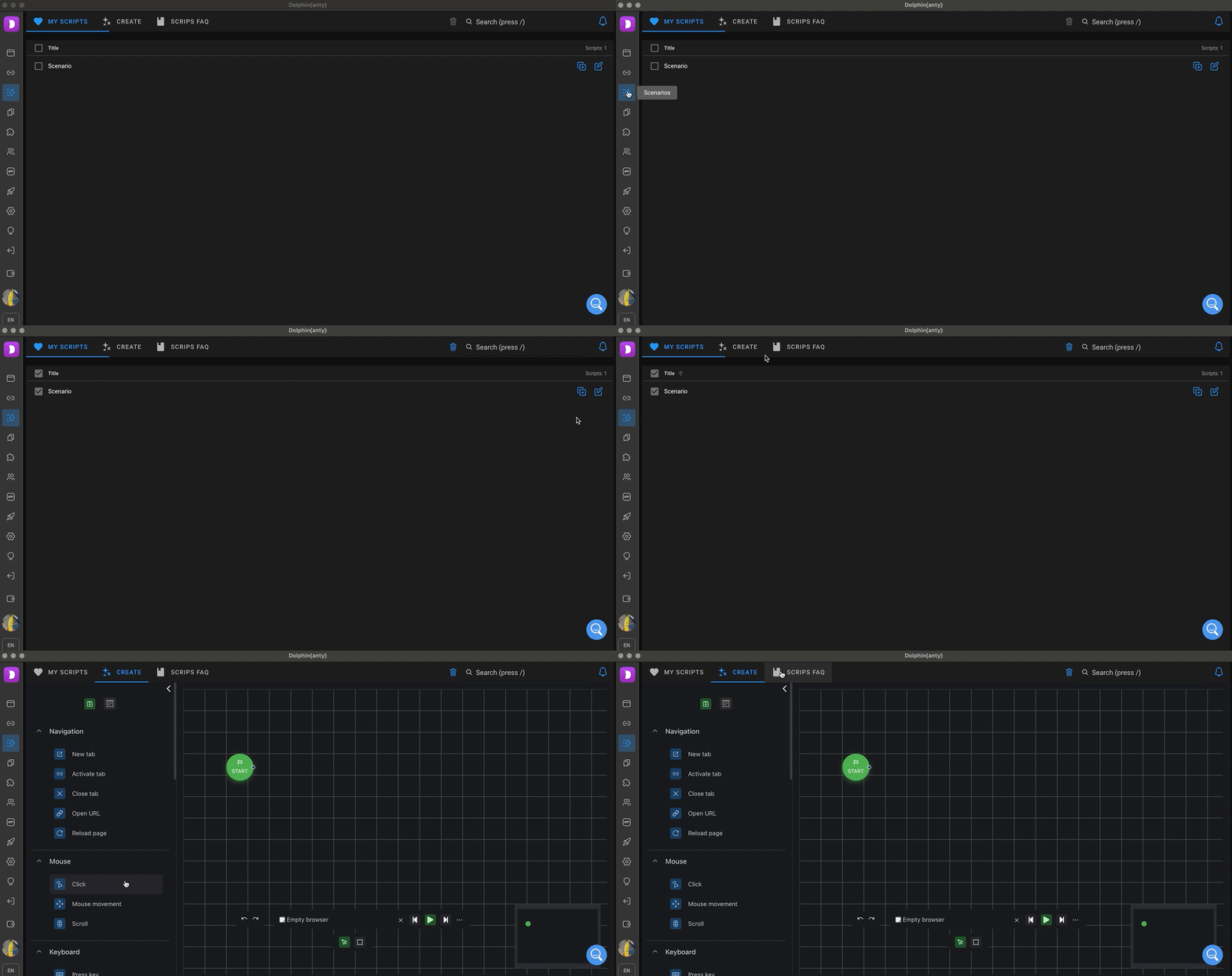
This section can be accessed at ⬇️
- Create, delete, copy and edit scripts;
- Search for them using the search bar;
- Go to Scenario Builder FAQ.
ℹ️ Learn more about working with scripts here
📑 Bookmarks
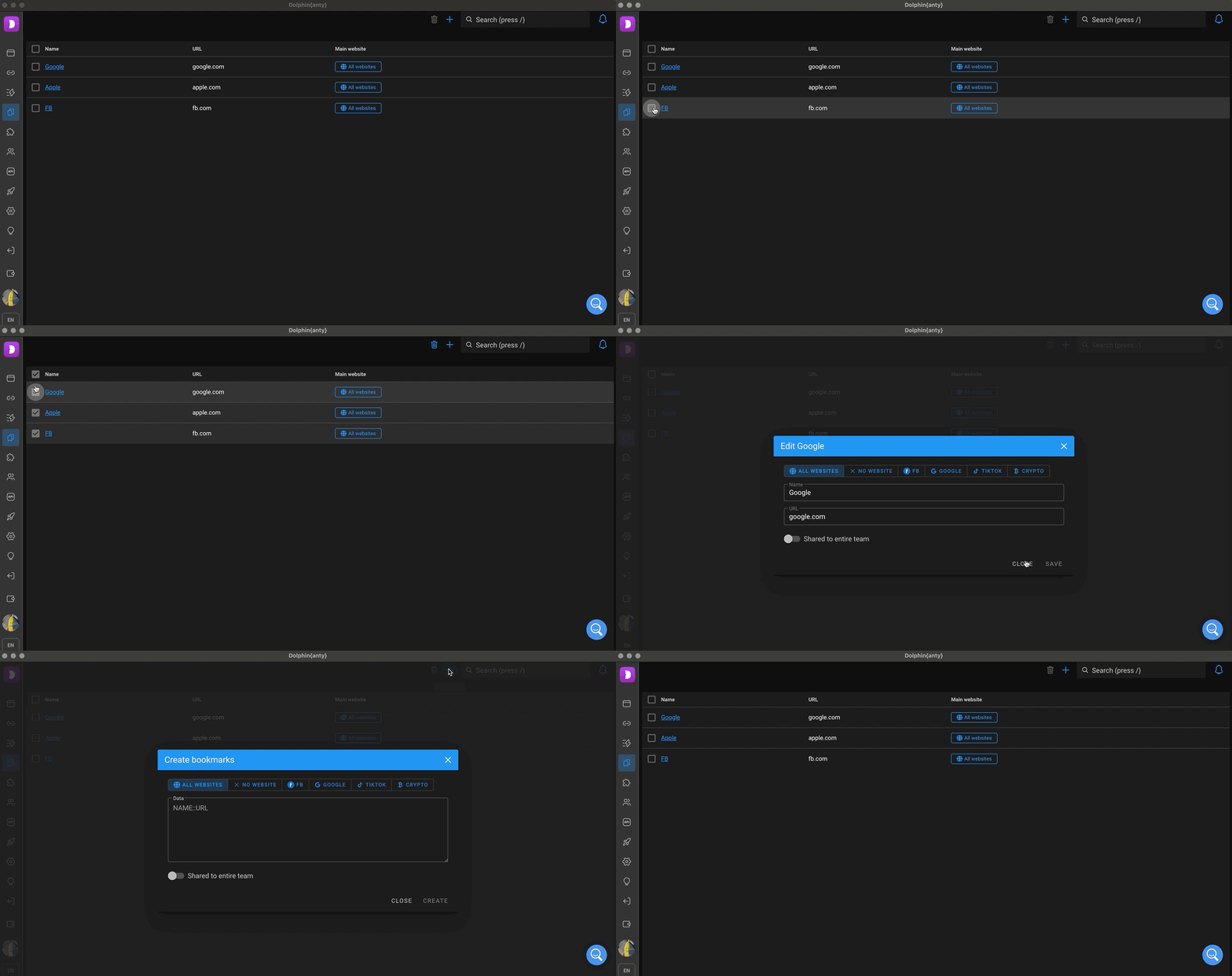
This section can be accessed at ⬇️
- Create and delete bookmarks for profile groups;
- Edit already created bookmarks.
ℹ️ Learn more about working with bookmarks here
🧩 Extensions
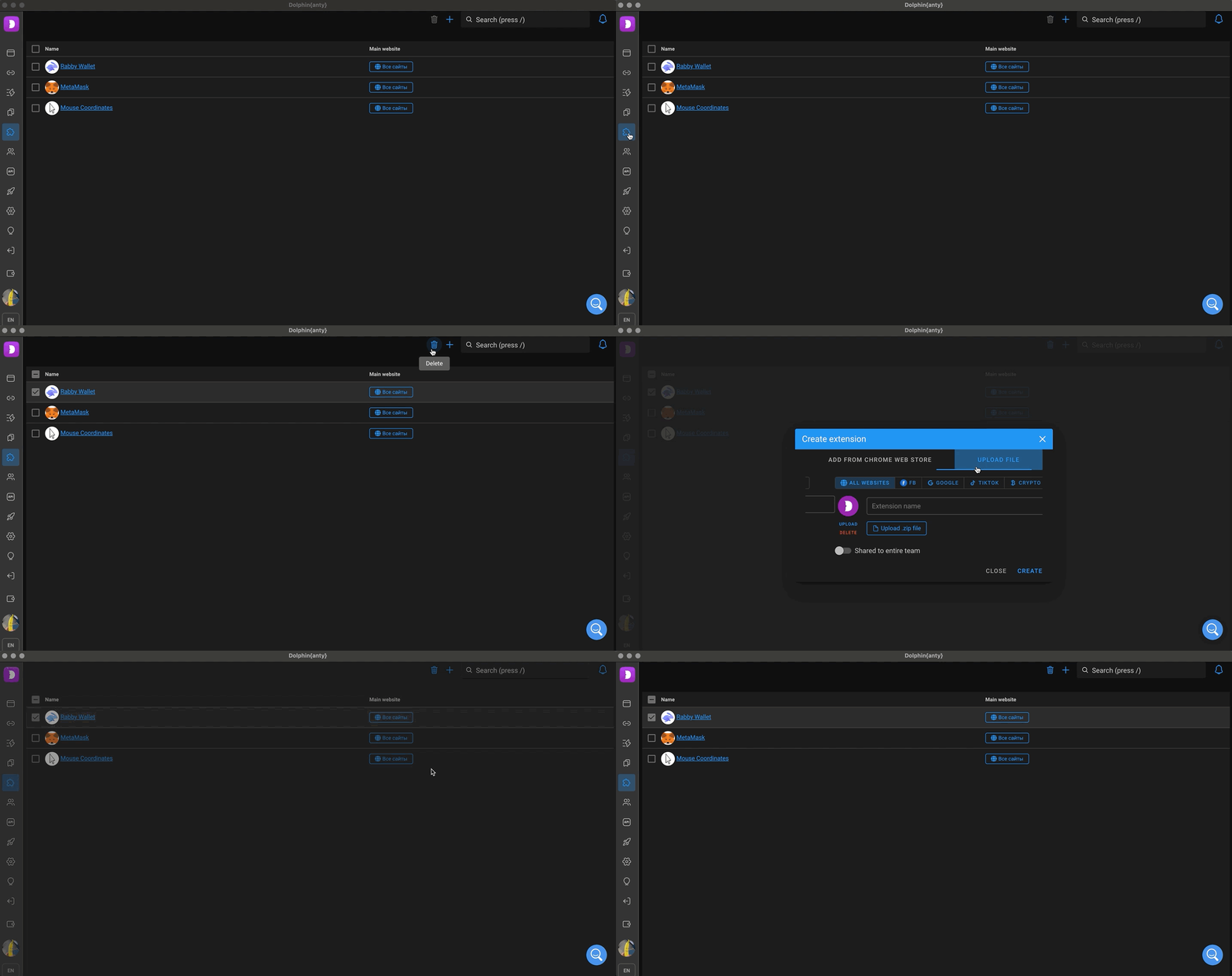
This section can be accessed at ⬇️
- Add extensions to profile groups;
- Delete extensions.
ℹ️ Learn more about adding extensions here
👥 Users
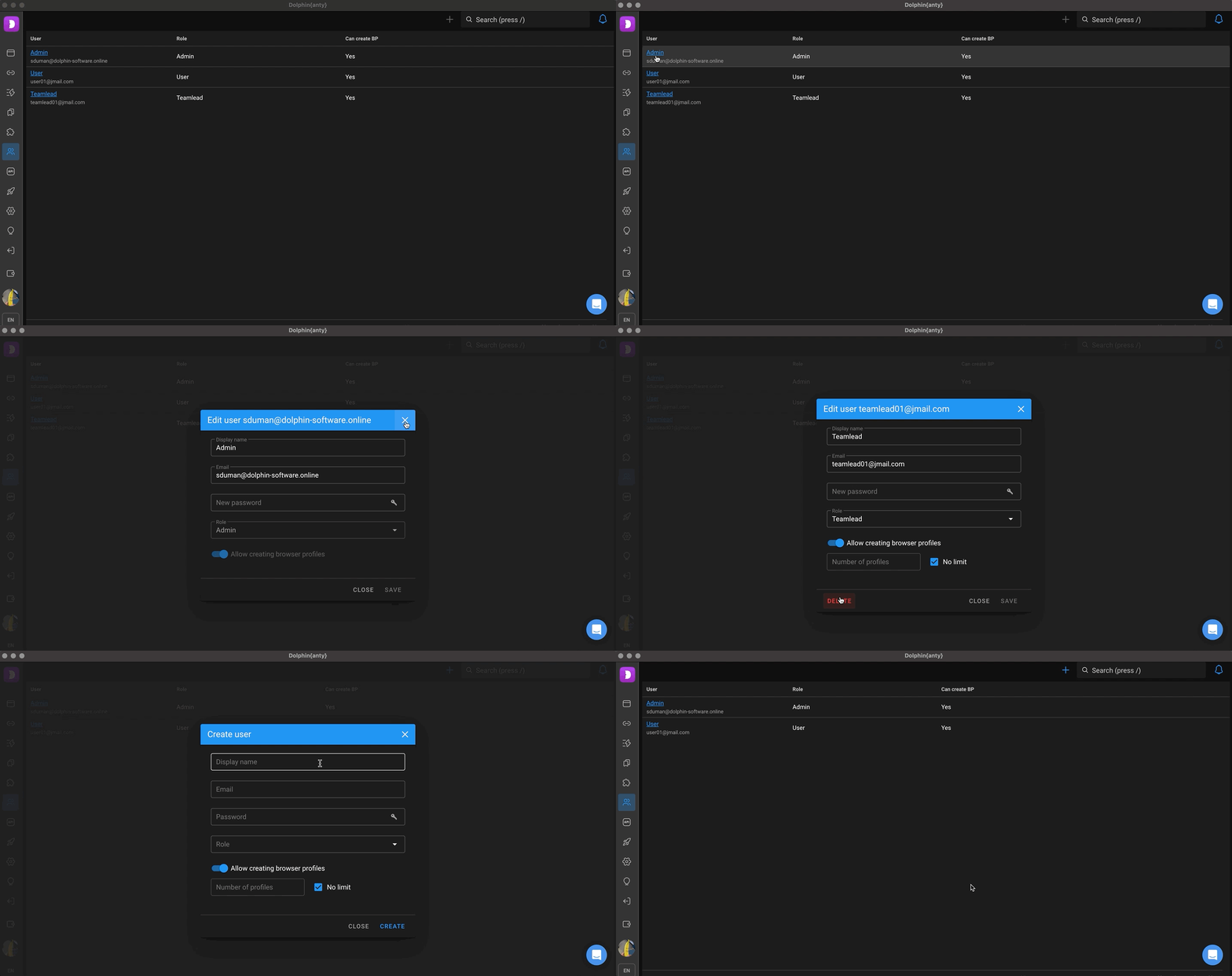
This section can be accessed at ⬇️
- Add and remove users to work in the team;
- Edit password, email, user access.
ℹ️ Learn more about creating users and teamwork here
🪄 API
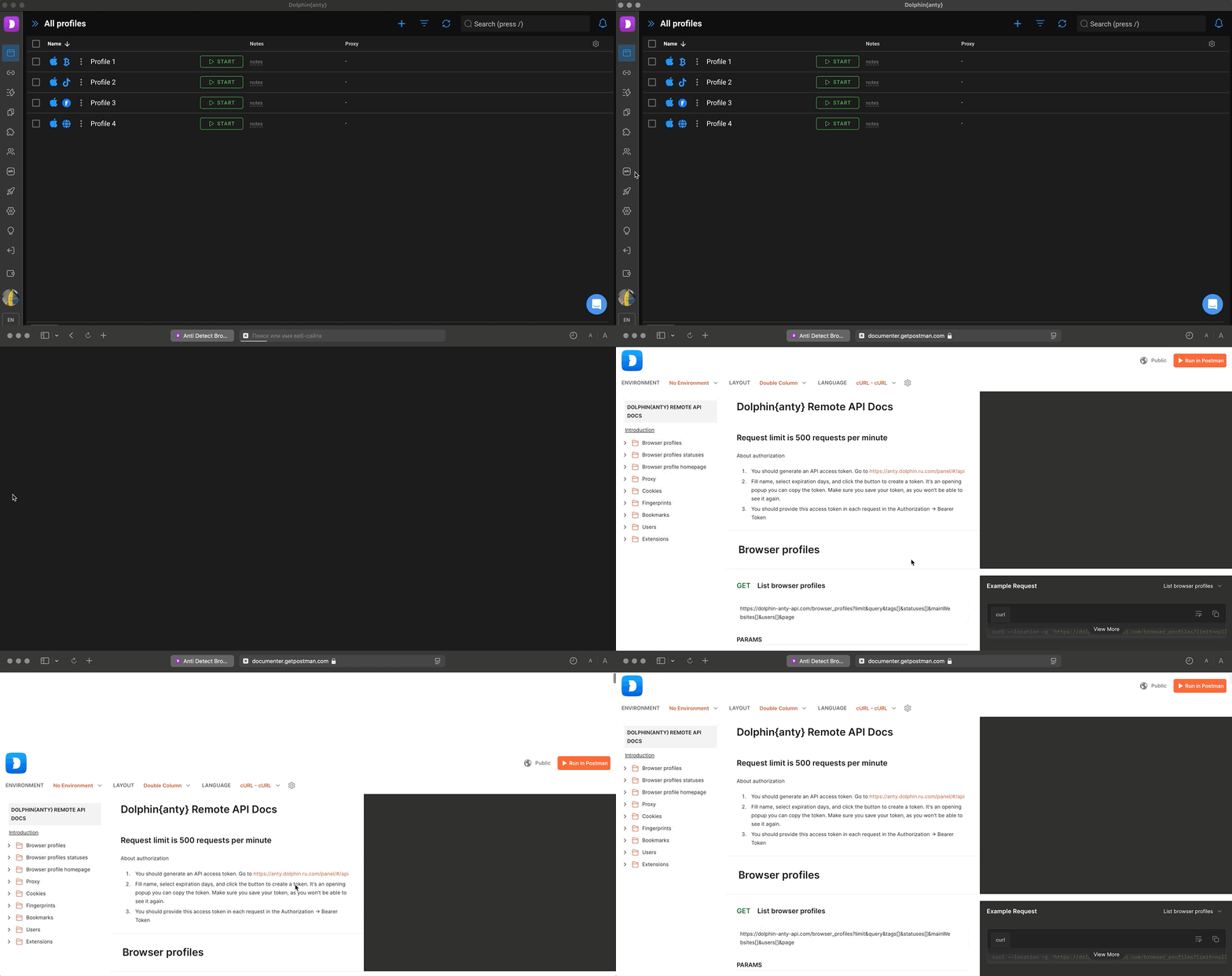
- If you click on this section, a link to work with API will open in your browser.
🤖 Automation
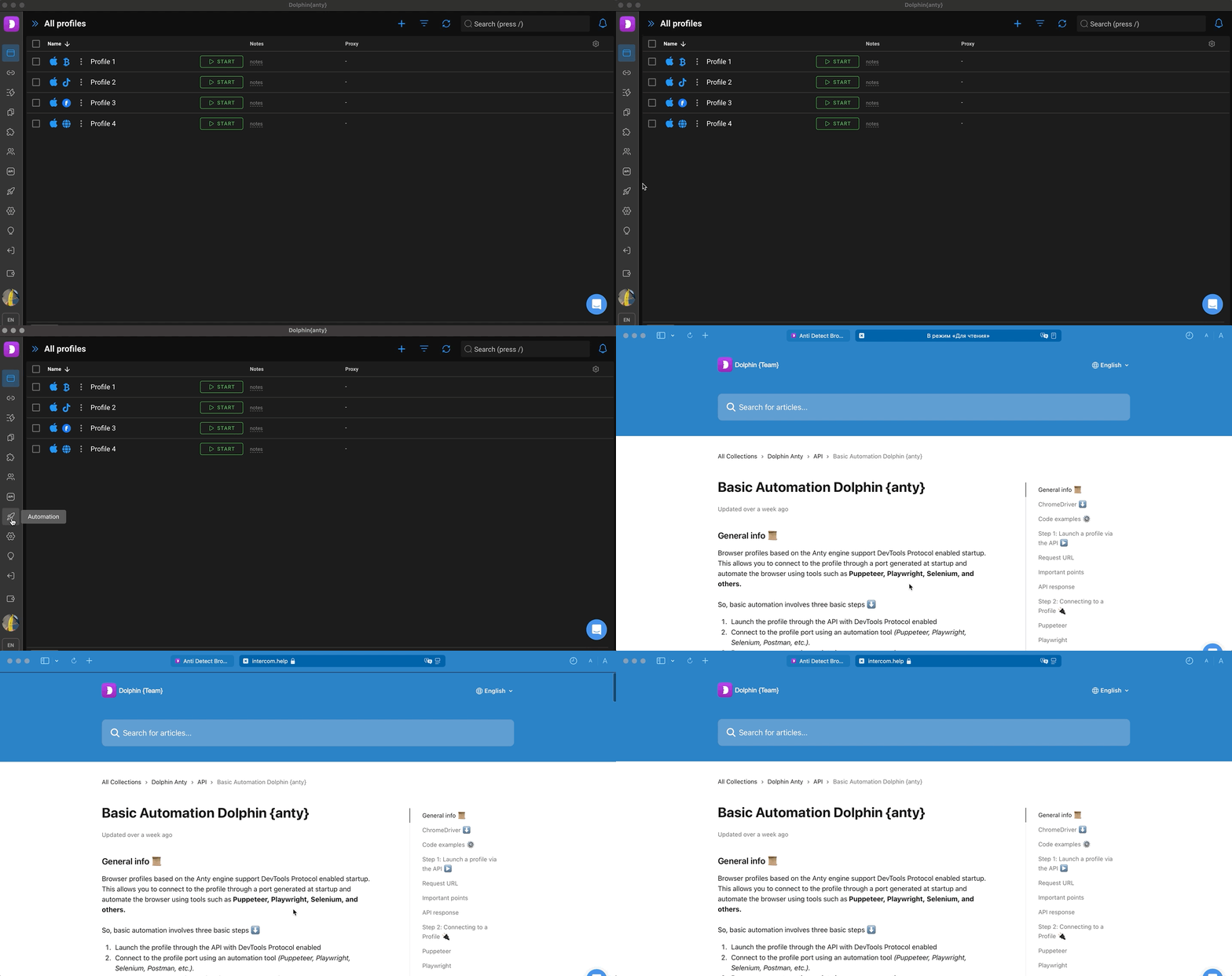
- When you click on this section, an article about automation in Dolphin{anty} opens in your browser.
⚙️ Settings
This section can be accessed at ⬇️
- Set up Dolphin {anty} and Dolphin {cloud} integration (FB ads token)
- Proxy Integration API key settings
- Additional global settings for browser profiles
- Working with the list of trusted users for profile transfer
- Add statuses and start pages for profiles here
💡 Feedback
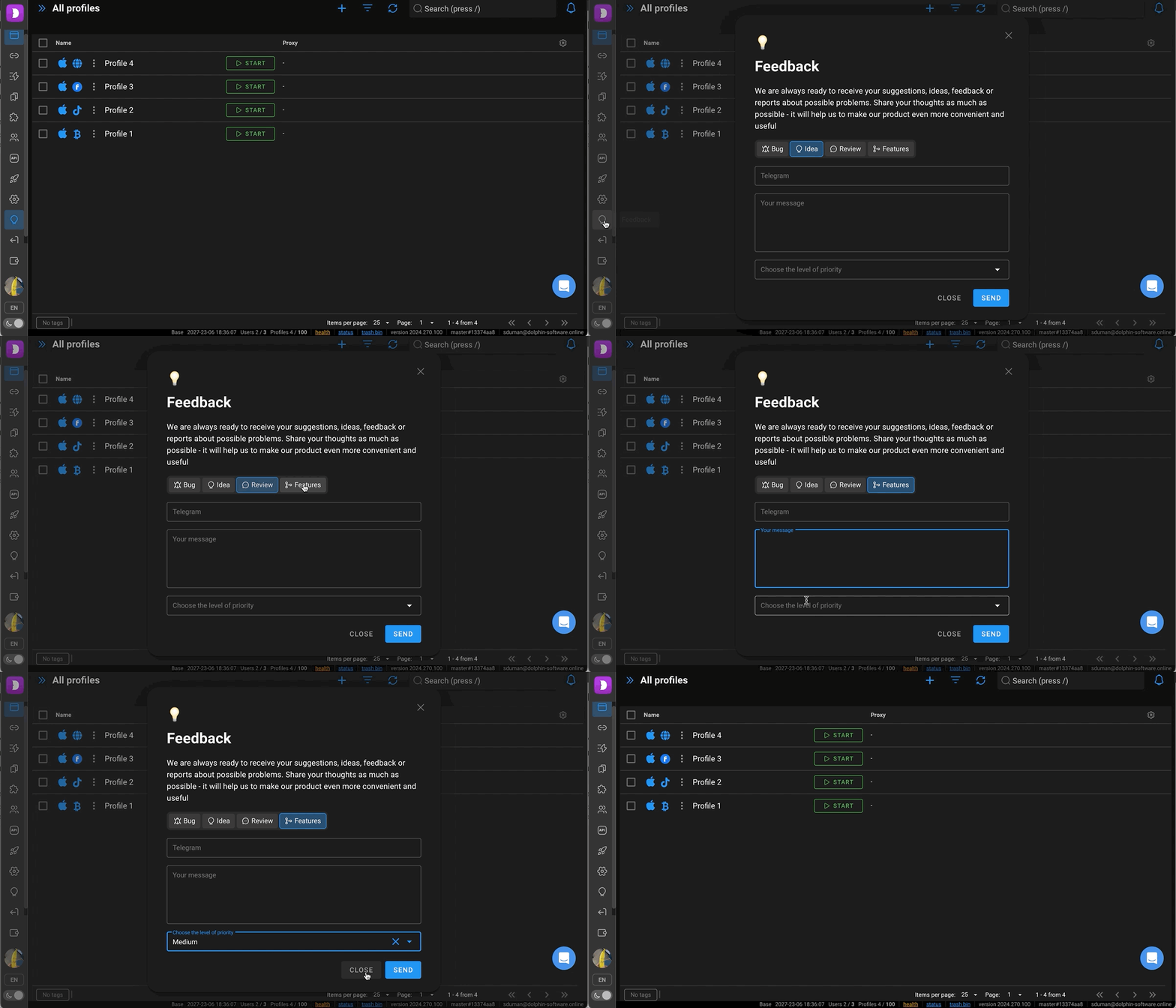
- By clicking on this section of the menu, you can leave feedback, suggest functionality, or share an idea through the pop-up window. Just specify your Telegram for feedback and fill in the message field. 🧐
🚪 Exit
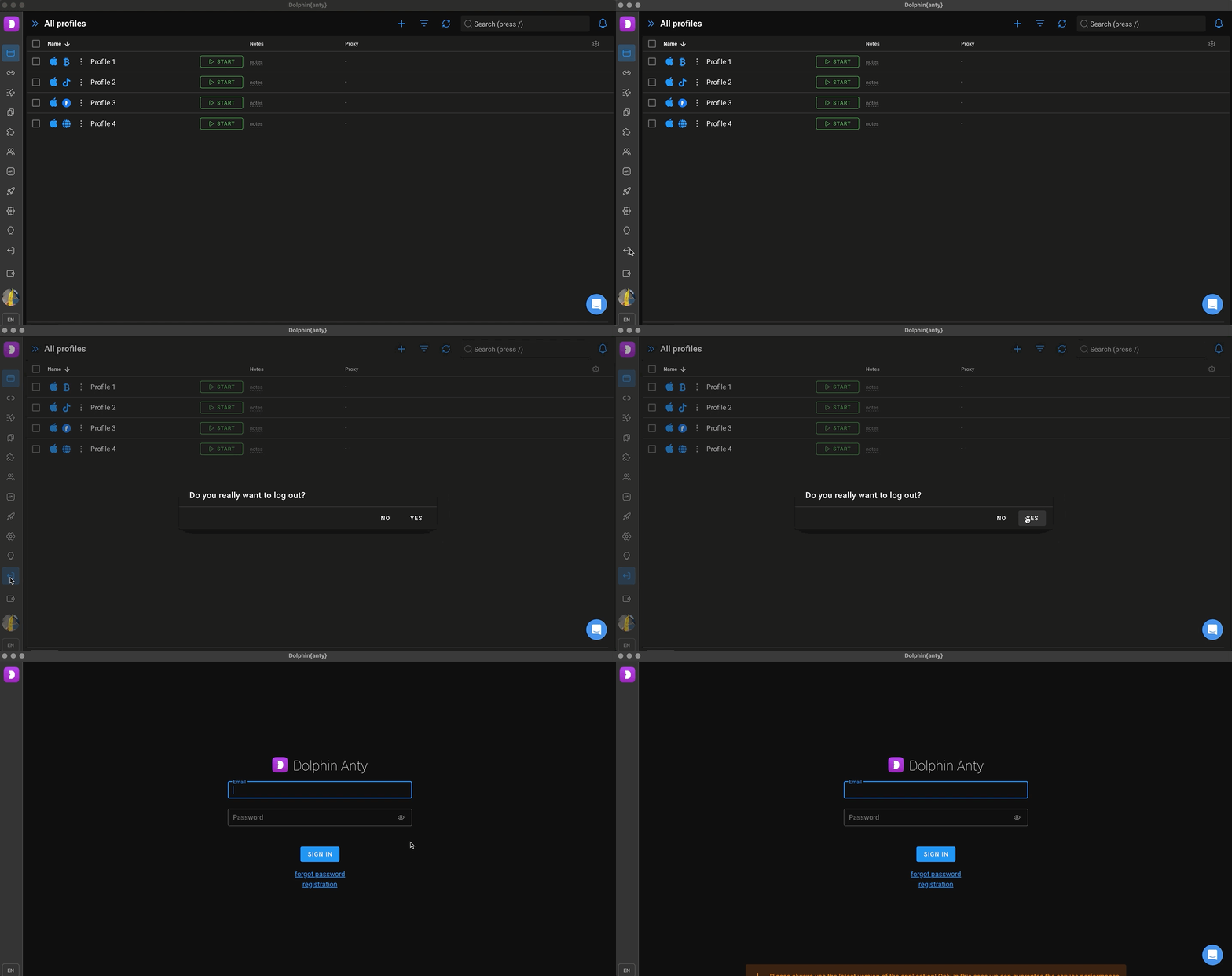
- Allows you to log out of your Dolphin{anty} account.
💵 Pay now
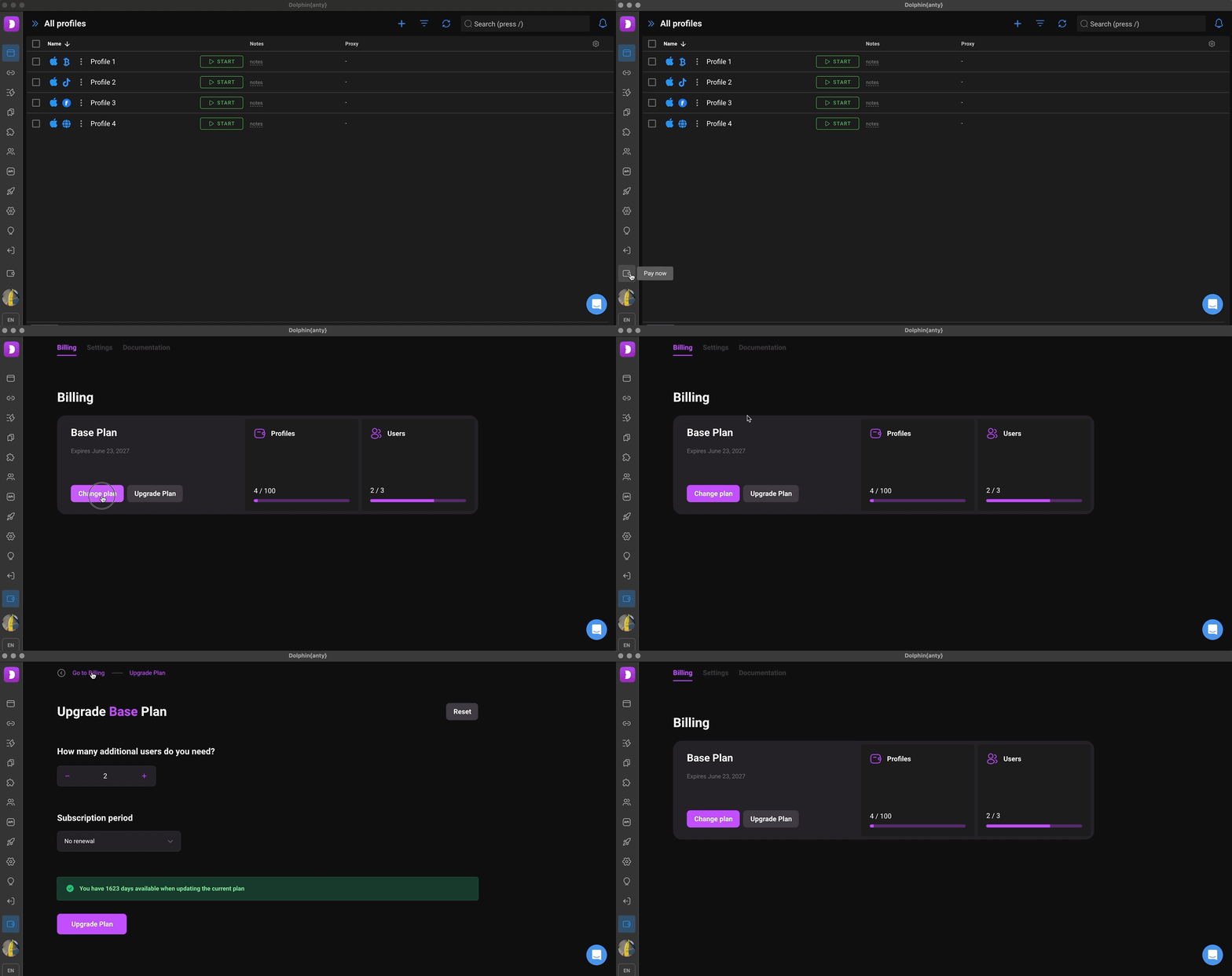
This section can be accessed at ⬇️
- Change or pay your plan;
- Upgrade your plan or change its terms and conditions.
ℹ️ Read more in the article
🤝🏻 Support
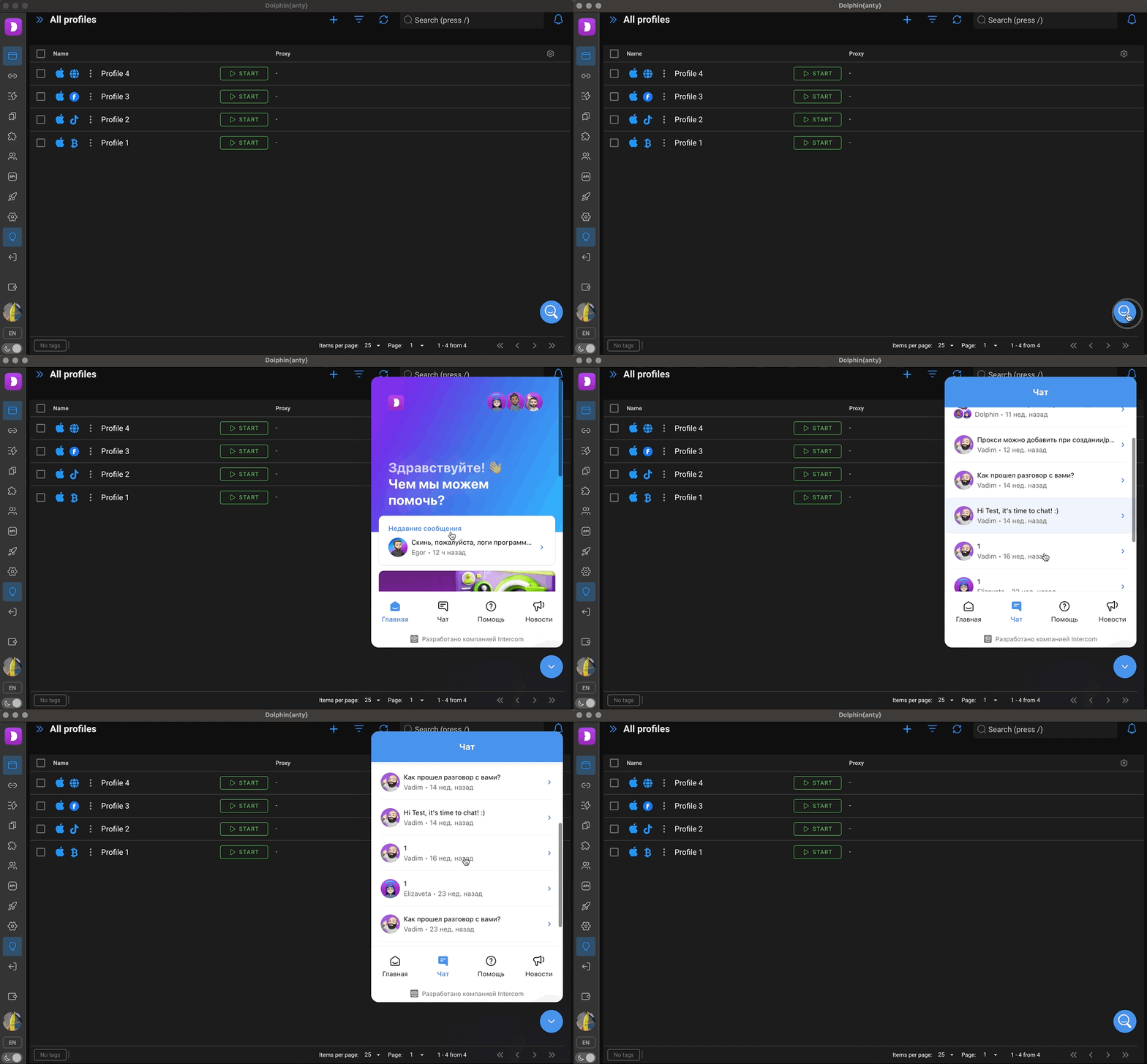
- If you click on this button, the support chat will open, where you can ask all your questions. 😉
ℹ️ Also write to support via telegram bot @dolphinsupport_en_bot
🌍 Language switch
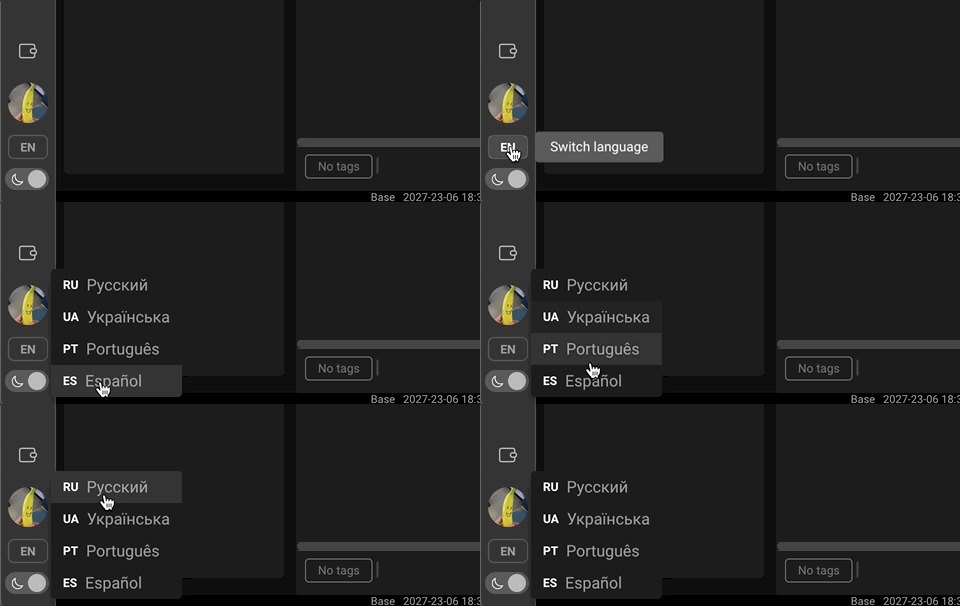
- Use the button to change the interface language of Dolphin{anty} Currently available: Ukrainian, Spanish, Portuguese, Vietnamese, Chinese, Russian, English.
🌗 Theme switch
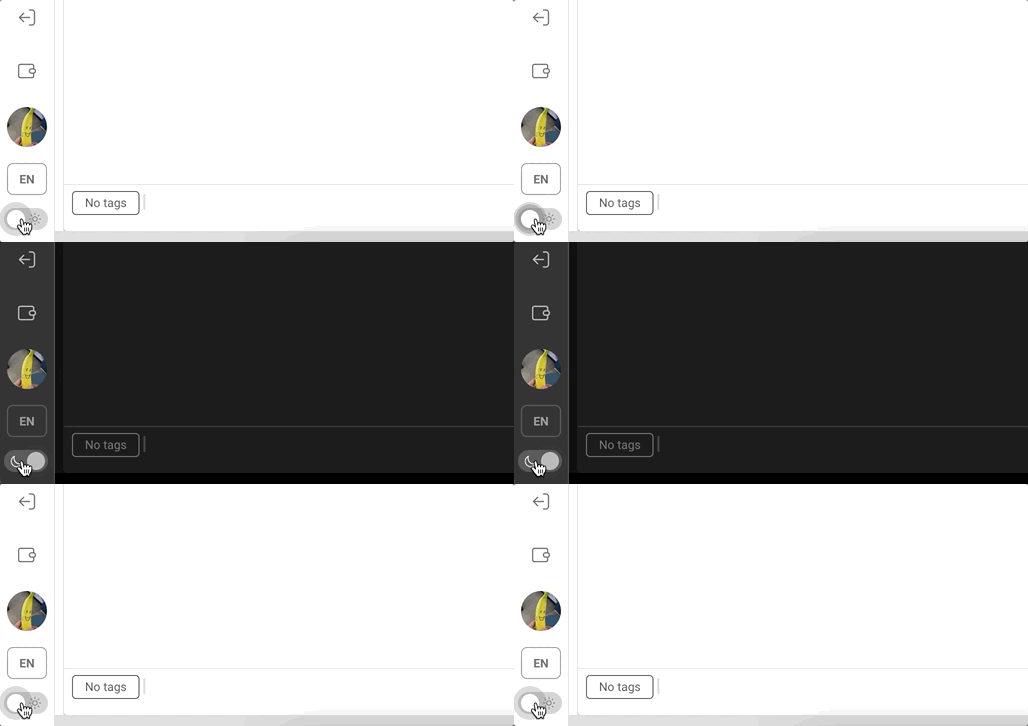
- Through this switch you can change the theme of the Dolphin{anty} interface, two themes are available, dark and light.
ℹ️ Status bar
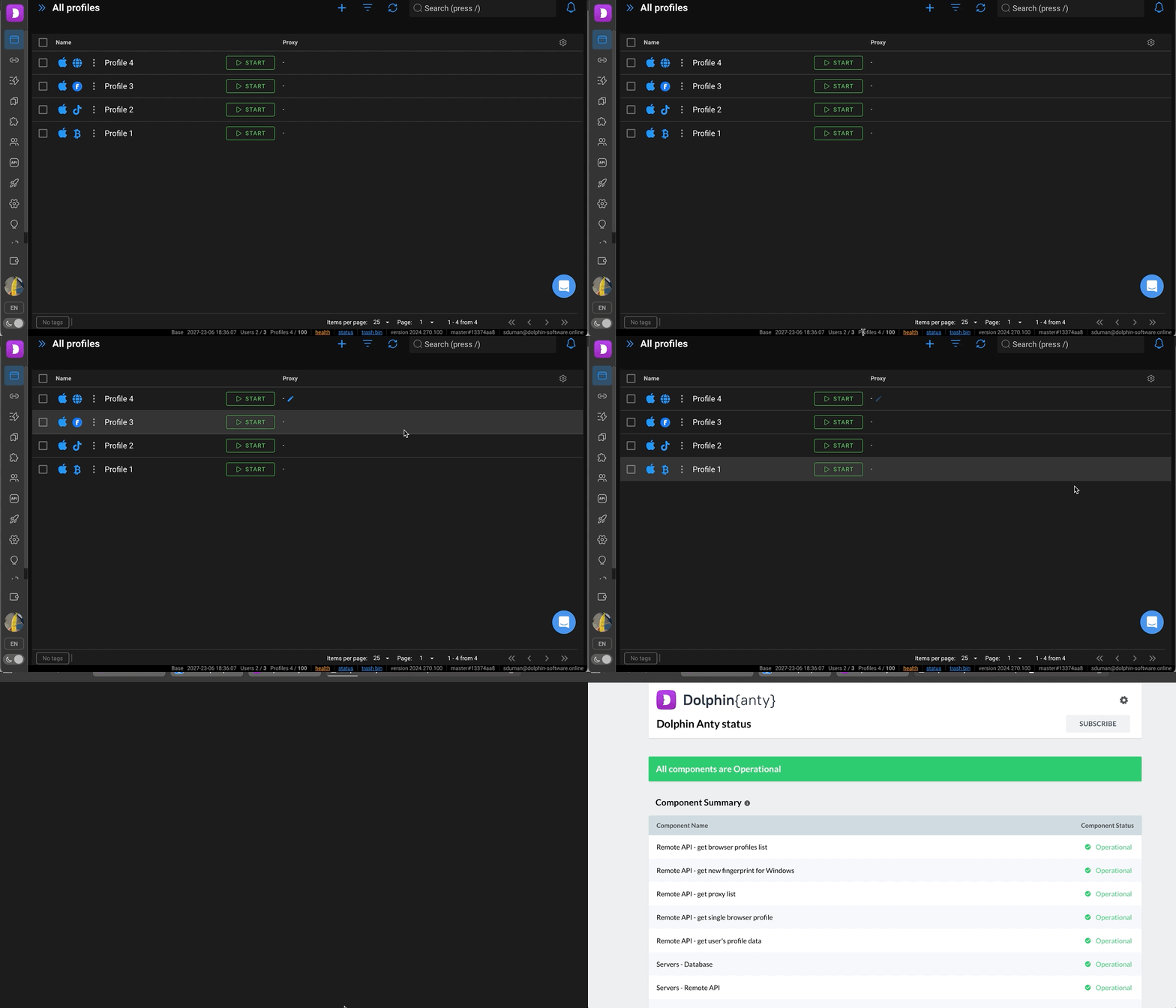
Here you can see the following information ⬇️
- Name of current plan.
- Plan expiry date.
- Number of additional users (created / creation limit).
- Number of profiles (created / creation limit).
- Status - clicking on it will display the status of all necessary components for Dolphin{anty} to work correctly.
- Status - clicking on it will open the Dolphin{anty} services monitoring.
- Trash bin - here you can restore deleted profiles, they are stored in the recycle bin for 48 hours.
- Version - of the installed application
- Branch - shows the ‘branch’ of the update.
- Email - to which the account is registered
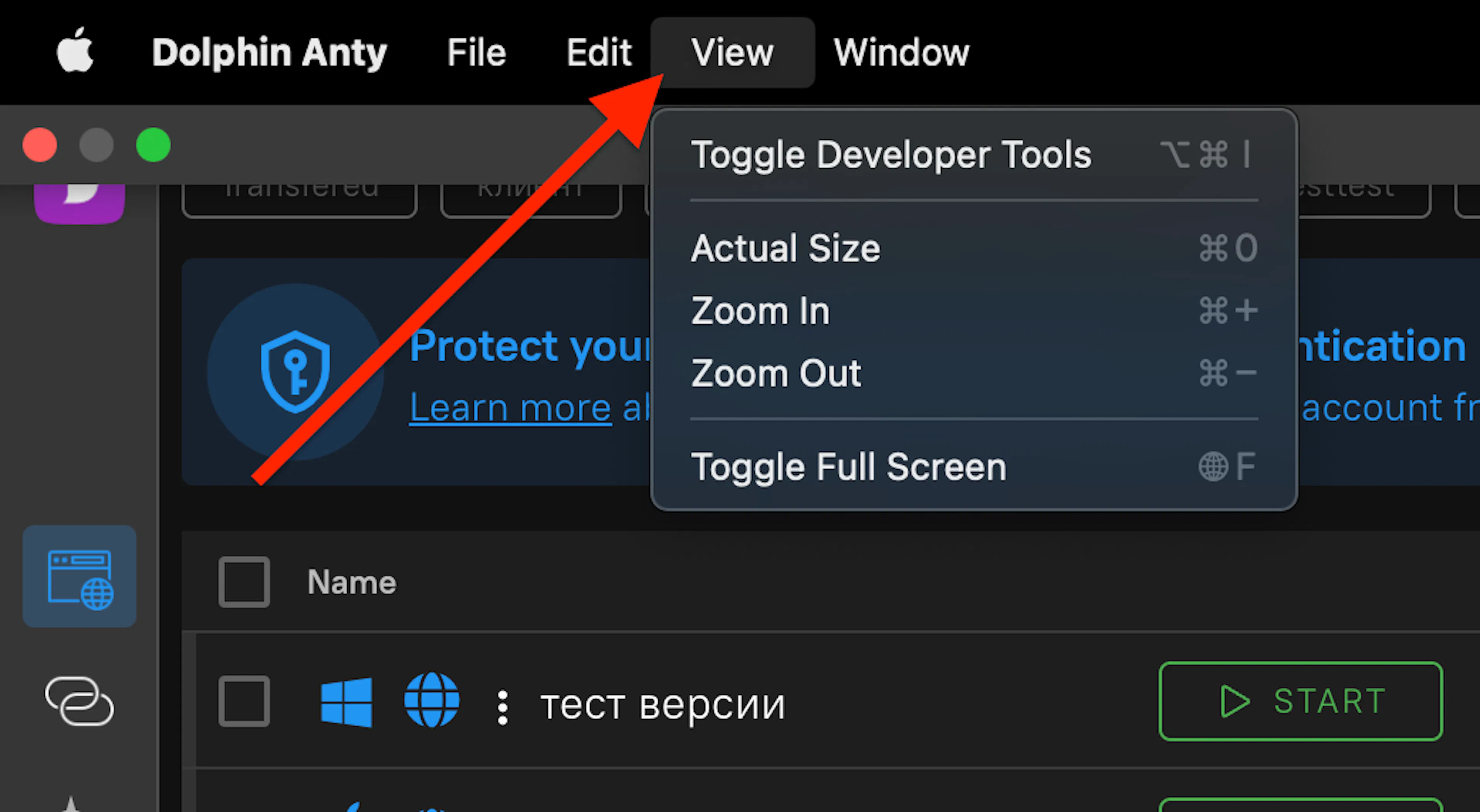
🔎 How to zoom in or out app interface?
🖥️ For Windows:
Press ALT then at the top of the screen View ➡️ Zoom Out or In;
💻 For Mac:
At the top of the View ➡️ Zoom Out or In.
Was this page helpful?