
Connecting an AI agent to Dolphin {anty} via Dolphin MCP
General information 📜
Dolphin MCP lets you connect your own AI agent to Dolphin{anty}: Claude Code, Cursor, Codex, Claude Desktop or any other agent that can work with MCP servers.
Once connected, you just tell the agent what to do, and it does it on its own. For example:
- "Create 10 profiles in the Test folder and add the new tag to them"
- "Show which profiles are running right now"
- "Check all my proxies"
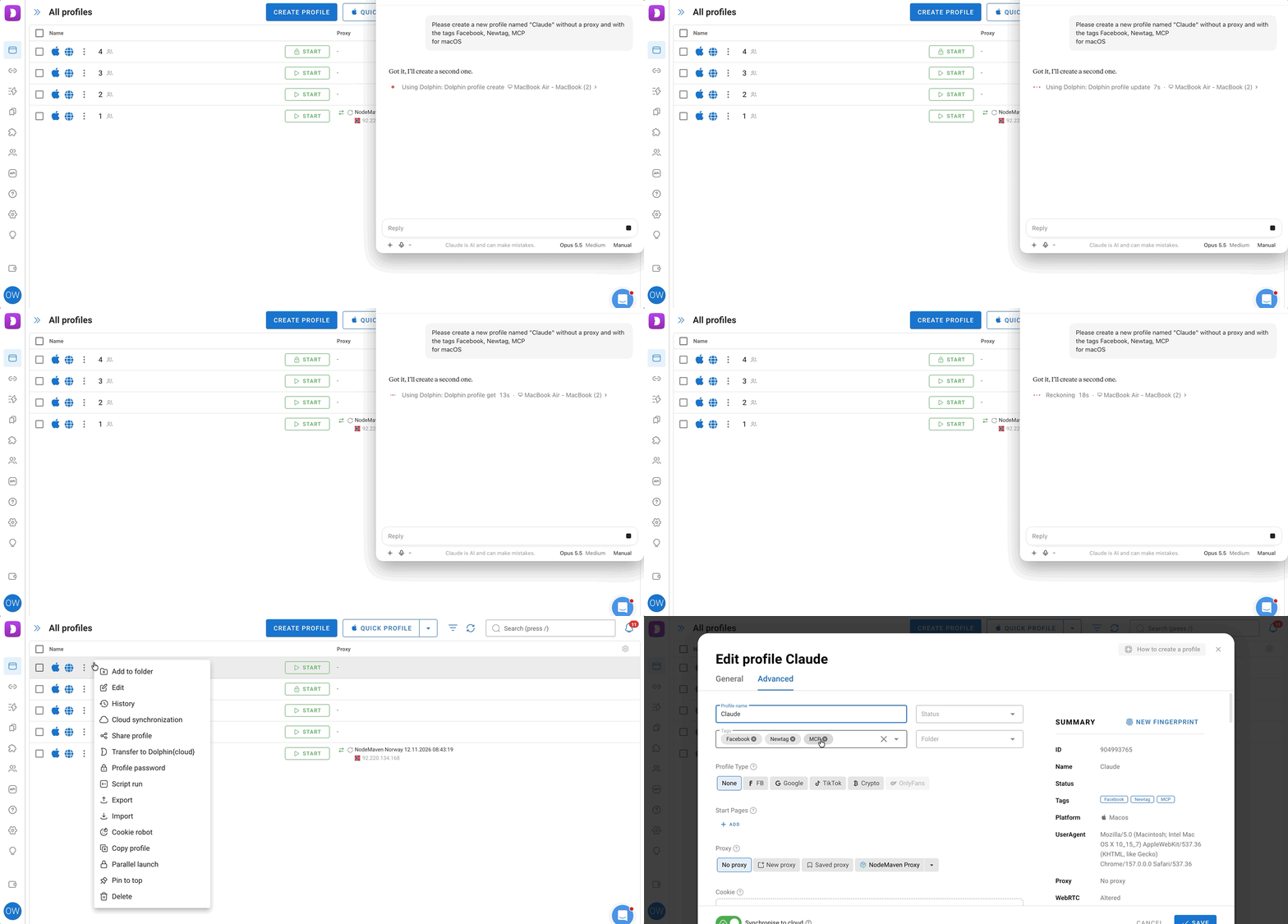
The agent works with profiles, proxies, folders, tags, statuses, notes, the team, profile transfers, extensions, bookmarks and start pages. More details are below, in the What the agent can do section.
🔵 Dolphin MCP or chrome-devtools-mcp?
- Dolphin MCP manages the account: creates, configures and starts profiles, works with proxies, folders and tags
- chrome-devtools-mcp works inside an open profile: opens pages, clicks, fills in forms. How to connect it is described in Connecting an AI agent to a Dolphin {anty} profile via chrome-devtools-mcp
There's no need to start a profile for chrome-devtools-mcp via Dolphin MCP: Dolphin MCP starts the profile in normal mode, and chrome-devtools-mcp can't connect to it. The script from that article starts the profile on its own.
What you'll need ✅
- Starter plan or higher
- Dolphin{anty} that has been launched at least once
- An AI agent that can connect MCP servers on the computer: Claude Code, Cursor, Codex, Claude Desktop (not available on Linux) or another one
You don't need to install Node.js. The ChatGPT chat, however, can't be connected: it only accepts servers by a link from the internet, while Dolphin MCP runs right on the computer.
⚠️ On macOS, the app must be in the "Applications" folder
If it's launched from the DMG image or from "Downloads", the agent can only connect over HTTP. The app will warn about it.
Step 1. Enable MCP ⚙️
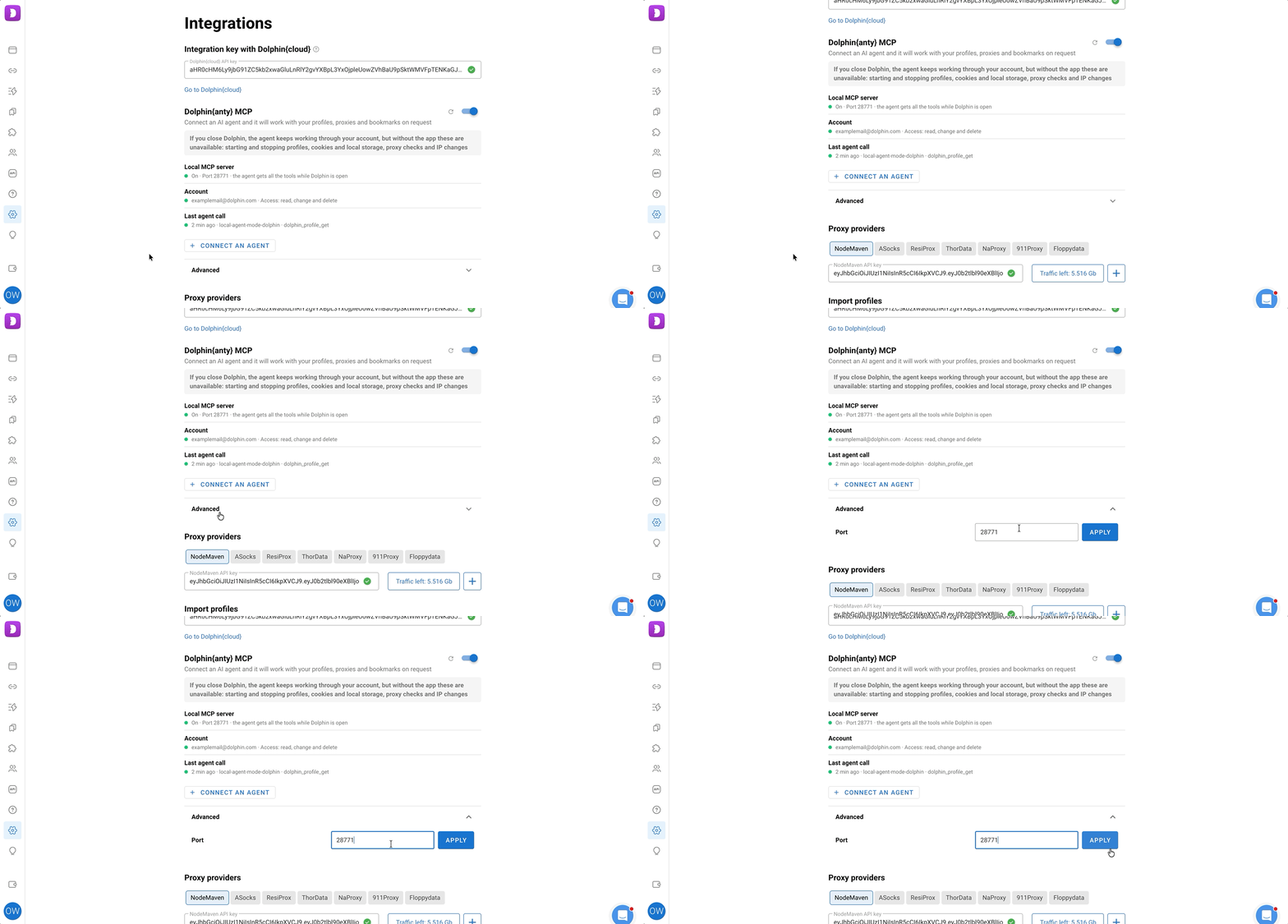
- Open the Dolphin{anty} settings. At the top, among the integrations, there's the Dolphin{anty} MCP section
- Turn on the toggle to the right of the section title. The Local MCP server row will show Enabled and Port 28771
Step 2. Connect the agent 🔌
- Click Connect an agent and select your agent's tab
- Copy the ready-made settings and add them to the agent:
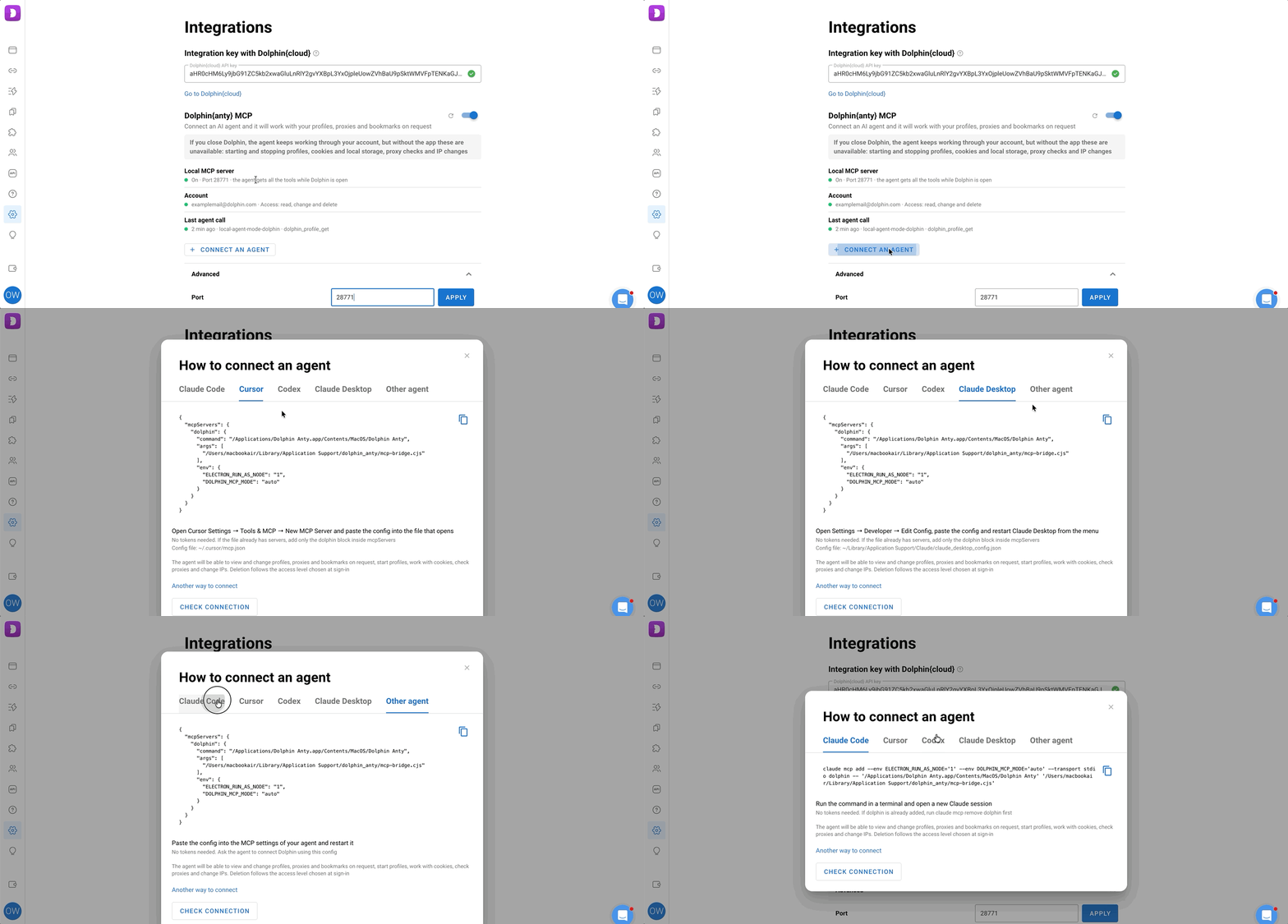
Run the copied command in the terminal and open a new Claude Code session. The command adds the dolphin server by itself, there's no need to edit any files.
If the dolphin server was added before, remove it first:
claude mcp remove dolphin
- Open Cursor Settings - Tools & MCP - New MCP Server
- Paste the settings into the file that opens and save it
This is the ~/.cursor/mcp.json file (%USERPROFILE%\.cursor\mcp.json on Windows). If it already has other servers, add only the dolphin block inside mcpServers instead of replacing the whole file.
Paste the settings at the end of the ~/.codex/config.toml file (%USERPROFILE%\.codex\config.toml on Windows).
If the file doesn't exist, create it. If it already has a [mcp_servers.dolphin] section, replace it with the new one.
- Open Settings - Developer - Edit Config
- Paste the settings into the file and save it
- Restart Claude Desktop from the menu
This is the ~/Library/Application Support/Claude/claude_desktop_config.json file on macOS and %APPDATA%\Claude\claude_desktop_config.json on Windows. If it already has other servers, add only the dolphin block inside mcpServers instead of replacing the whole file.
Paste the settings into your agent's MCP settings and restart it.
Or even simpler: send the settings to the agent in the chat and ask it to connect Dolphin.
ℹ️ The settings contain no tokens, but they do contain paths to Dolphin{anty} on this computer. That's why they should be copied from your own app, not from another computer or from instructions.
Step 3. Check the connection 🔍
- Restart the agent
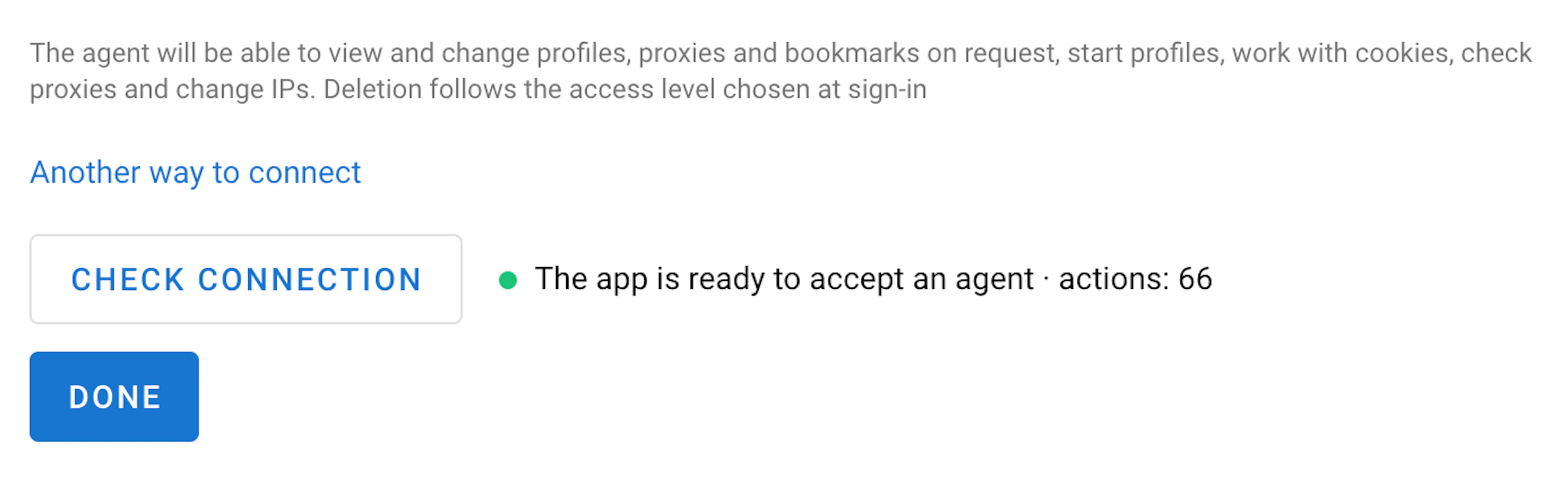
- Click Check connection. If everything is fine, you'll see The app is ready to accept the agent and the number of actions available to the agent
- Write to the agent, for example: "Show the list of my Dolphin profiles"
- Click Refresh status: the Last agent call row will show the time, the agent and the action
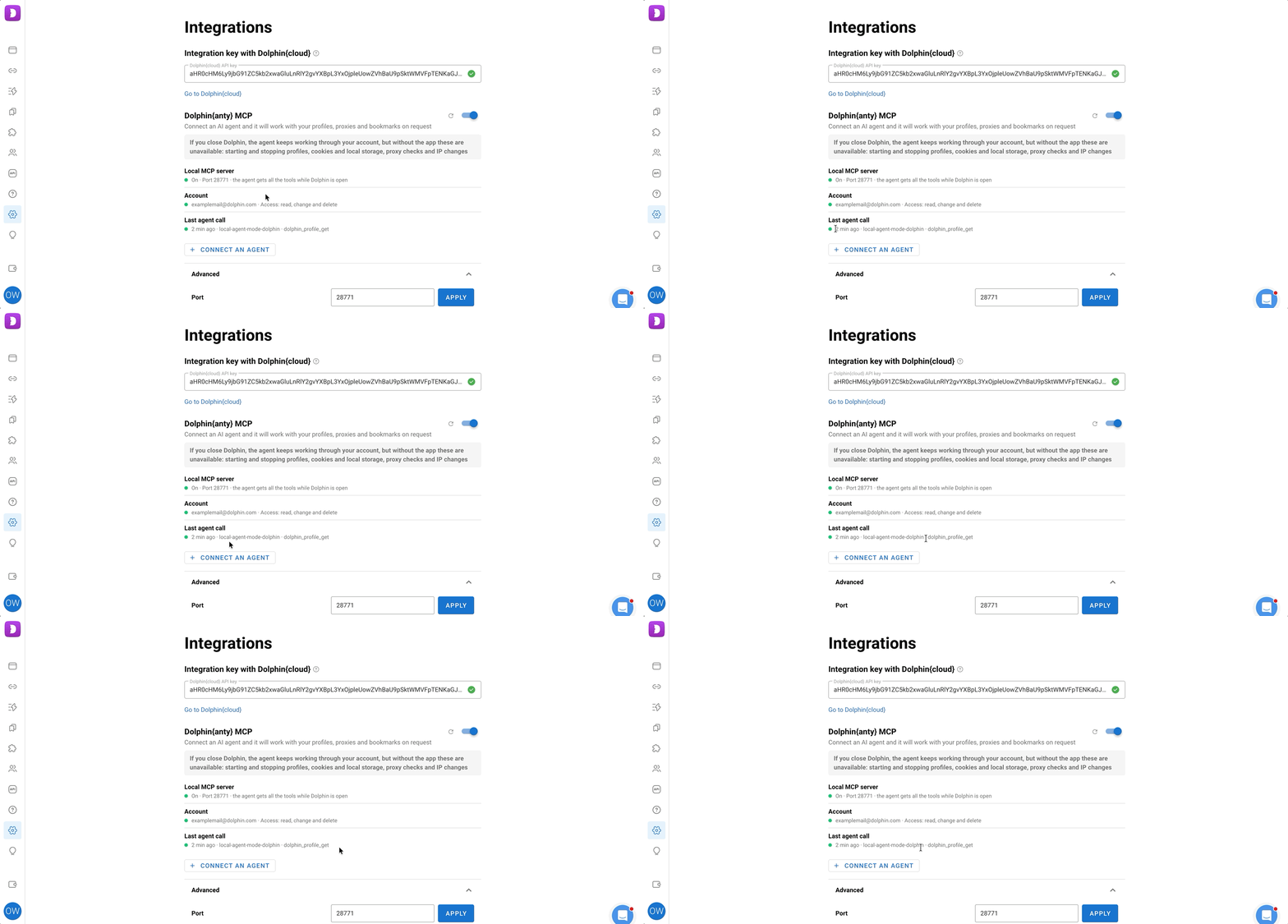
✅ Done! Now the agent works with the account while Dolphin{anty} is open. To let it work when the app is closed, sign in to the account, more on that below 👇
Other connection methods 🔀
Signing in and access levels 🔑
Right after connecting, the agent works through the open app. It can view and change data, start profiles and export cookies, but it can't delete anything, transfer profiles, change access or import cookies.
Signing in is worth it if you need:
- the agent to work even when Dolphin{anty} is closed
- to choose yourself what the agent can and can't do
How to sign in:
- In the Account row, click Sign in. The personal account will open in the browser
- Check the account and team, choose an access level and confirm. You have 5 minutes for this. If you closed the tab by accident, click Sign in again
- The Account row will show the email and access level. Now the app can be closed
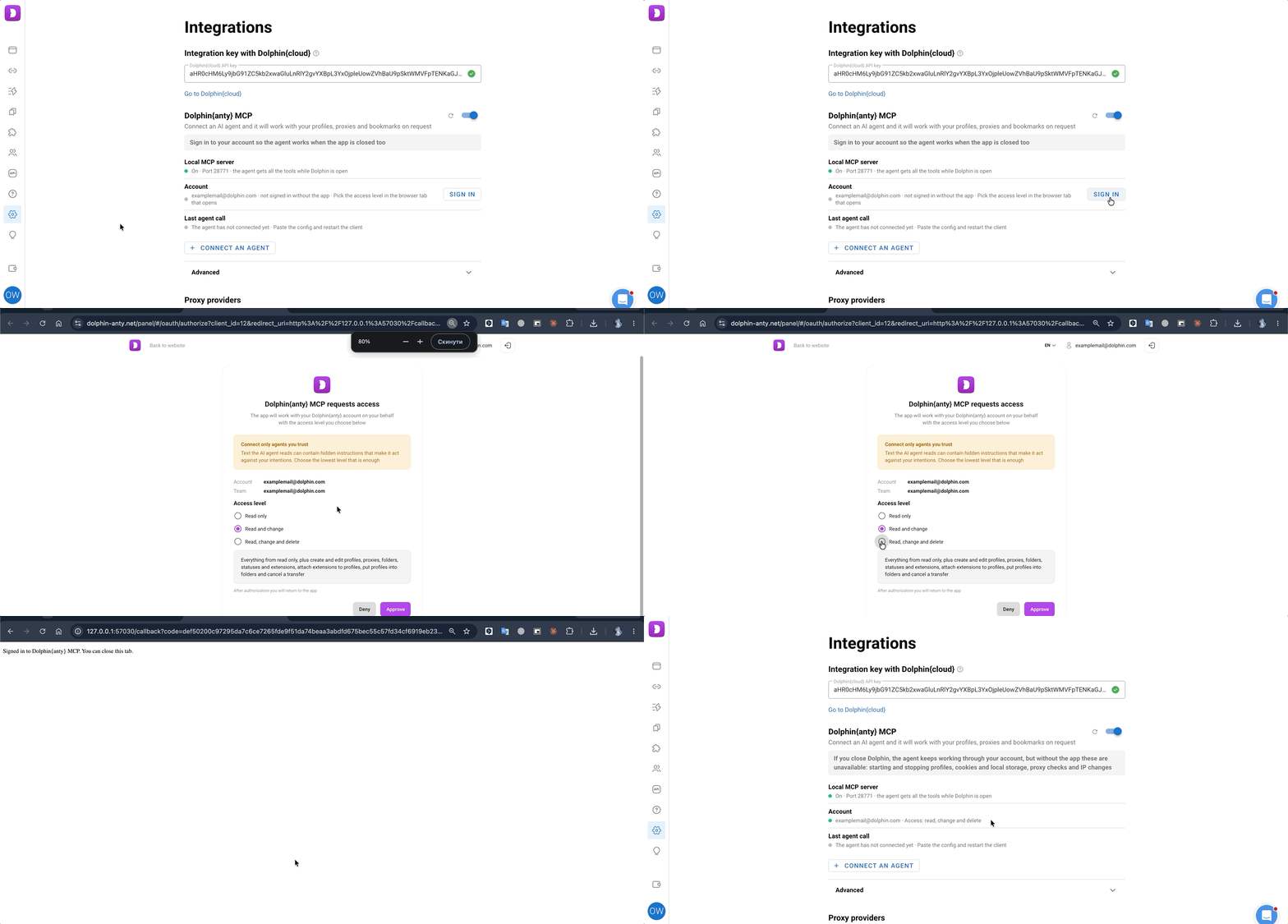
Access levels:
- Read only - the agent only looks: profiles, proxies, folders, tags, statuses, notes, team members, extensions, bookmarks and start pages. It doesn't change anything, doesn't start profiles and doesn't export cookies, even if the app is open
- Read and write (selected by default) - the agent also creates and edits profiles, folders, statuses and notes, creates proxies, adds and removes tags, adds extensions, bookmarks and start pages. It can cancel its own profile transfer, but doesn't delete anything
- Full control - the agent can do everything: delete, transfer profiles, accept and decline transfers, change access to profiles, import cookies and local storage
How to change the level:
- In the personal account, on the MCP connections page, revoke the connection
- In the app, click Refresh status
- Click Sign in again and choose another level
ℹ️ Good to know:
- If the agent hasn't done anything through the account for a month, sign in again
- If the sign-in is revoked or expired, the level restrictions are lifted too: while the app is open, the agent works as it does without signing in
- The agent has the same permissions in the team as the user. It can't do more than the user can
- On one computer, MCP works for only 1 app account. If you sign in to the app with another account, the agent's sign-in is reset, and MCP is off for the new account. After returning to your account, turn MCP on again, click Sign in, and revoke the old connection in the personal account
What the agent can do 🤖
The agent works with almost everything in the account:
- Profiles: find, create (one at a time or up to 100 at once), rename, set tags, start pages and notes, delete, start and stop
- Proxies: create, check, change IP
- Folders, tags and statuses
- Team: access to profiles and profile transfers
- Extensions, bookmarks and start pages
- Cookies and local storage: export and import
The agent can also simply tell you what's going on: show lists, statuses, running profiles and who has access.
ℹ️ Starting and stopping profiles, cookies and local storage, editing and checking proxies and changing IP work only while the app is open.
What the agent doesn't do:
- Doesn't work inside a profile: doesn't open pages, click or fill in forms. Use chrome-devtools-mcp for that
- Doesn't change the fingerprint or proxy of an already created profile, this is done in the app
- Sees password-protected profiles, but doesn't change them, start them or export their cookies
- Doesn't touch payments and plans, doesn't invite or remove team members, doesn't change profile passwords
- Doesn't work with the synchronizer and scenarios, doesn't restore profiles from the trash
- Doesn't see the proxy login, password and IP change link, only knows they exist
- Can't yet start a profile in automation mode or create NodeMaven proxies
ℹ️ Cursor has a limit on the number of active tools. If the Dolphin tools don't fit, turn off the extra ones in the Cursor settings.
Security 🛡️
The agent acts on behalf of the user and with their permissions in the team. So keep a few things in mind:
⚠️ Important
- The agent reads profile names, notes, tags, folder and proxy names. It may take the text written there as a command
- The agent can delete, transfer profiles, change access and import cookies only with Full control
- When transferring a profile with a proxy, the recipient will see the proxy login and password. If you're on the recipient's whitelist, the transfer goes through immediately and can't be canceled
- The token from the personal account and the HTTP token are stored in the agent settings as plain text
- Exported cookies and local storage files are kept in the app folder for up to 24 hours. If you turn off MCP, they're deleted immediately
How to revoke access 🚫
To disconnect the agent completely:
- Turn off the Dolphin{anty} MCP toggle in the app on every computer where it's on
- In the personal account, on the MCP connections page, click Revoke all
If you do only one of these:
- Revoke in the personal account - within a minute the agent stops working without the app. But while the app is open and MCP is on there, the agent keeps working
- Turn off MCP - the agent stops working on this computer but keeps working on others
- Revoking doesn't delete already exported cookies files, while turning off MCP deletes them immediately
All connections are also revoked when the account password is changed or reset. On the Free plan and after the subscription ends, the agent doesn't work, and after paying it works again without a new sign-in.
If the agent doesn't connect 🛠️
-
Port 28771 is already in use
Expand Advanced at the bottom of the section, click Change port, enter a free port from 1024 to 65535 and click Apply. An agent connected by a command doesn't need to be reconfigured, while for an agent connected over HTTP the port in the address needs to be changed
-
MCP is off
Turn on the toggle in the Dolphin{anty} MCP section
-
The agent says the app needs to be running
Open Dolphin{anty}: starting profiles, cookies, checking proxies and changing IP only work with it
-
"The app isn't accepting the agent"
Sign in to the app or wait for the account to load
-
"Signed in without the app to another account"
Click Sign in again with your account
-
"Another account is signed in in the browser"
Sign in to the personal account with the app's account and click Sign in again
-
"The app is running from a temporary folder" (macOS)
Move the app to the "Applications" folder
-
"MCP settings are unavailable in this app shell" or there's no MCP section
Update the app. If the section is still missing after the update, contact support
-
The agent doesn't see the Dolphin tools
Restart the agent, including after updating the app
-
The agent can't create a profile with a proxy right away
Create the profile without a proxy and assign the proxy in the app
-
The "Sign in" button doesn't open the browser
Connect the agent with a token from the personal account, see Other connection methods above
-
The connection check failed
Click Copy report and send it to support