Connecting an AI agent to a Dolphin {anty} profile via chrome-devtools-mcp
General information 📜
With chrome-devtools-mcp, a Dolphin{anty} browser profile can be handed over to an AI agent: Claude Code, Cursor or any other MCP client. The agent can open pages, click, fill in forms, read content and take screenshots on its own.
There is one catch: the port can't simply be set once in the MCP settings. When a profile is started via the API with automation=1, Dolphin{anty} gives it a new random port every time. That's why the MCP client doesn't run chrome-devtools-mcp directly, but a small wrapper script that first finds the current port and then passes it on.
How the script finds the port:
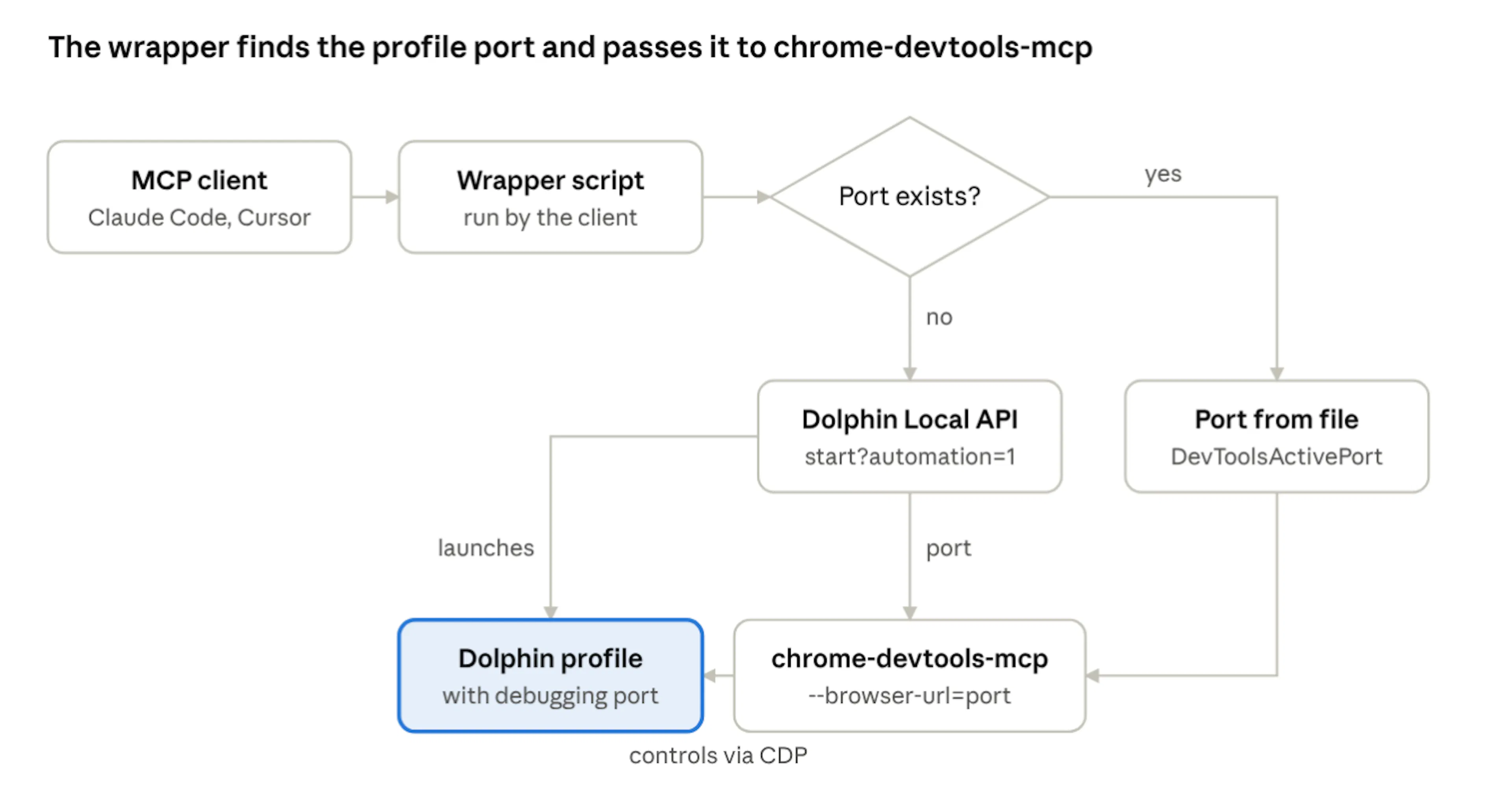
- The profile is already open in automation mode → the script takes the port from the profile's service file
- The profile is closed → the script starts it via the API and takes the port from the response
After that, chrome-devtools-mcp connects to the profile, and the agent can work with it.
ℹ️ If you haven't used automation before, it's worth starting with Basic Automation Dolphin {anty}: it explains in detail how a profile is started via the API and where the port comes from.
What you need ✅
- A paid Dolphin{anty} plan. Automation isn't available on the Free plan, the start request returns error 402
- Dolphin{anty} running and signed in. You can sign in the usual way or with an API token
- Node.js 18 or newer (any LTS version works). Download it from nodejs.org
- An MCP client that can run local (stdio) servers: Claude Code, Cursor, VS Code, Windsurf, Claude Desktop and others
- The ID of the profile you want to connect. It's shown in the top right corner of the profile editing window in Dolphin{anty}
⚠️ The profile must be closed before the MCP server starts
If the profile is opened from the Dolphin{anty} interface the usual way, it has no debugging port and the agent can't connect to it. The script starts the profile in the right mode on its own.
Step 1. Save the wrapper script 💾
One script works on all systems: macOS, Windows and Linux.
- Create a permanent folder for the script, for example
~/mcp/on macOS and Linux orC:\mcp\on Windows - Create a file named
dolphin-devtools-mcp.mjsin it - Paste the code below into the file and save it
What the script does:
- Looks for the
DevToolsActivePortfile in the profile folder. If the file exists and the port responds, it uses that port - If not, it starts the profile with
GET http://127.0.0.1:3001/v1.0/browser_profiles/<ID>/start?automation=1and takes the port from theautomation.portfield of the response - Runs chrome-devtools-mcp with that port. The
--no-usage-statisticsand--no-performance-cruxflags stop it from sending usage statistics and page URLs to Google
⚠️ If the local API isn't on port 3001
The Dolphin{anty} local API usually runs on port 3001, but if another program is using it, the app takes a different one. The current port is shown in the Health window, which opens from the bottom bar of Dolphin{anty}. In that case, replace 3001 in the script with the current port (it appears in two places).
Dolphin{anty} profiles are stored here (the script finds the folder on its own, this is just for reference):
~/Library/Application Support/dolphin_anty/browser_profiles/<ID>/data_dir/
%APPDATA%\dolphin_anty\browser_profiles\<ID>\data_dir\
~/.config/dolphin_anty/browser_profiles/<ID>/data_dir/
Step 2. Connect the server to the MCP client 🔌
Each profile is connected as a separate MCP server with its own name.
Run one command in the terminal from the project folder:
claude mcp add dolphin-123456789 -- node /Users/USERNAME/mcp/dolphin-devtools-mcp.mjs 123456789
Where USERNAME is the system user name and 123456789 is the profile ID. On Windows, the script path looks like C:\mcp\dolphin-devtools-mcp.mjs.
By default, the server is available only in this folder. To make it work in all projects, add --scope user right after the server name:
claude mcp add dolphin-123456789 --scope user -- node /Users/USERNAME/mcp/dolphin-devtools-mcp.mjs 123456789
Add an entry to the client's MCP server settings (Windsurf and Claude Desktop are set up the same way):
{
  "mcpServers": {
    "dolphin-123456789": {
      "command": "node",
      "args": ["/Users/USERNAME/mcp/dolphin-devtools-mcp.mjs", "123456789"]
    }
  }
}
Where USERNAME is the system user name and 123456789 is the profile ID.
On Windows, write the path in JSON with double backslashes:
"args": ["C:\\mcp\\dolphin-devtools-mcp.mjs", "123456789"]
ℹ️ If the client can't find node, put the full path to it in the command field. You can get the path with which node on macOS and Linux or where node on Windows.
Step 3. Check the connection 🔍
If everything is set up correctly, the profile opens on its own when the MCP client starts, and the agent sees its tabs.
- Close the profile in Dolphin{anty} if it's open
- Restart the MCP client or start a new session: servers connect at startup. The first run takes longer than usual because chrome-devtools-mcp is downloaded from the internet
- Check the server status. In Claude Code, run
claude mcp list, the server should show Connected. In other clients, the status is in the MCP settings - Ask the agent: "Show me the list of open tabs". The agent calls the
list_pagestool and shows the profile's tabs
✅ Done! The agent now has about 30 tools, including navigate_page, click, fill_form, take_snapshot, take_screenshot and list_pages.
Security and limitations 🛡️
⚠️ The agent gets full access to the profile
The agent sees every tab in the profile and can read and change data in any of them: email, ad accounts, payment pages, wallets in extensions. So connect only the profiles the agent is allowed to work in. It's best to create a separate profile for it without extra sessions.
- The profile opens when the MCP client starts, not when a request is sent to the agent. If that gets in the way, enable the server only while working. In Claude Code, remove it with
claude mcp remove dolphin-123456789 - After work, the profile stays open together with the debugging port. The port is reachable only from this computer, but local programs can connect to it. Close the profile in Dolphin{anty} or send
GET http://127.0.0.1:3001/v1.0/browser_profiles/123456789/stop - The
--autoConnectflag doesn't work with Dolphin{anty}. It looks for the regular Chrome folder, while Dolphin{anty} profiles are stored elsewhere