
NodeMaven proxies - how do they work with Dolphin {Anty}
NodeMaven
What and why ? 🤔
On the proxy list screen on the right-top right, there is a button “Get free proxies”, after clicking on it you are given a choice of one of our partners. Let's consider integration with NodeMaven proxy store.

With this integration you can connect proxies from NodeMaven without leaving the Dolphin{anty} app, or buy them from your store account balance right in the same window. 👍🏻
How to use ? ⚡️
First you need to open the “Proxies” section via the left menu in antique, then find the “Get Free Proxies”.
Next, a window will open where you can see information about creating an account in the NodeMaven service. Login is the mail from Dolphin{anty} account, and the password will be sent to the same mail, you can use it to log in to your personal account at site. It also shows how many gigabytes of traffic are given for free according to the plan 😉
-
Free and Starter - Not available
-
Base - 7 GB of traffic
-
Team - 10 GB of traffic
-
Enterprise - 18 GB of traffic
You need to click “Connect NodeMaven” on the bottom-right to continue ✅
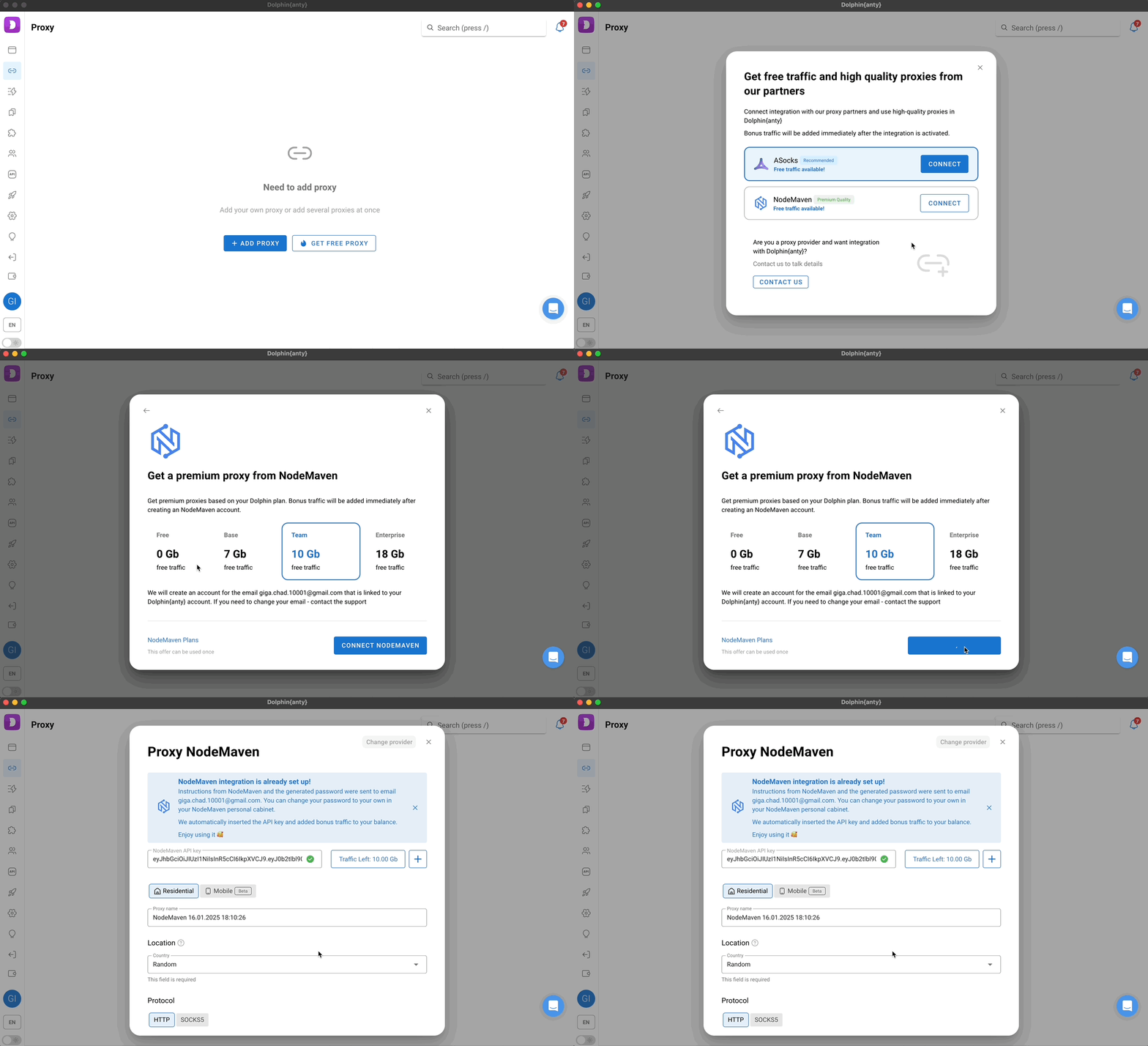
Point by point what the elements are responsible for and how to use them ⬇️
Important info❗️
This integration is necessary to simplify adding/using proxies without leaving or minimizing the anty, but Dolphin{anty} itself does not regulate and is not responsible for the connection and operation of proxies.
If you encounter any problems with proxies or connecting an account using an API key, you should contact NodeMaven support via site 🌐