Profile activity and user sessions
When working in a team, it's important to know who is currently working in a profile and from which device. If the same profile is open on several devices at the same time, data synchronization may break and some of the data inside the profile may be lost.
Dolphin{anty} has three tools to keep teamwork under control:
- Profile launch indication: shows who launched a profile and on which device
- Parallel launch blocking: prevents a profile from being launched while it's open for someone on the team
- Active user sessions: show which devices are logged in to an account and let you end unnecessary sessions
Profile launch indication 👀
The indication shows right in the profile list whether a profile is running now, who launched it and on which device. Indication icons are displayed to the left of the launch button.
How to enable ⚙️
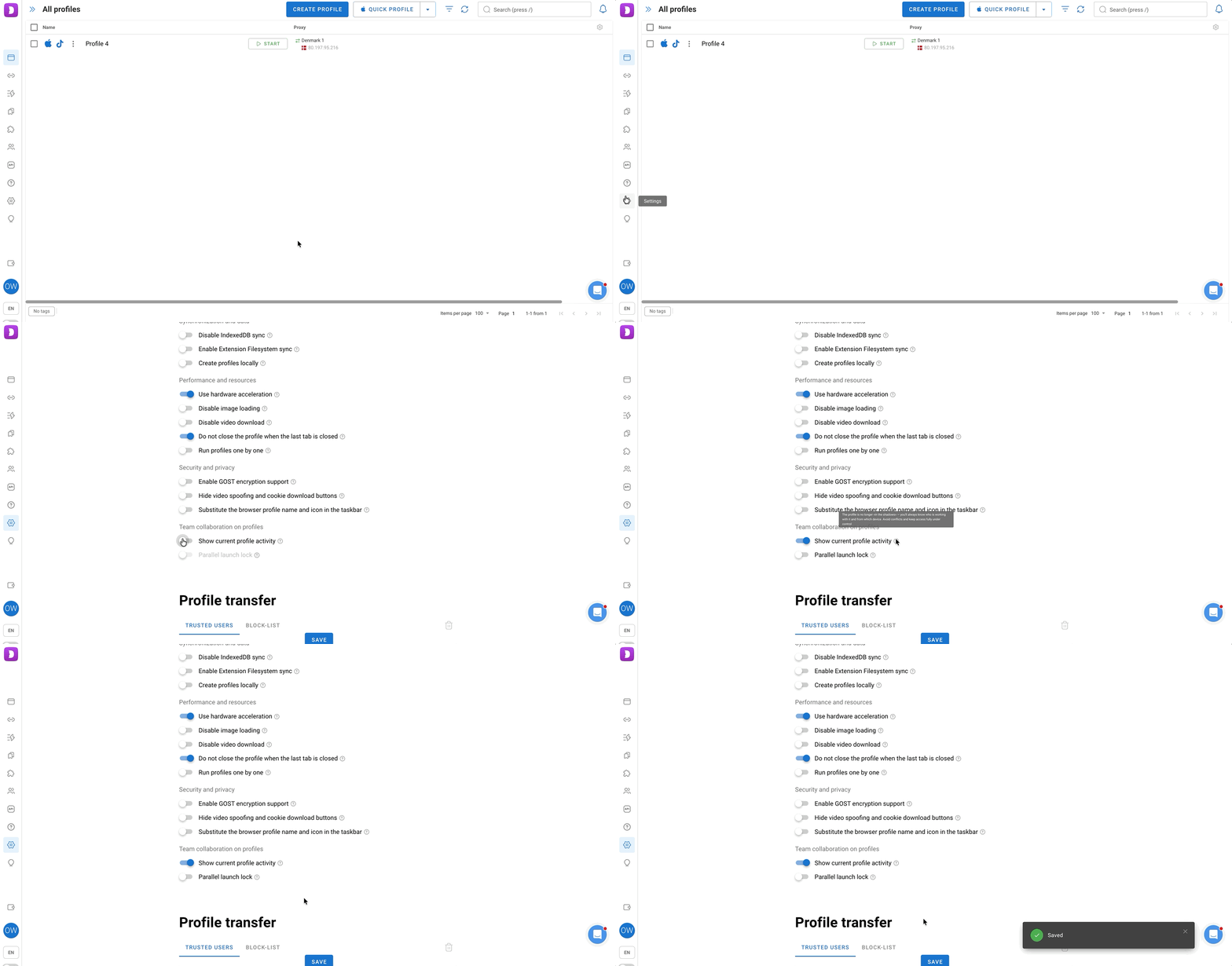
- Open "Settings" ➡️ "Browser Profiles".
- In the "Collaboration on profiles" block, turn on the "Show current profile activity" switch.
- Click "Save".
Important! Only the team Admin can enable the indication. The setting applies to the whole team at once; for other members the switch is inactive. The indication is disabled by default.
Availability by plan 💳
- Below Base: the indication is not available; when you try to enable it, you'll be offered to change your plan.
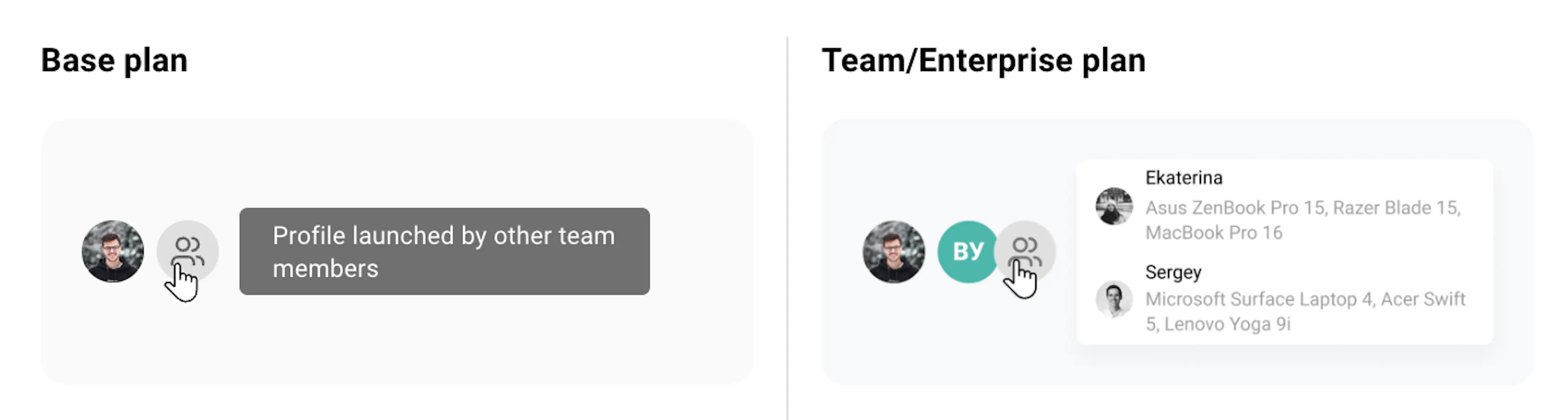
- Base: the indication works with limitations, only for your own profiles. You can see your own launches, including on other devices, and a general icon showing that the profile was launched by someone on the team, without details.
- Team and higher: the indication is fully available.
Who sees what 👥
On Team and higher plans:
- Admin and Teamlead: see all launches with details, both in their own profiles and in profiles shared with them
- User: sees all launches with details in their own profiles, while in profiles shared with them only their own launches and a general "profile launched by other team members" icon without details
Launch details: the user's name, email and the device the profile is running on.
How to read the indication 🔍

- Your icon: hover over it to see on which devices you launched this profile. If the profile is open only on the current device, a hint will say so.
- Other users' icons: hover over one to see the name, email and device of the user who launched the profile. Up to two such icons are shown next to your own.
- Icon with people: appears if the profile is running for more users. Hover over it to see how many users launched the profile, and click it to open a list of all launches with names, emails and devices. You can search the list by name or email.
Important! The indication works only for profiles with cloud synchronization enabled. If synchronization is disabled, only your own launch on the current device is displayed.
Parallel launch blocking 🔒
Blocking prevents a profile from being launched if it's already running for someone on the team on any device. While the profile is open, the launch button is inactive for everyone else. Launching becomes available again once the profile is closed everywhere.
Important! Blocking is available on Base and higher plans. By default, it's disabled on all profiles.
For the whole team 🌐
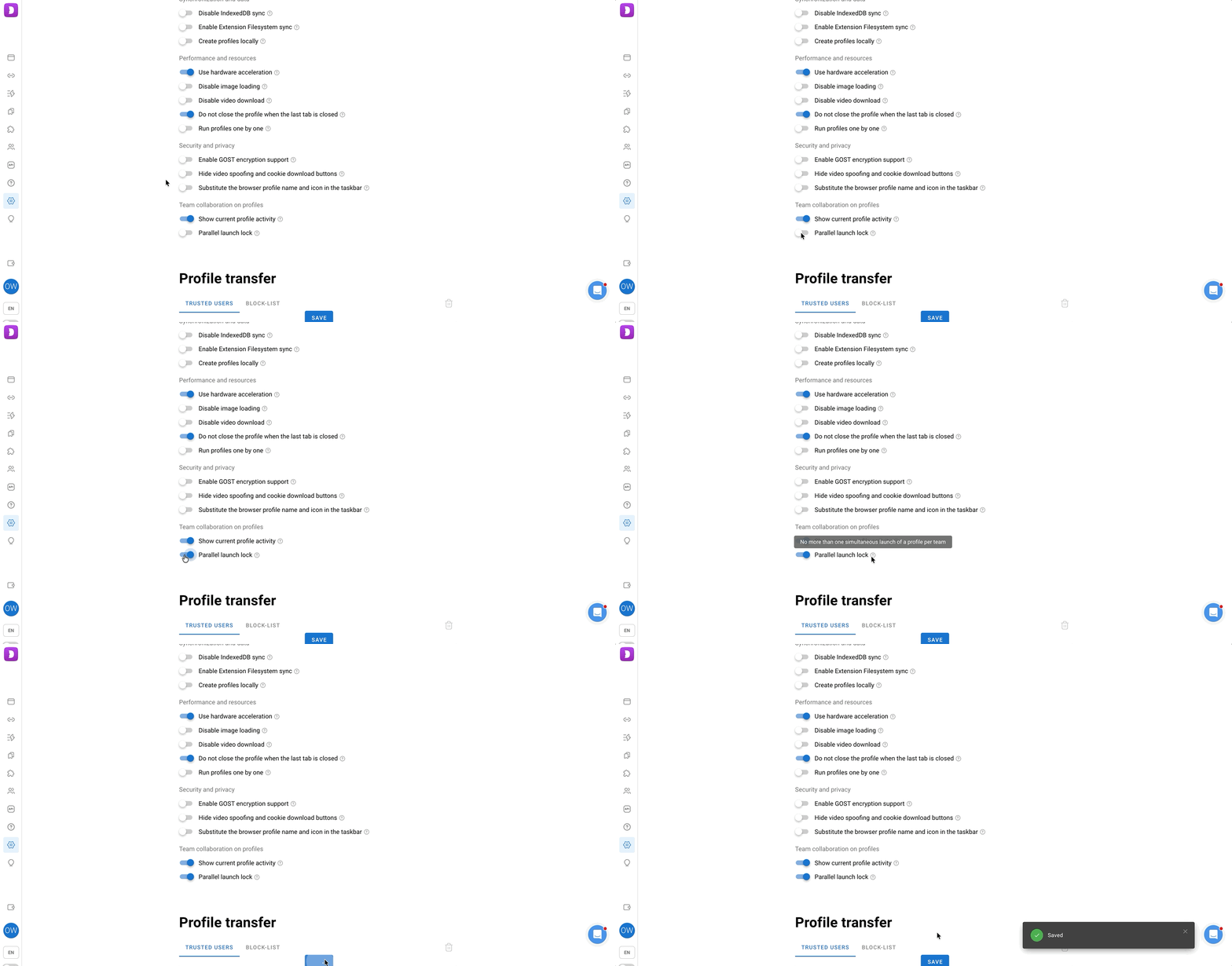
- Open "Settings" ➡️ "Browser Profiles".
- In the "Collaboration on profiles" block, turn on the "Parallel launch blocking" switch.
- Click "Save".
Only the team Admin can change the global setting. New profiles automatically get this setting.
For a single profile 🎯
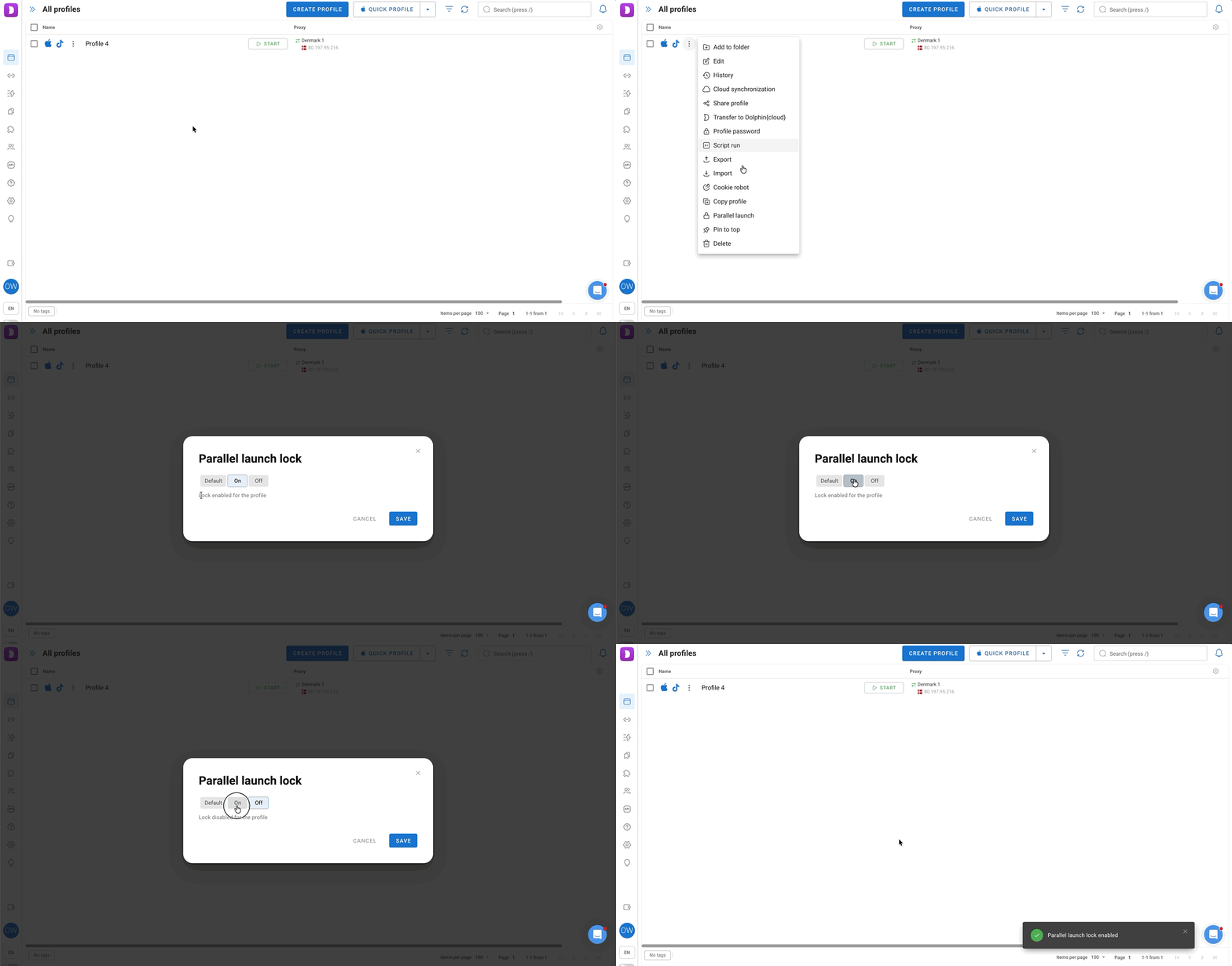
- Click the three dots to the right of the profile and select "Parallel launch".
- In the "Parallel launch blocking" window, choose one of the options:
- Default: the profile inherits the team setting. Below the selector you can see whether it's enabled or disabled.
- Enable: blocking is enabled on this profile regardless of the team setting.
- Disable: blocking is disabled on this profile regardless of the team setting.
- Click "Save".
The profile setting takes priority over the team setting. If you change the global setting later, profiles set to "Enable" or "Disable" won't inherit it.
Who can change blocking:
- Admin: for the whole team, in their own profiles and in profiles shared with them
- Teamlead: in their own profiles and in profiles shared with them
- User: only in their own profiles
Important! If the profile is already open on several devices when blocking is enabled, it won't close by itself. New launches will become available only after the profile is closed everywhere.
Blocking works best together with the indication: if a profile is busy, the icons immediately show who has it running.
Active user sessions 🖥️
In the "Users" section, you can see which devices are logged in to a team member's account and end those sessions if needed. This is useful, for example, if an employee has left the team, lost access to their device, or a login from an unfamiliar IP address appears in the list.
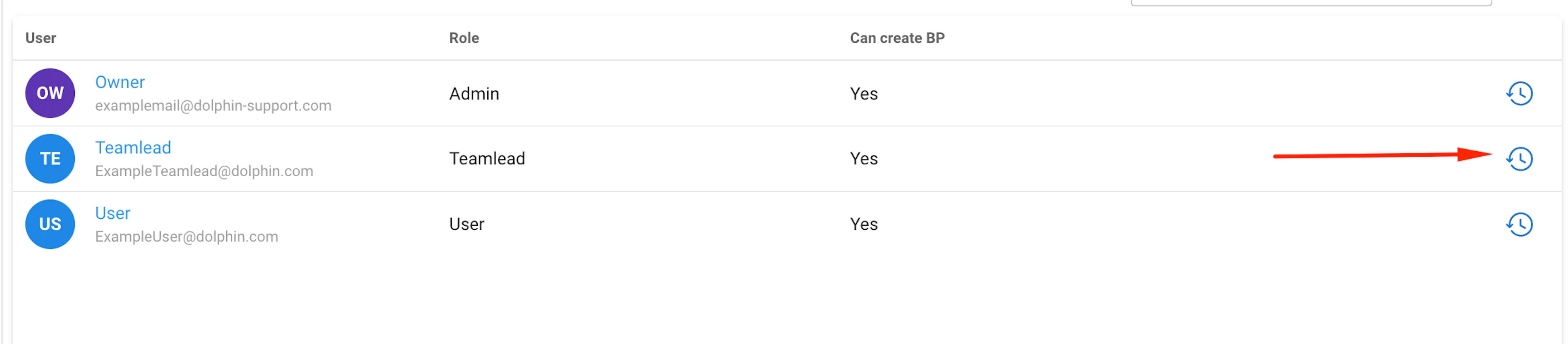
Who can see whose sessions:
- Admin: sessions of all team members
- Teamlead: their own sessions and the sessions of users assigned to them by the admin
- User: only their own sessions
To open the list of sessions, go to the "Users" section and click the clock icon to the right of the desired user.
Your own sessions 👤
If you open the sessions of your own account, the "Active sessions" window will appear, showing:
- Current device: the device you are currently working from
- List of other sessions: device name, IP address and last activity time
There are two ways to end sessions:
- One at a time: click the cross to the right of the desired session, and the login will be ended only on that device.
- All at once: click "End other sessions", and all sessions except the current device will be ended.
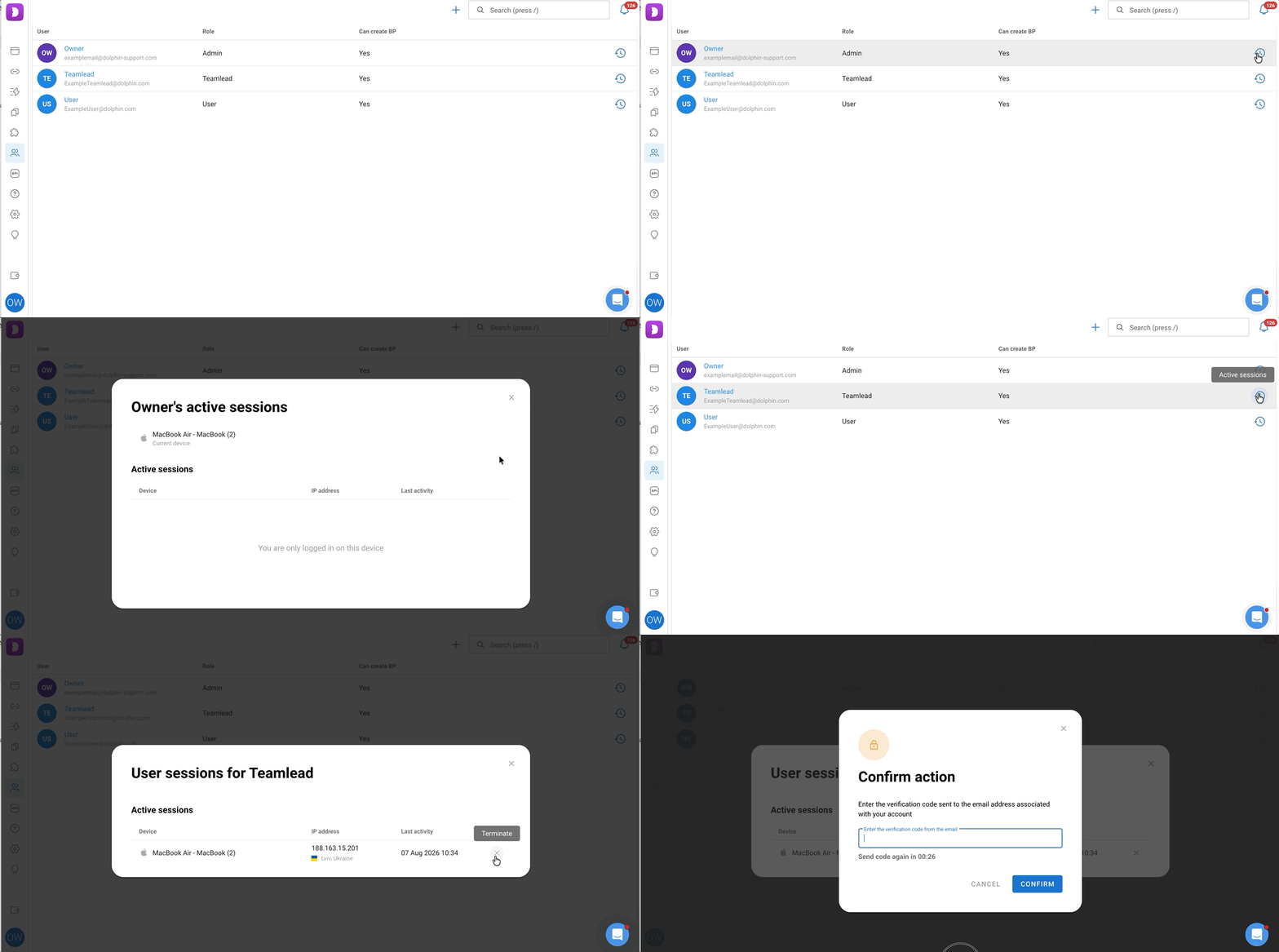
Other users' sessions 👥
If you open the sessions of a team member, the "User sessions" window will appear with a list of all their active sessions: device, IP address with location, and last activity time.
To end any of them, click the "End" cross to the right of the session.
Important! Ending sessions always has to be confirmed with a code:
- if two-factor authentication (2FA) is enabled on the account, you will need a 6-digit code from your authenticator app;
- if 2FA is not enabled, the code will be sent to the email linked to the account.