
Installing Dolphin {anty} on Linux
Before installation ⬇️
First, you need to download the latest version from the official website.
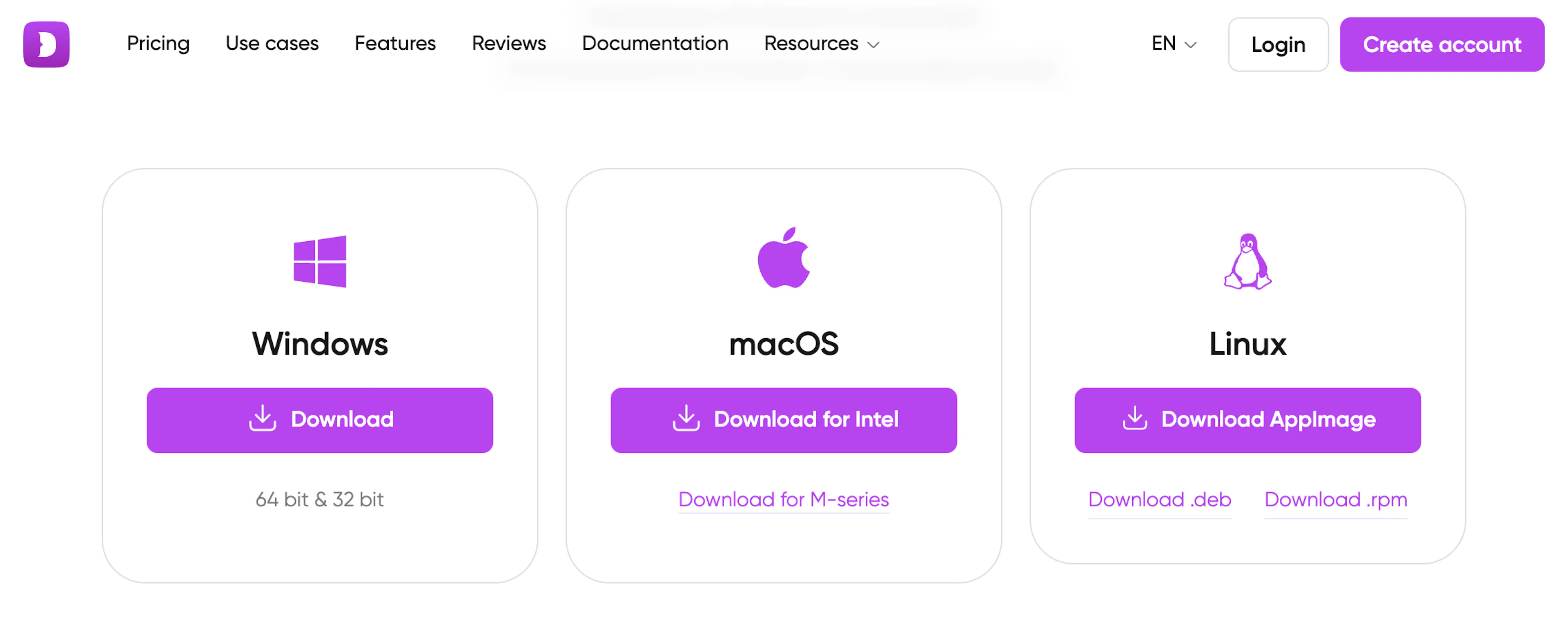
For Linux-based systems, there are 3 application formats:
- .AppImage — a universal format for Linux. Works on almost any distribution: you just make the file executable and run it. Essentially, it’s a portable version of the application.
- .deb — an installation file for distributions based on Debian/Ubuntu (for example: Ubuntu, Linux Mint, Pop!_OS). Installed via the “dpkg / apt” commands or by double-clicking the file.
- .rpm — packages for distributions based on Red Hat/Fedora/openSUSE (for example: Fedora, CentOS, RHEL, openSUSE). Installed using the “rpm -i” command.
To install the antidetect on any Linux-based system, you need to open the terminal by right-clicking on the desktop and selecting “Open in Terminal,” or by using the key combination CTRL+ALT+T.
Commands in the terminal 🤖
Next, you need to enter the following commands in the terminal:
sudo apt update
This command updates the package lists in the Linux system. The packages themselves are not upgraded; only the list is refreshed.
sudo apt upgrade
It upgrades all packages installed in the system (based on the previously updated list) for which updates are available to the latest versions found in the configured repositories.
sudo apt install fuse
FUSE (Filesystem in Userspace) is an interface that allows user-space programs to export a filesystem to the Linux kernel. Simply put, it’s a necessary utility for the program to work 😉 More details
Starting the installation 🚀
Using the cd command, navigate to the folder where the downloaded antidetect file is located:
cd Downloads/
With this command in the terminal, we move into the folder where our file is located. The path and folder name may differ depending on the language or your Linux distribution (for example, the folder might be called Downloads).
Next, to verify, enter this command:
ls
This command displays the list of files in the folder we navigated to. The file dolphin-anty-linux in the format .appimage / .deb / .rpm should appear in the list.
After that, the installation methods differ depending on the file format suitable for your system:
⚠️ Important!
The Ubuntu version must be 22.04 or higher (other distributions should match this version as well), and the libc library must be at least version 2.28.